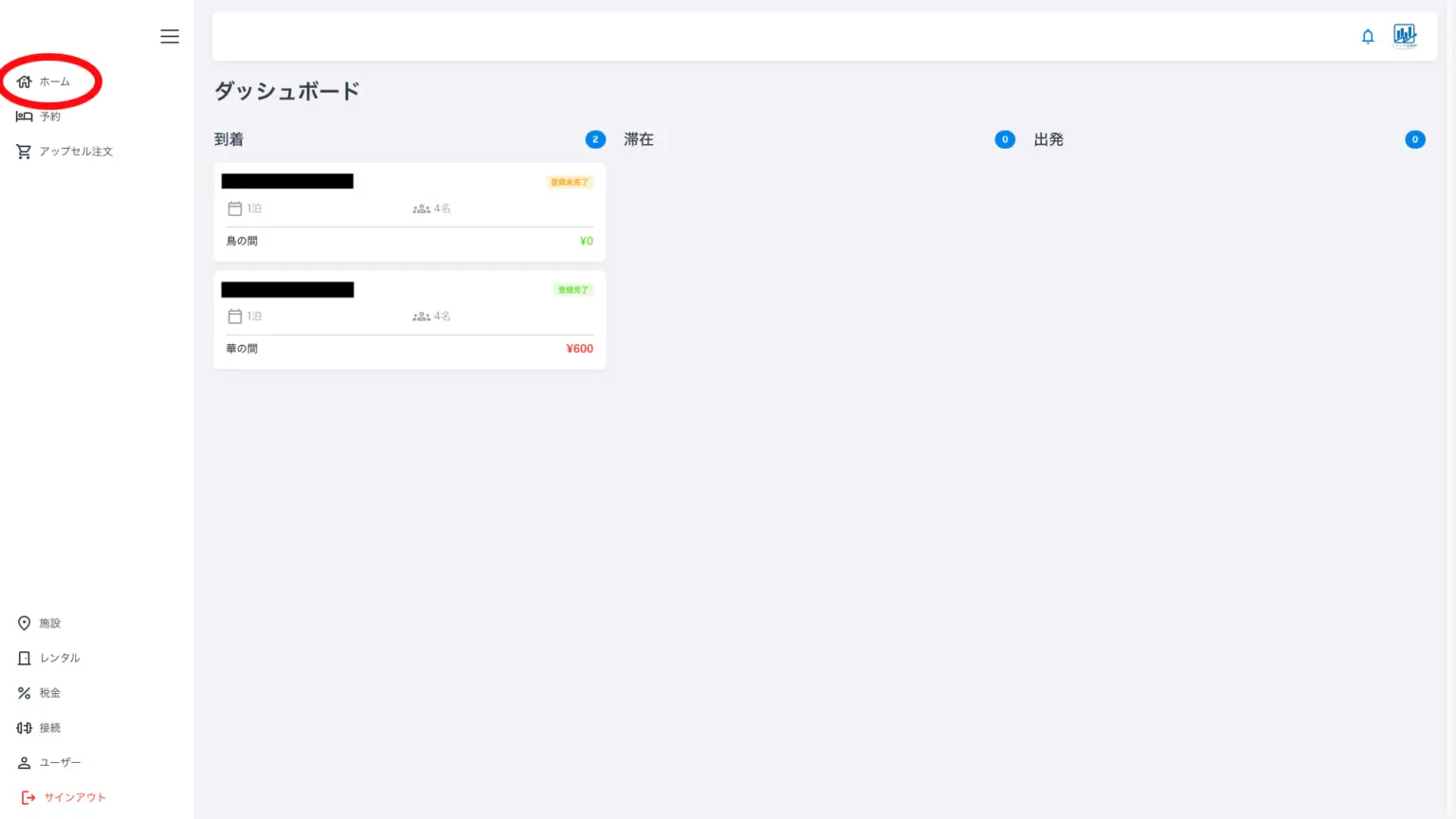
Selecting “Home” from the menu on the left will display the dashboard. On days with reservations, stays, or departures, the guest name, number of guests, and room number are displayed in boxes. These represent today’s arriving guests, staying guests, and departing guests.
Clicking a box will display the 5-2 folio (account). On days with no arrivals, departures, or stays, nothing is currently displayed. If you still wish to view reservations, please see below.
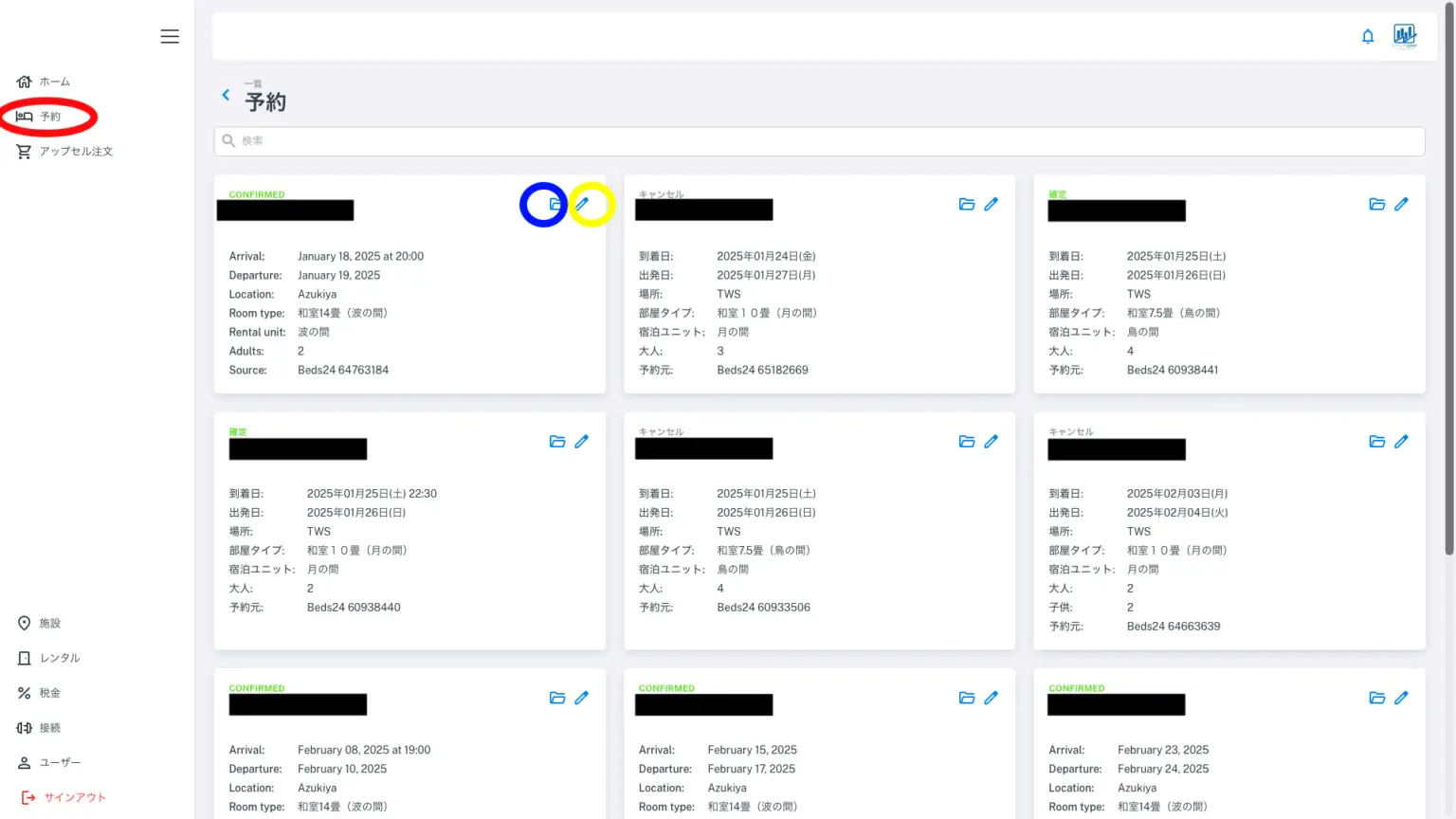
Please select “Reservations” (indicated by the red circle) from the menu on the left. All reservations will be displayed in calendar order. On mobile phones, the menu can be accessed via the hamburger menu in the upper left corner.
Reservations are automatically imported from beds24, categorized by facility and room (unit or rental).
You can view the contents using the blue circle folder icon and edit the contents using the yellow circle pencil icon.
Basically, data is automatically sent from OTA to beds24 and then to Quick Accommodation Tax Ledger. However, edits and corrections made in Quick Accommodation Tax Ledger are not sent to beds24, overwritten, or modified there.
Copying the name of a guest from Google Calendar, beds24, or other software and searching in the search bar will display only that guest.
This app recognizes OTA Collect as collected and Hotel Collect as uncollected (collected by the accommodation facility), and recognizes the outstanding balance (balance), so you won’t forget to collect payment or miss Hotel Collect due to being in a hurry. Pressing the pencil icon will bring up the folio screen shown below. *Quick Accommodation Tax Register cannot be used to register new reservations independently. To create a reservation manually, please do so through Beds24 (add booking).
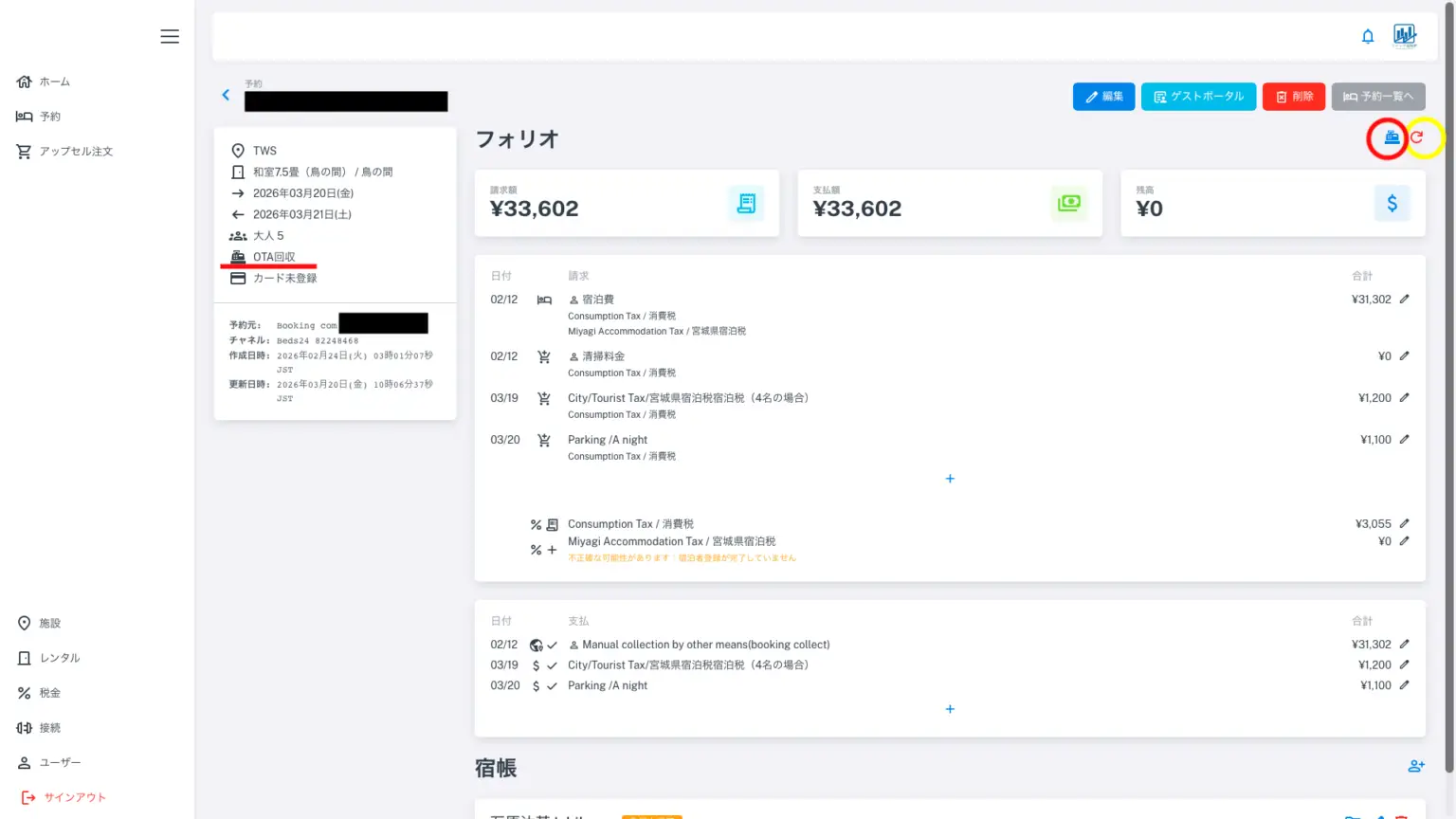
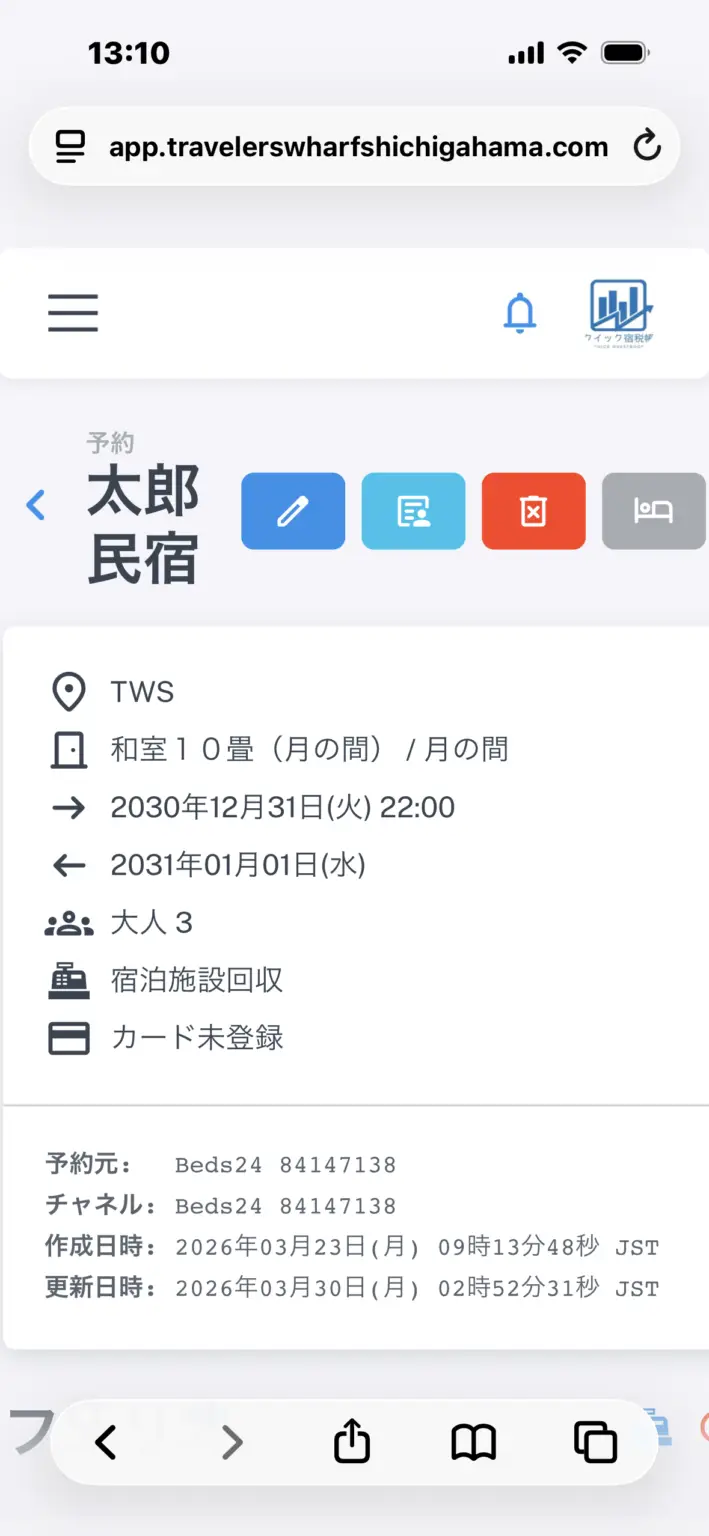
Clicking the folder icon in the upper right corner of each reservation box will open the individual folio (account ledger). Personal names and reservation numbers are shaded.
The left-hand menu shows details such as the accommodation name, room number, reservation holder’s name and number of guests, dates, whether card information is registered, and the booking source, along with a note indicating “OTA Collection.” The billing (order) and payment sections show that the accommodation fee was settled on February 12th (via booking). In other words, the accommodation fee for this reservation has already been paid; only parking fees and accommodation taxes will be paid on-site. This section is the Quick Tax Ledger area, but in the case of facility payment (hotel collect), the Quick Tax Ledger also collects the accommodation fee. Of course, cash collection and collection via other POS systems are also possible; in that case, please edit using the “+” in the box.
The large central block shows the reservation amount, subsequent order details, order date and time, and corresponding consumption tax, reduced consumption tax rate, accommodation tax, etc. This is the billing item column.
The large block below shows when payments were made for each order. This is the payment item section.
If there are outstanding payments, they will be displayed at the top as (balance). Pressing the red circle (register icon) in the upper right corner allows you to settle only the outstanding balance at once (if a credit card is registered).
This reservation is in the testing phase; the credit card number is not entered (registered) in this guest register, but the balance has already been settled. This shows that the Stripe payment, processed through another system, has been imported and displayed, demonstrating that the correct connection between beds24 and Stripe is complete.
Naturally, the same ledger (account) will be displayed on the guest’s front-end (guest register side), as shown in the image above. To view the guest’s guest register from the backend, press the light blue “Guest Portal” button in the upper right corner.
The yellow circle (update icon) in the upper right corner of the backend screen should be used to reflect settings such as changes in accommodation tax rates, reduced consumption tax rates, or changes to child rates. It will recalculate. The process of changing the consumption tax rate, including registering the new tax, will be completed in about 3 minutes. Please back up your records with screenshots before changing the tax rate, as all past accounts will be changed simultaneously.
*The pencil icon next to the details allows you to manually correct prices (e.g., discounts).
*To view the guest’s register from this folio screen, click the guest portal in the upper right corner; this will also allow you to view it from the frontend.
*From the guest register at the bottom of the screen, you can also view the entered identification documents from the backend.
For example, if you click “Guest Portal” in the upper right corner of the screen, you will see a screen like the one below.
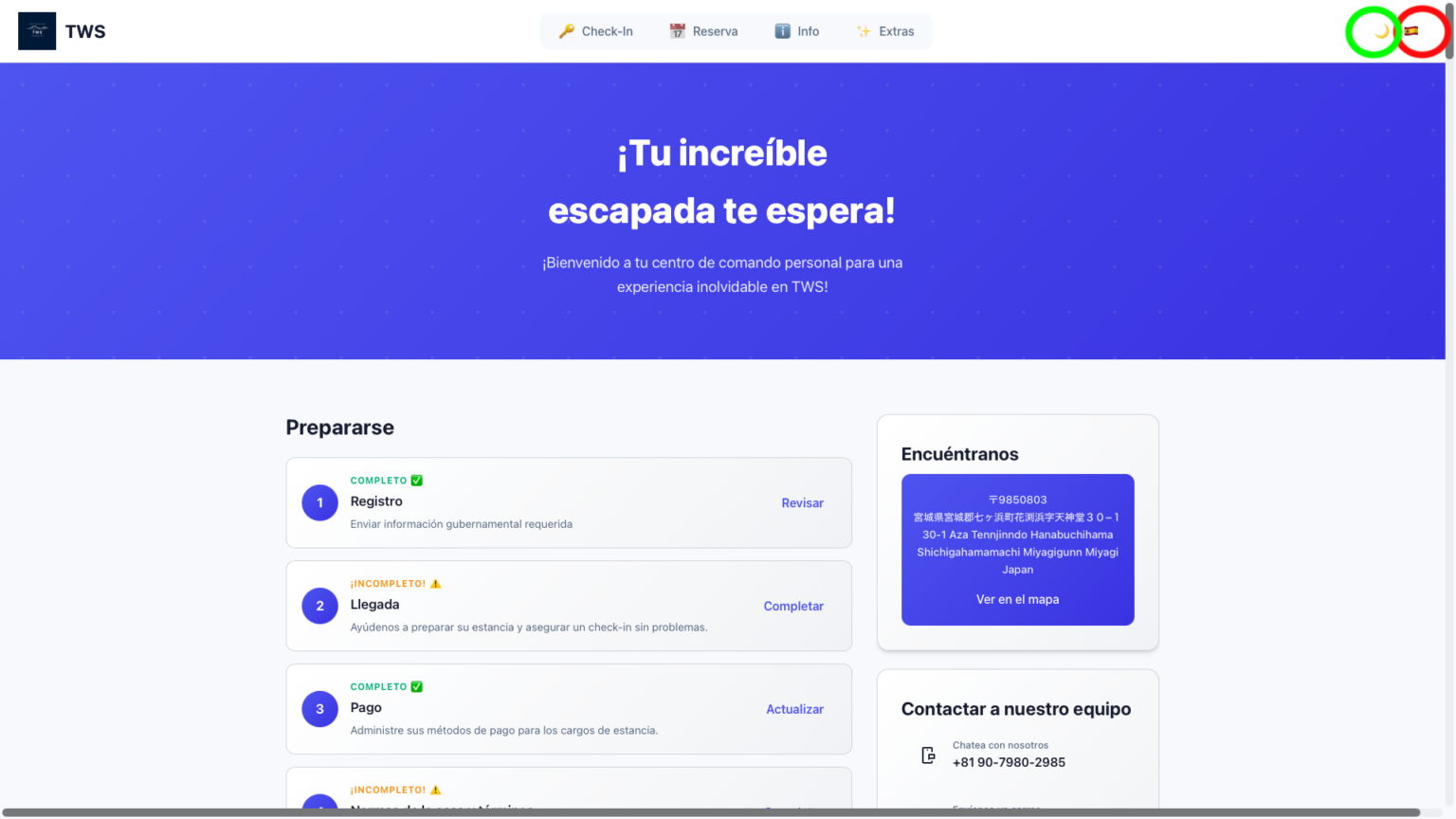
UI: Light color Language: Spanish
UI: Dark color scheme Language: Japanese
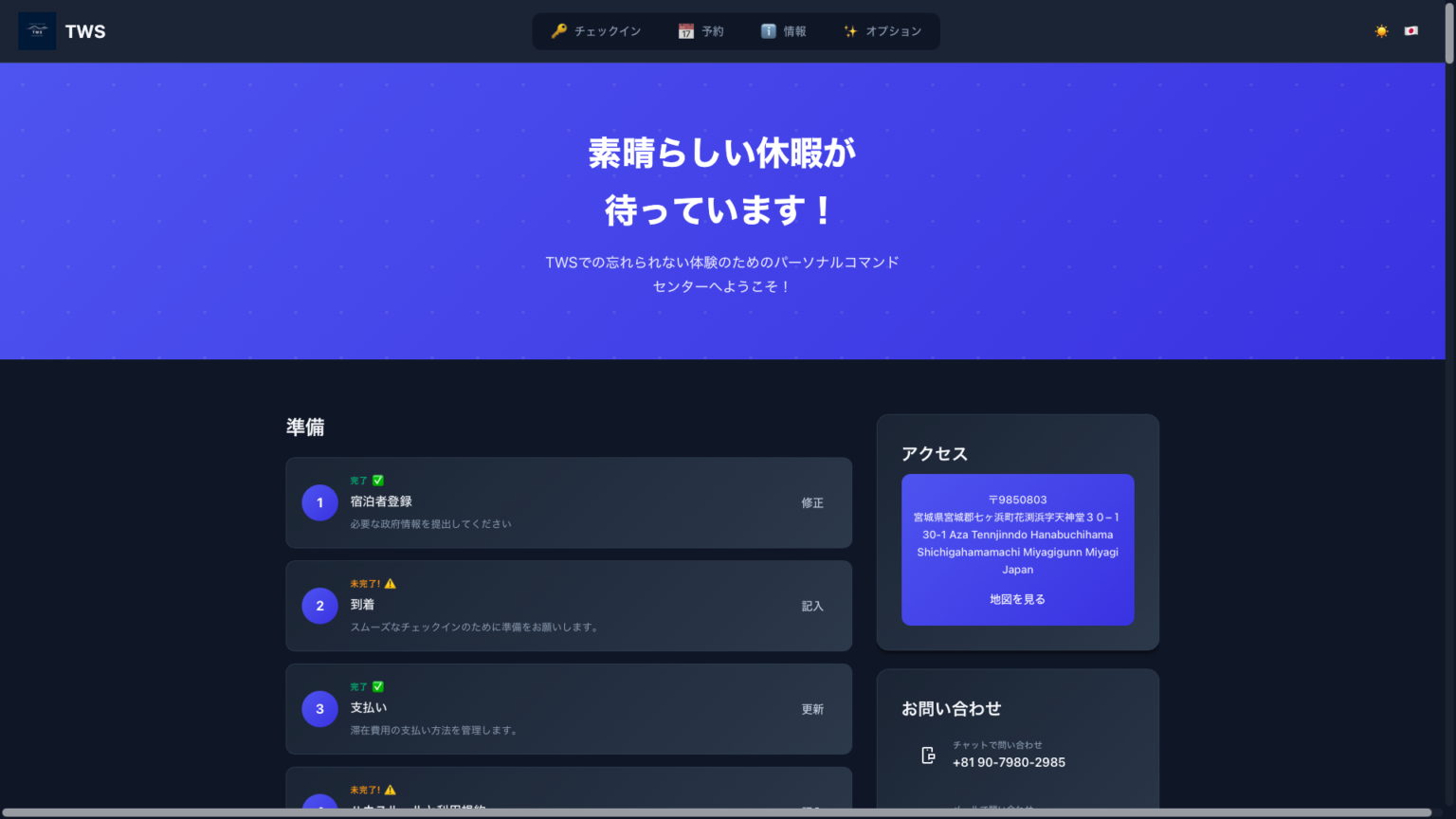
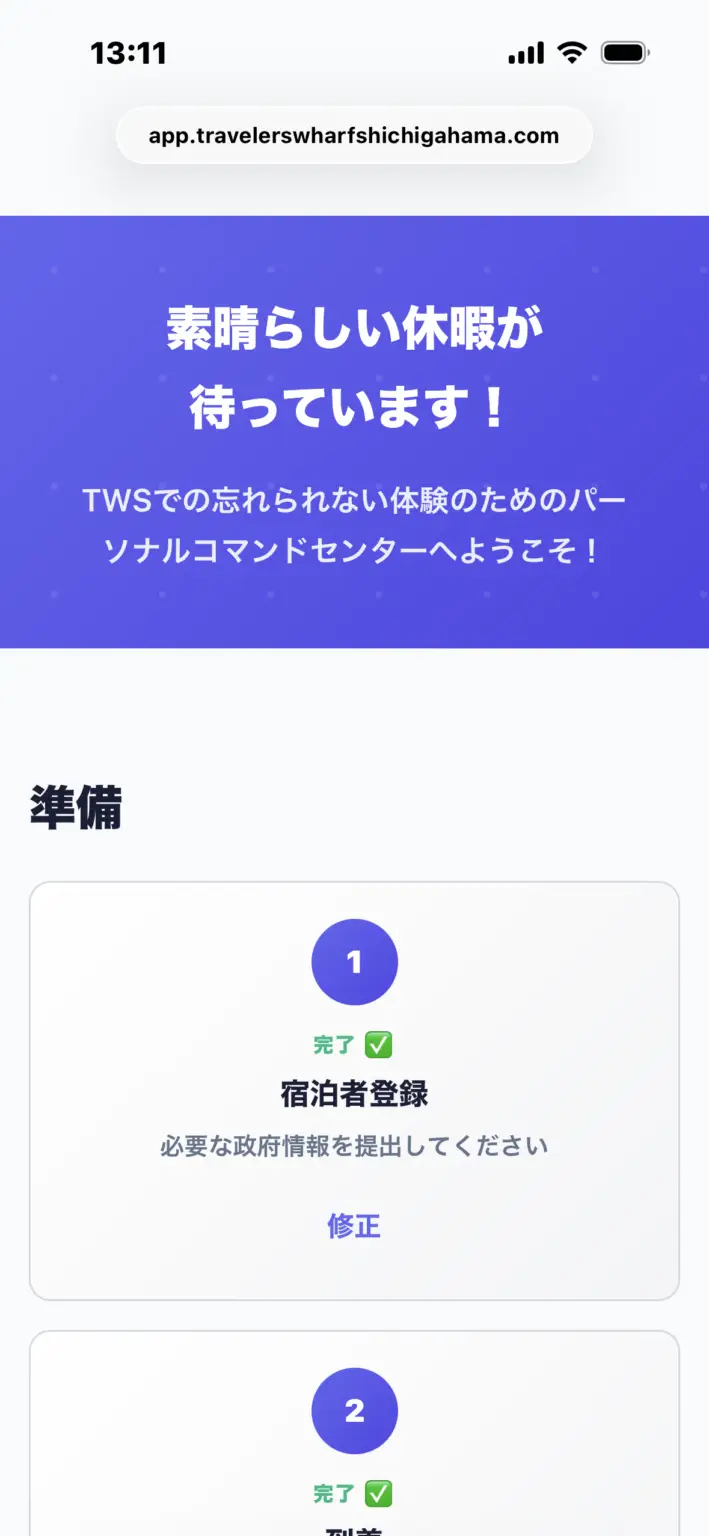
This is the guest’s registration screen. The guest appears to be from a Spanish-speaking country. You can switch languages using the red circle in the upper right corner, which is next to the flag icon. Pressing the green circle (moon icon or sun icon) will switch the registration UI between dark and light. After switching, it will look like this.
This is the UI (dark color). Switching between dark and light UI colors is only possible on the frontend (the guest registration side).
It is not possible to change the backend UI in this way.
dashboard
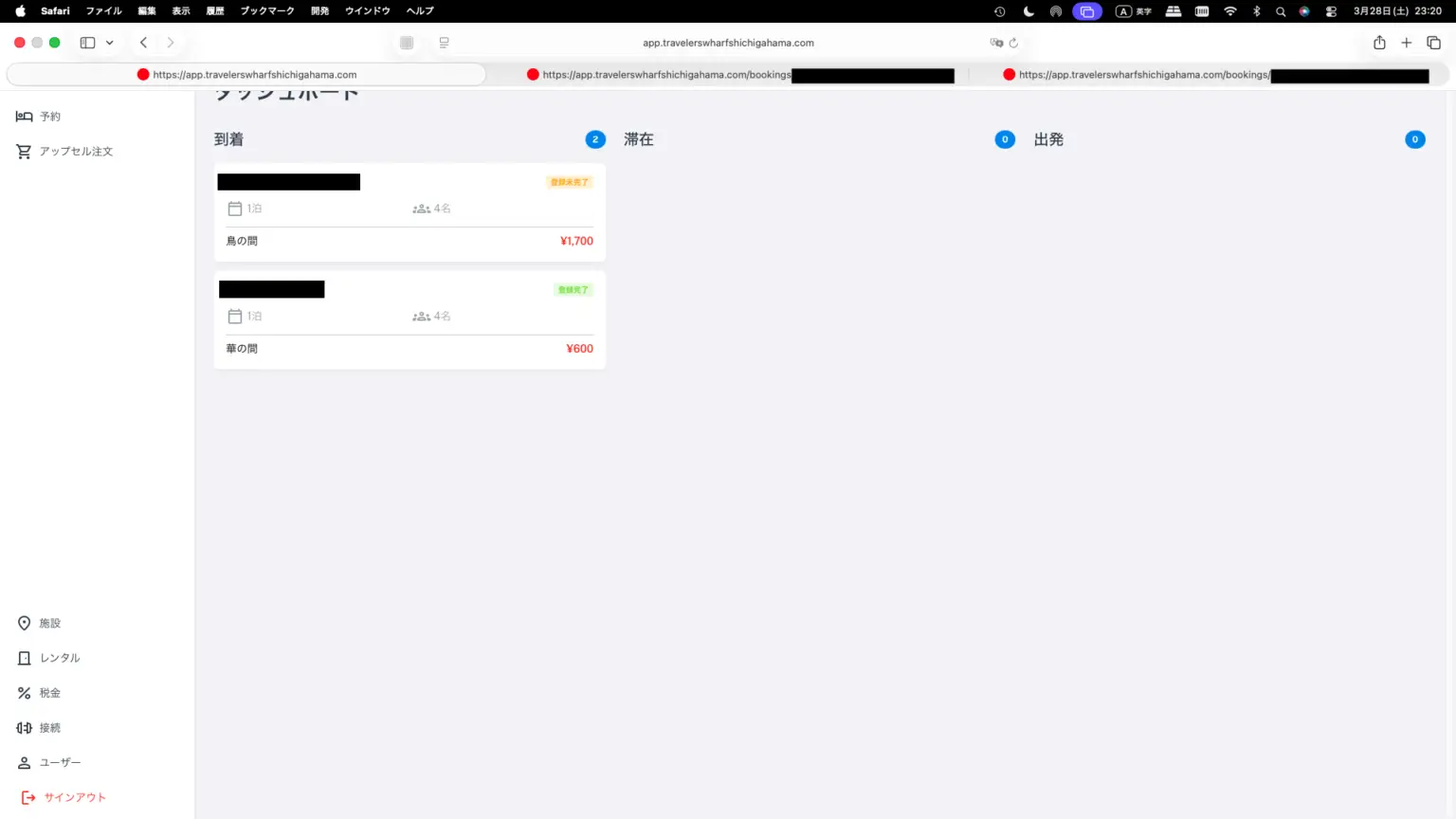
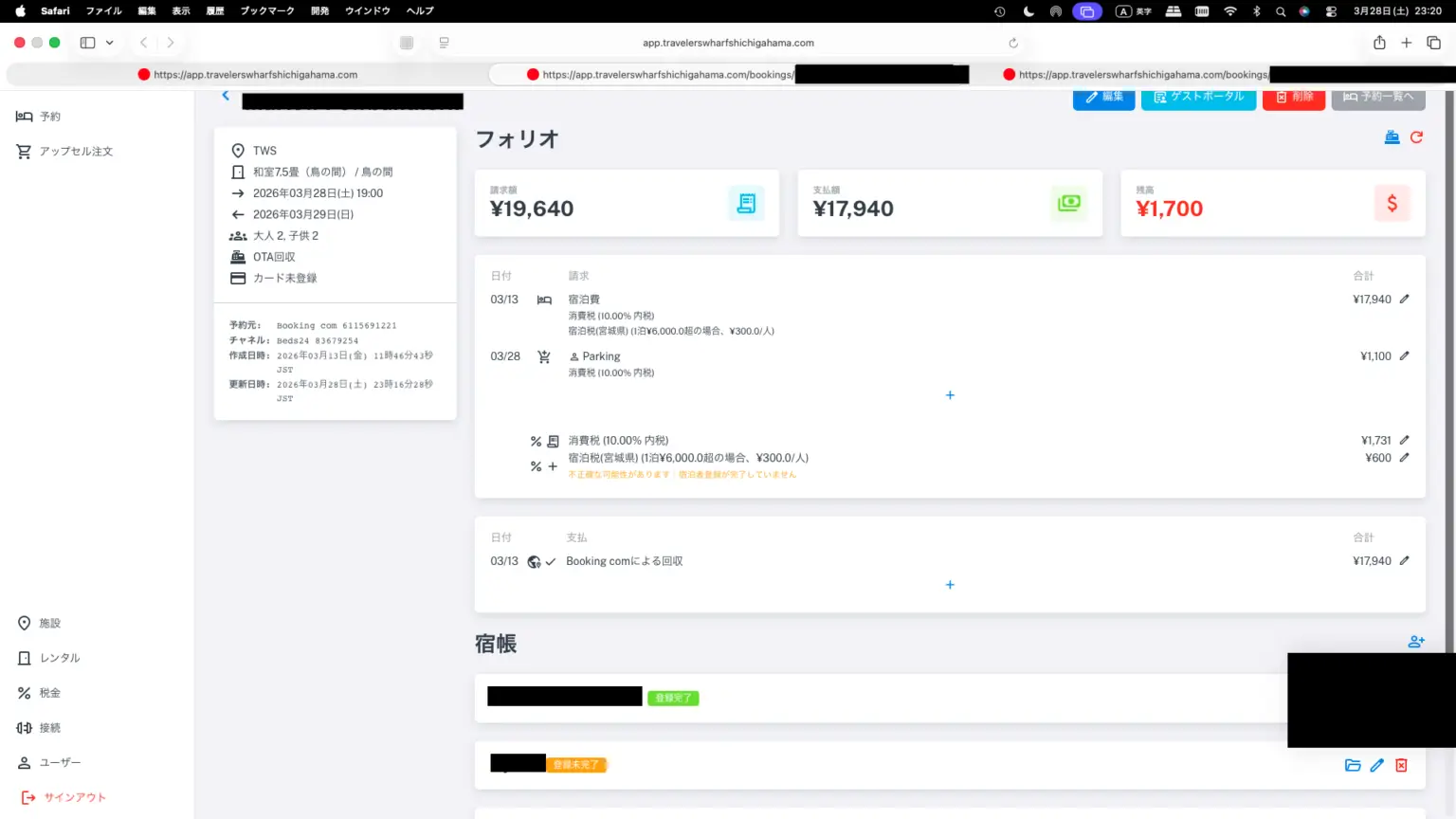
If the accommodation tax calculation is incorrect, please check that the child rates are set correctly. Clicking on a guest’s box will open the folio directly, but you can also right-click to open folios for multiple guests in separate tabs as following pictures.
Folio Guest A
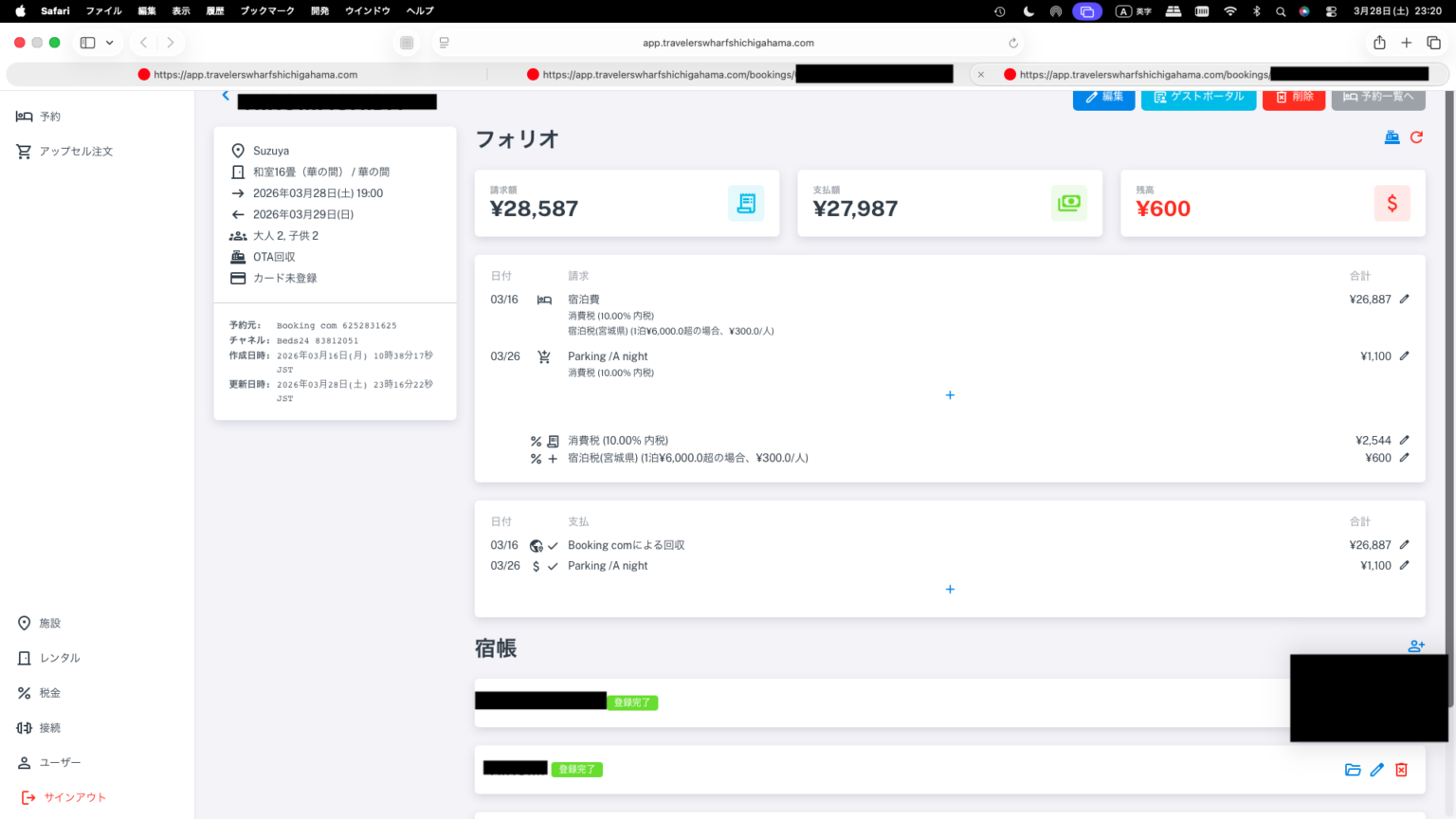
Folio Guest B
When you have multiple groups of guests, and a certain number of them prefer to pay in cash, you might find yourself with a lot of cash payments due to a simultaneous check-out.
For example, in the top image, you need to collect a 600 yen accommodation tax and 1100 yen parking fee from guest A in left image, and a 600 yen accommodation tax from guest B in the right image. Opening multiple tabs makes it easy to see at a glance who you need to collect how much from at check-out. After receiving the cash, place it in the drawer and manually create the payment using the “+” button in the payment section. The prefectural tax office won’t forgive you for forgetting to collect due to your RUSH. If you have other cash registers, process the cash payments similarly at those registers as well.
* An email requesting guest registration will be automatically sent to the guest immediately after booking, one week before check-in, and one three days before check-in. This app automatically uses Beds24’s functions to send these emails.
TIP: In addition to this automated email, you will also receive a manual email such as, “Do you need to reserve a parking space? You can reserve (purchase) one in advance through the guest register. Here is the link.” There is a high probability that you will be able to reserve and purchase a parking space and enter your credit card information through this manual email.
Invitation email to register (in Japanese)
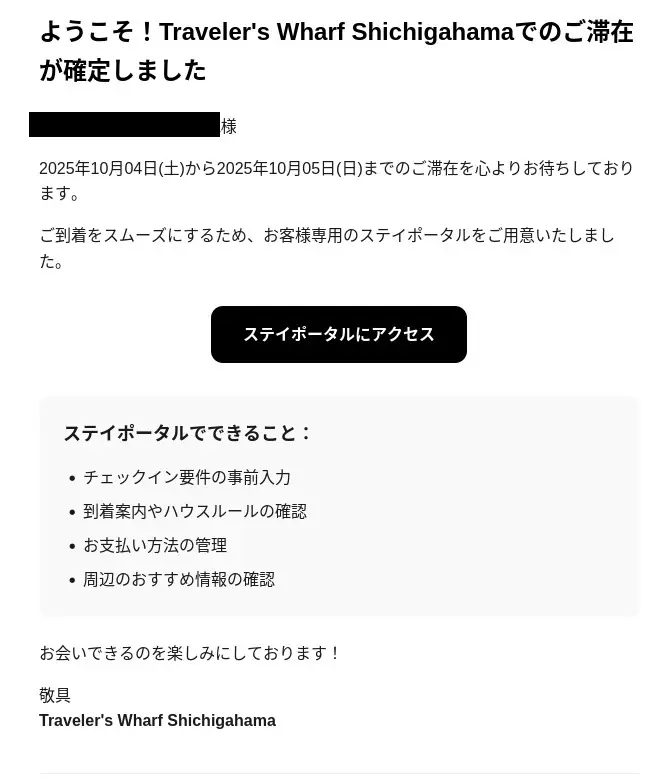
Invitation email to register (in English)
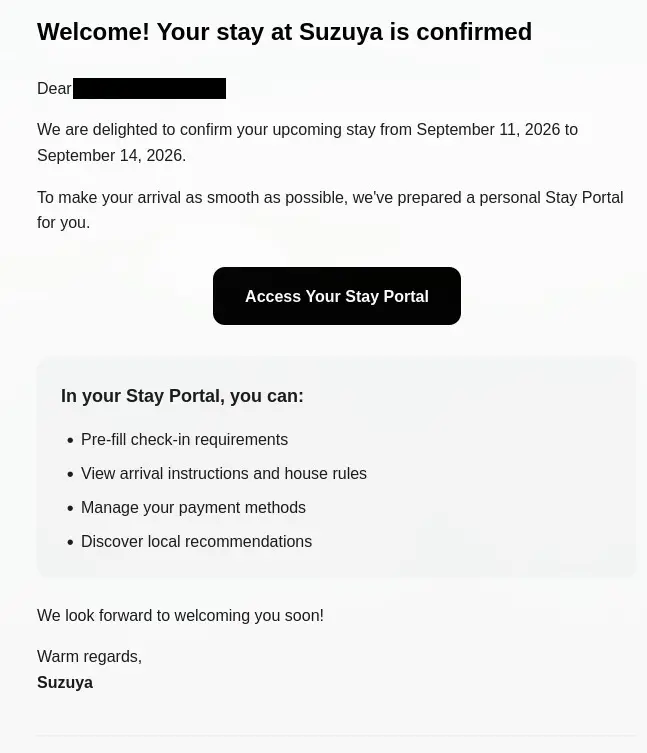
The above is the default invitation email (Japanese, English). It will be sent automatically immediately after booking. The language will be selected automatically by the app.
*Please manually send invitation emails via message to guests who booked through Airbnb. Airbnb does not have an alias email function, so they will not be sent automatically.
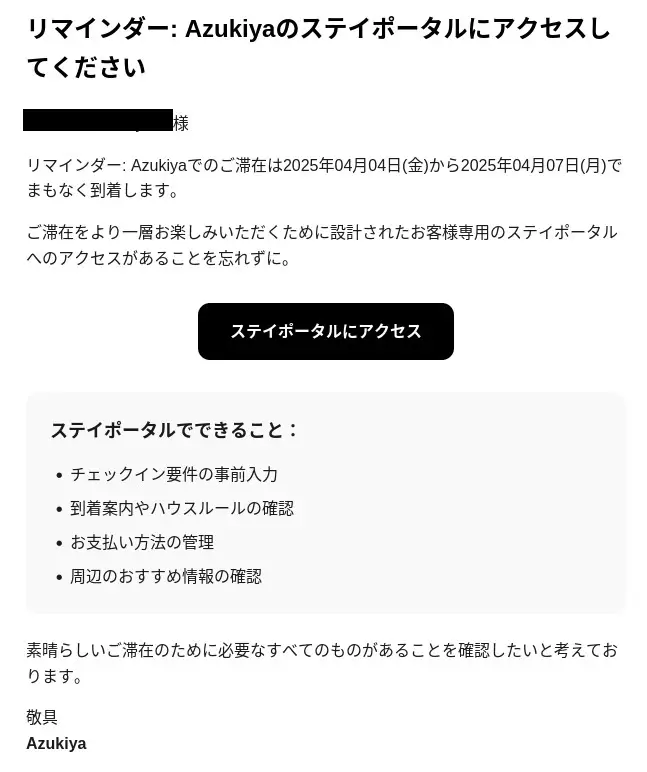
Reminder email (in Japanese) prompting guests to fill out the guest register.
A reminder email (in English) prompting guests to fill out the guest register.
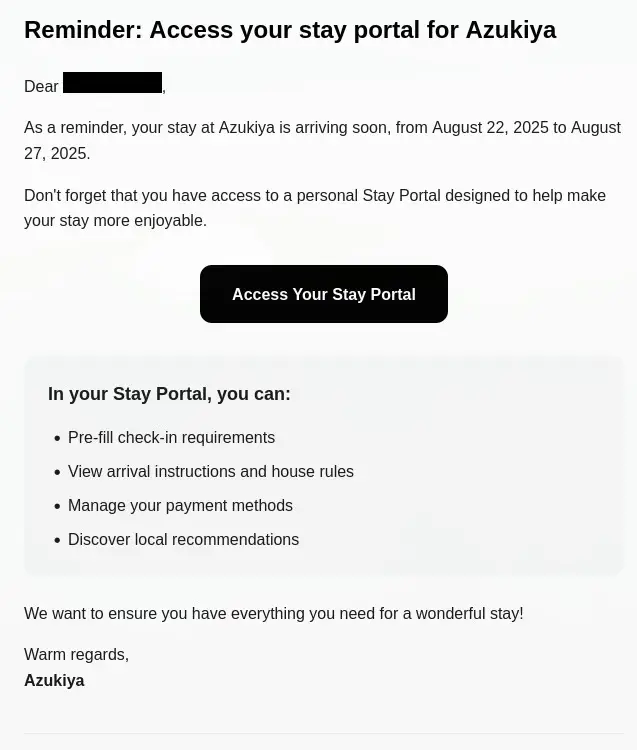
The above are reminder emails (urging guests to fill out the guest register) that are automatically sent one week and three days before check-in.
Even after these, some guests still do not fill out the guest register.
TIP: In addition to these automatically sent emails, a manual email such as, “Do you need to reserve parking? You can reserve (purchase) it in advance through the guest register. Here is the link,” is highly effective in getting guests to reserve and purchase parking, and to enter their credit card information. Depending on the timing of reservations calculated retrospectively from check-in, this amounts to a maximum of four reminders to fill out the guest register before check-in.
*Please manually send a message to guests who booked through Airbnb. Airbnb does not have an alias mail function (it has been discontinued), so it will not be sent automatically.
*Important: When sending emails, security settings are required on the OTA (Online Travel Agency) side, such as booking.com. By default, OTAs have a setting that hides links. This can be disabled from booking.com Extranet. You must specify the domain portion of the attached URL (e.g., app.travelerswharfshichigahama.com, or app.quickguestbook.com, or app.yourdomain.com) and set it to allow sending; otherwise, the link will be hidden, and guests will not be able to access the guestbook.
You also need to allow sending from the sender’s email address. Specify (nobodyreply@travelerswharfshichigahama.com, or nobodyreply@quickguestbook.com, or nobodyreply@yourdomain.com) and allow sending from these email addresses in booking.com Extranet.
Please check that the email you sent is not hidden, blank, or removed on the booking side.
*Important Note: For guests who book through Agoda, even with automated or manually sent emails, and regardless of how accurately you configure security settings on Booking.com, guests will not be able to see the link due to Agoda’s security settings. Bookings originating from Agoda listings via Booking.com can be identified from the guest’s phone number and address listed on Beds24 and Booking.com. These bookings invariably use non-existent phone numbers starting with 022 and an address of “Prudential Tower” in Bangkok. Please set up a flag on Beds24 for bookings from Agoda so that administrators can easily recognize them.
Sometimes, you may receive bookings from Agoda even if your property isn’t directly listed on Agoda. While this appears to the property as a Booking.com booking, Agoda is actually using Booking.com’s affiliate listings. The same thing can happen with Rakuten Oyado (formerly Lifull Stay). A guest might book through Agoda, but it appears to the property as a Booking.com booking. If you notice this, you can call or email the booking operator early on. When contacting the Booking operator, please:
① Explain that the link in the email is a link to the guest’s registration form and is very important.
② Strongly request that they communicate the link to the guest through all means, including “via Agoda” and “via Rakuten.”
We have been continuously requesting improvements from Booking for about 10 years, but currently there is no prospect of improvement. Basically, this is common sense. Let’s say person A (guest) gives personal information such as address and phone number to person B (Agoda). Is it okay for person B to give person A’s address and phone number to person C (booking or accommodation) without permission? Basically, it cannot be done without permission. The same principle applies to the guest registration form; it should be proactively obtained by the accommodation, not from person B or C.
*The requirement to fill out the guest register is based on administrative guidance or a notice issued by the Public Safety Commission and the National Police Agency to each prefectural police department or lodging business. The notice can be downloaded here.
Quick Guestbook provides powerful support for these settings, streamlining and reducing the workload of front desk operations, improving security, obtaining guest registers, calculating accommodation taxes, communicating with guests, increasing sales and customer experience, and creating tax-related documents!
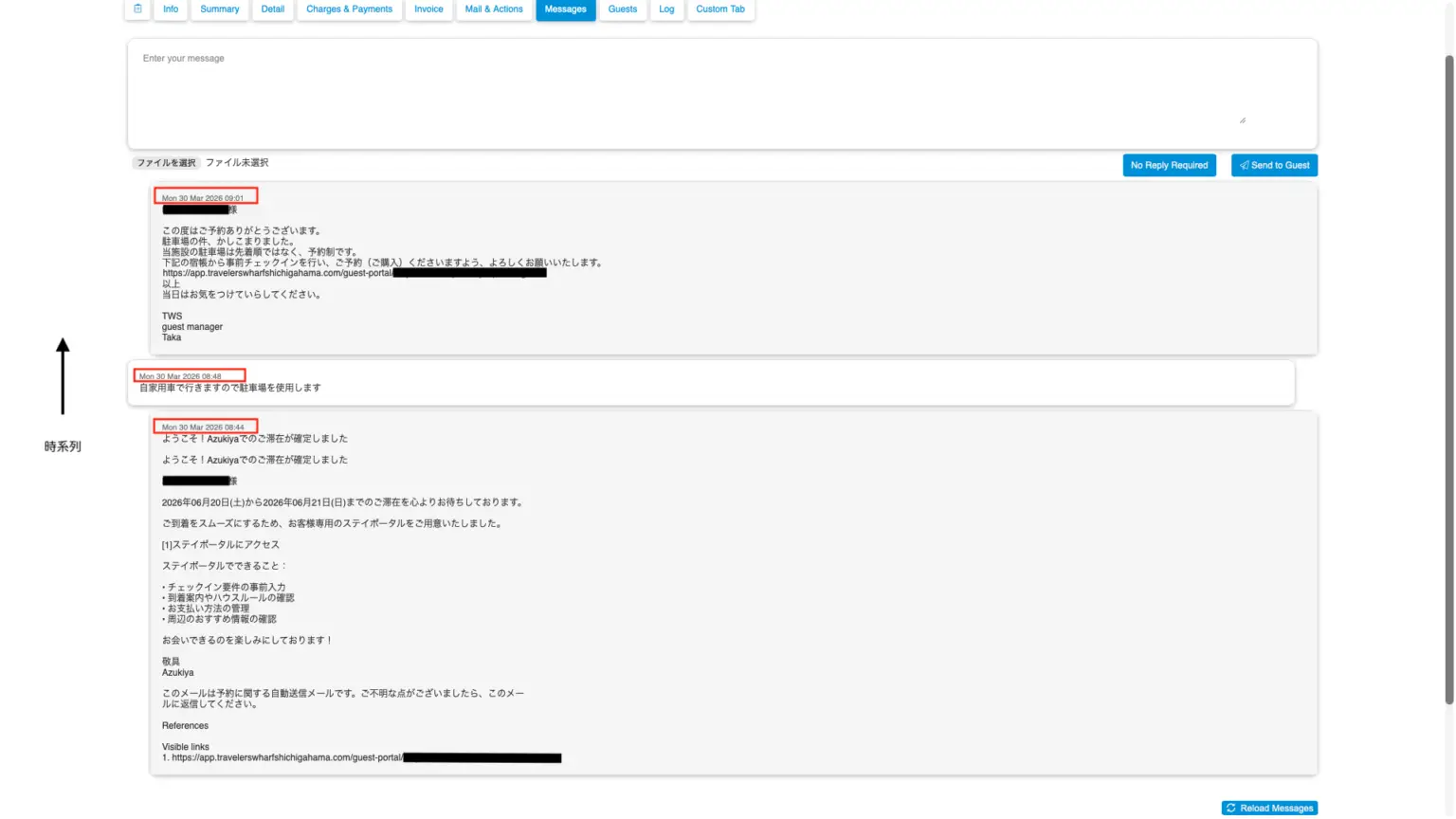
The image above is from Beds24. It appears when you select a reservation from the calendar, and you can further communicate with the guest via the Message tab. Past email exchanges with guests are also displayed.
Looking at the Log tab, the guest made the reservation at 8:44 AM, and the system automatically sent an inked email (invitation) less than a minute after the reservation.
Before noticing the invitation email, the guest was concerned about parking. Four minutes after the reservation, the guest contacted us to request a parking reservation as well.
It seems they hadn’t yet noticed the invitation email for the guest register, so 13 minutes later, we manually resent the guest register link. This was sent via Beds24. In reality, the guest registered immediately afterward, and the parking payment was also processed.
iPadでのUI確認画像
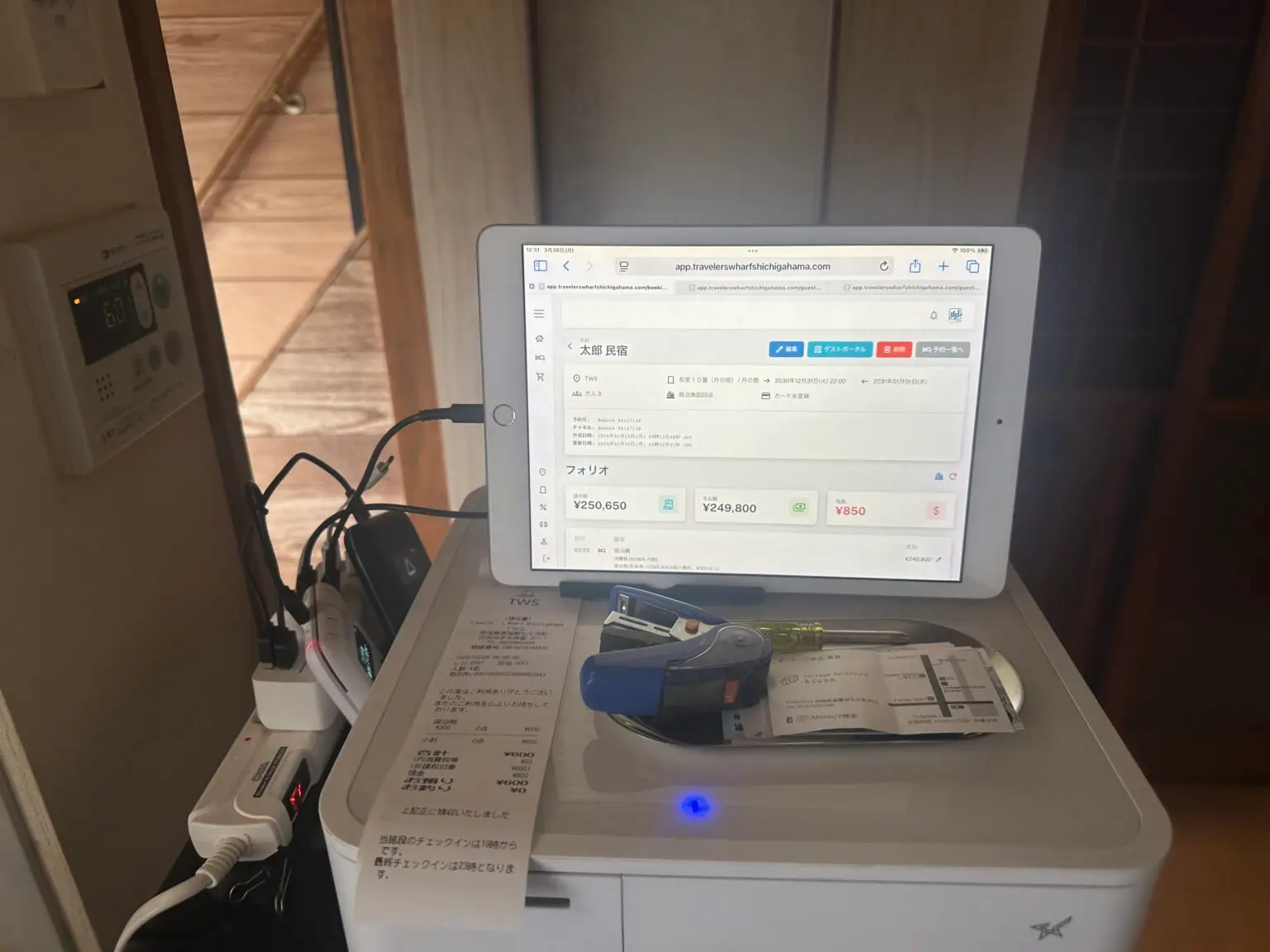
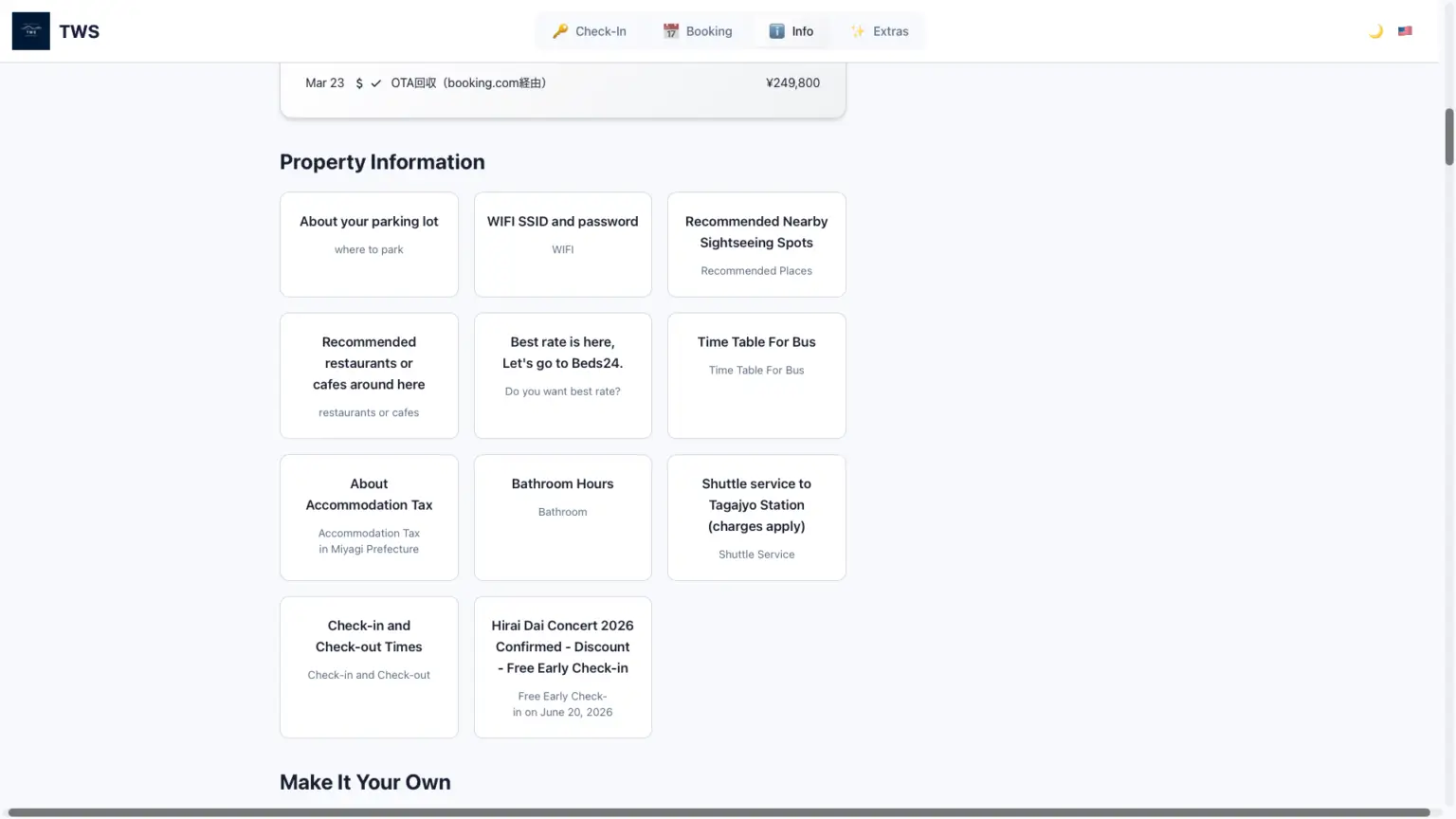
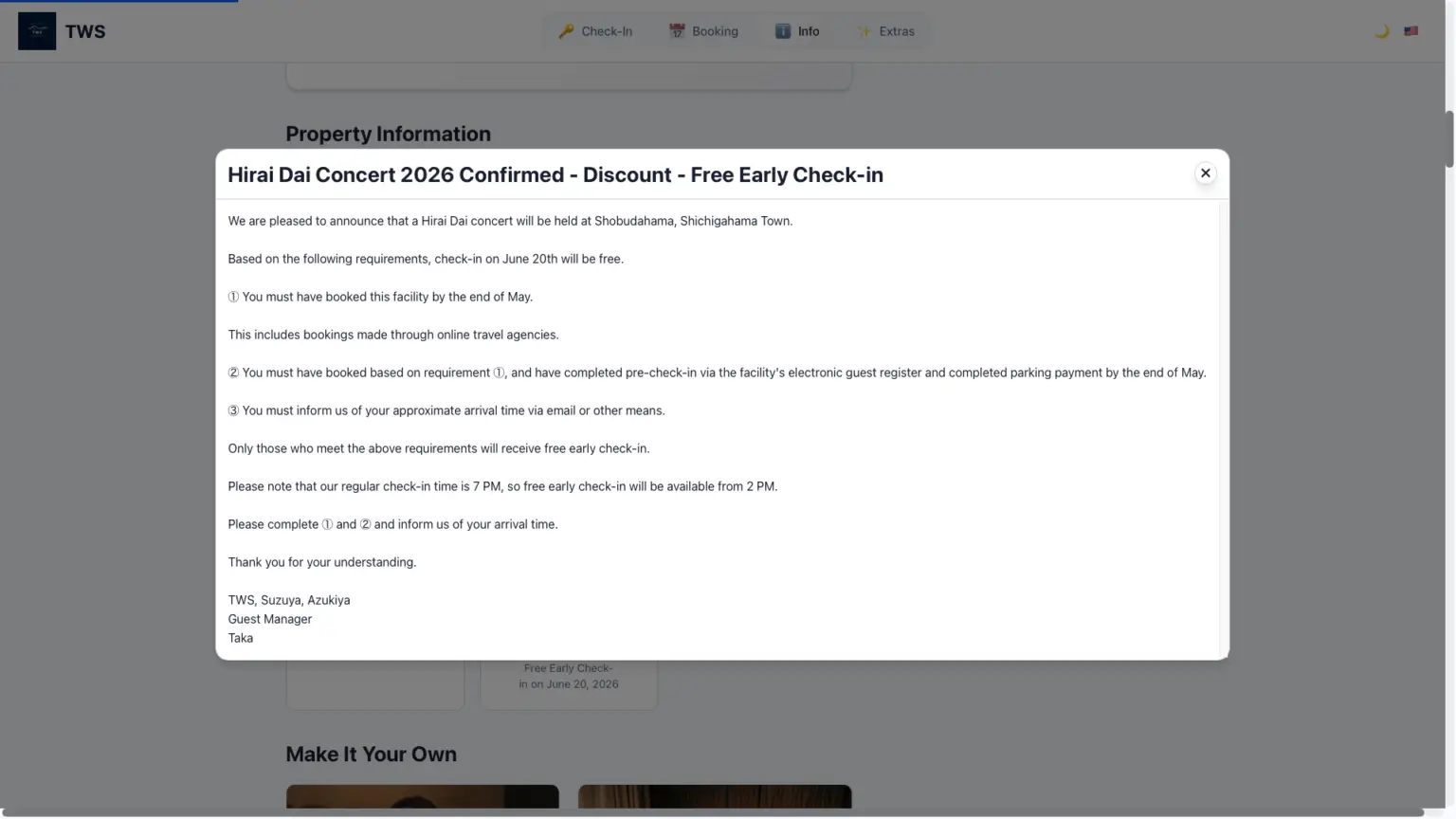
The image above shows the information fields in the guest register that we actually use. We fully understand and have set up early check-in, late check-out, and their auto-collect (automatic payment collection) features for upselling. However, the biggest problem for the host is when a large number of guests arrive all at the same time.
While this is simply a measure to prevent staggered check-ins, it works very well, and guests are delighted. Once the period ends, we simply hide the relevant information fields in the management screen. Children’s rates are also difficult to handle and tend to be avoided by accommodations, but in fact, children’s rates are very popular.
Quick Guest Register provides strong support for this as well!
I’m a developer’s cat. I don’t have a name yet. Apparently, people call them white-label cats. I have absolutely no idea where I was born. All I remember is crying “meow, meow” in a dark, damp place. I vaguely remember my dad saying it was a small seaside town in Argentina.