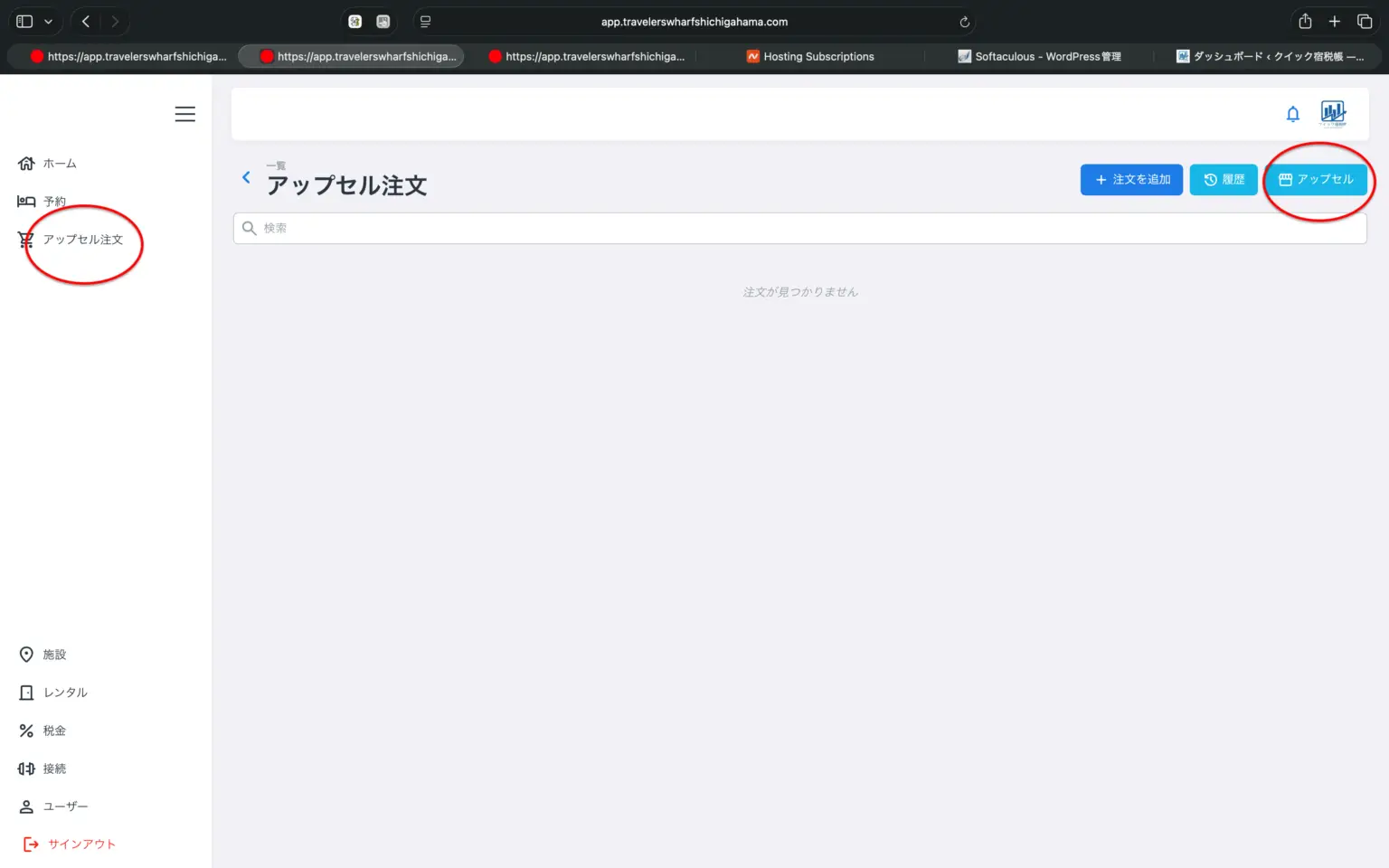
To view additional products, first click “Upsell Orders” in the left-hand menu, then click “Upsell” in the upper right corner.
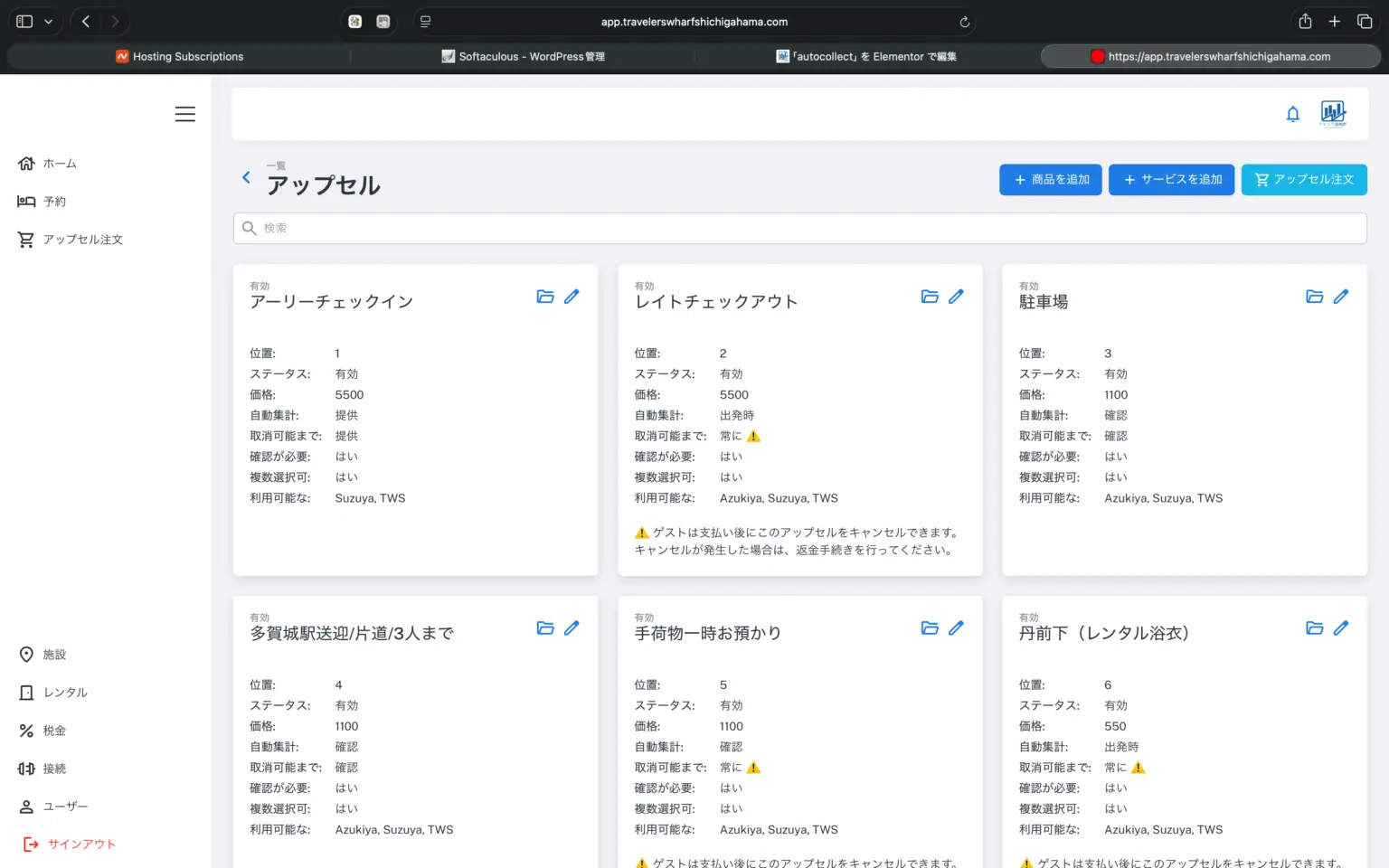
Once the upsell list is displayed, press the pencil icon in the upper right corner of the Early Check-in box.
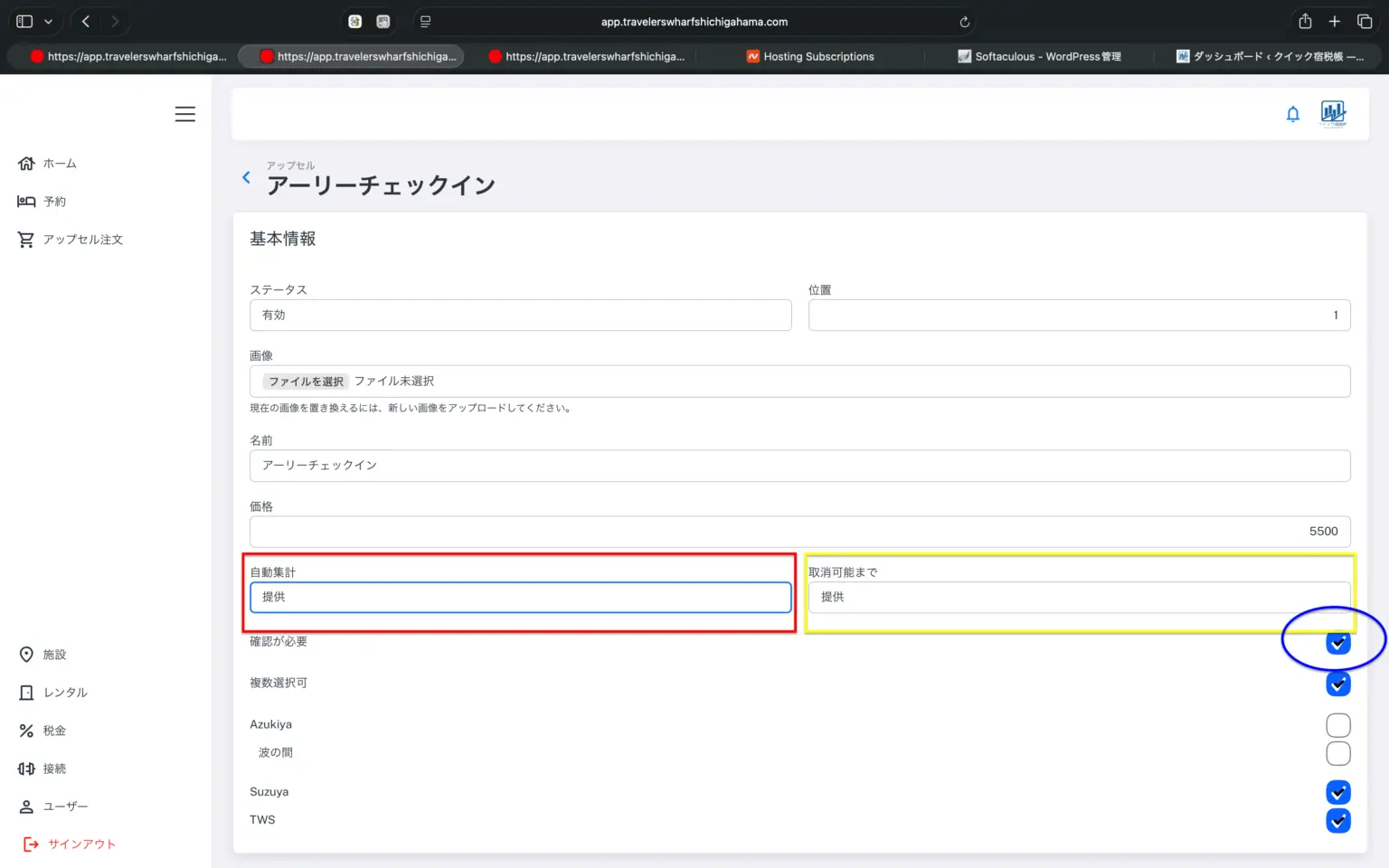
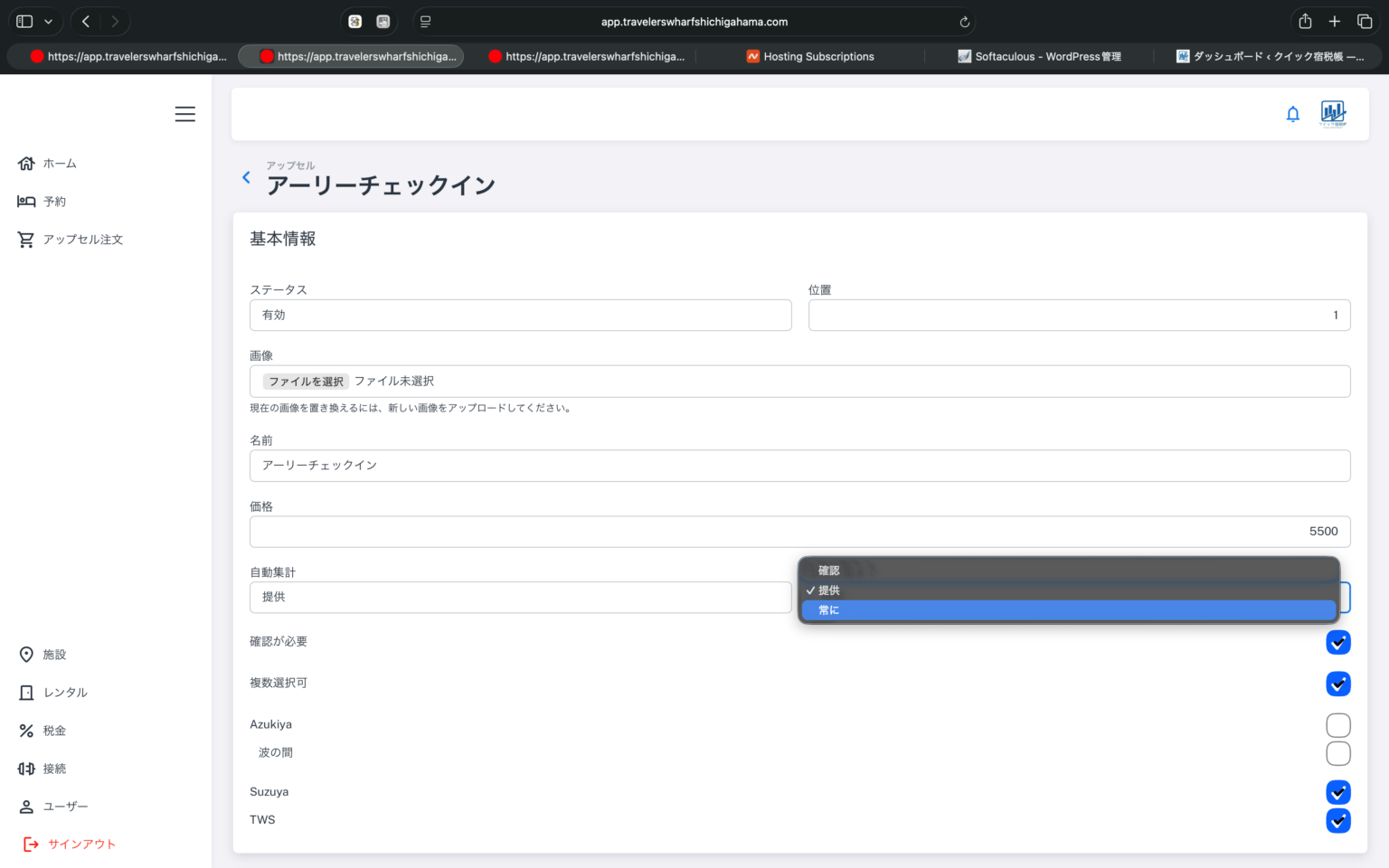
The red box says “Automatic Calculation,” which is actually AutoCollect (the more accurate Japanese might be “Automatic Collection” or “Automatic Billing or Charge.” This will be corrected in the final product). Clicking here will open a dropdown menu like the one below. Clicking up to “Cancel” in the yellow box will open a dropdown menu like the one below.
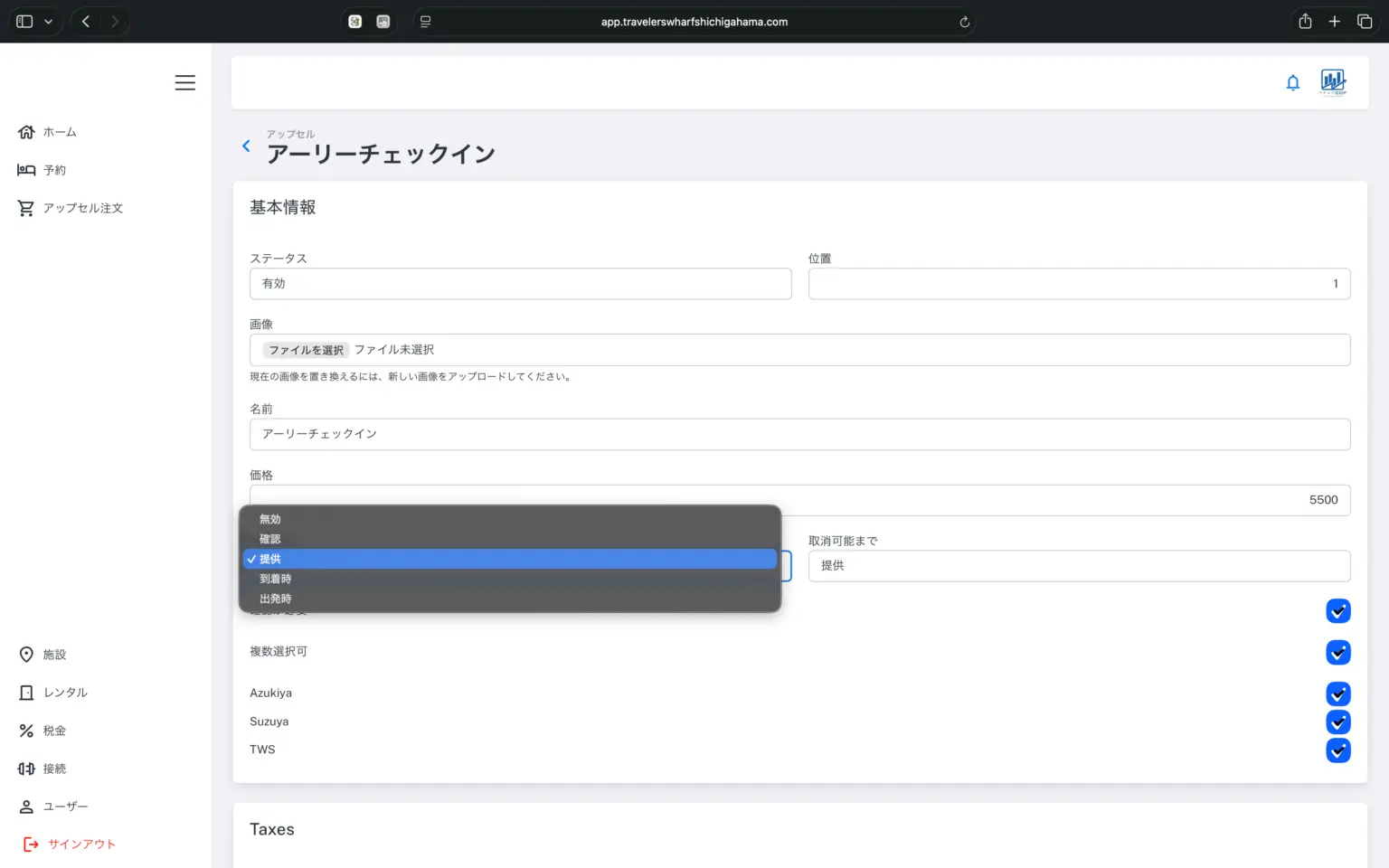
For automatic billing (collection and charging), please select from the following options: Disabled, Confirmed, Provided, Arrival, and Departure. Of course, this assumes that credit card information is registered in the guest register. “Disabled” means that even if a credit card is registered, automatic charging will not occur. “Confirmed” means that payment will be processed when the administrator, a hotel staff for example, clicks “Confirm ” on the upsell order screen. “Provided” means that payment will be processed when the administrator, clicks “Provided” on the upsell order. “Upon Arrival” means automatic payment will be processed at the time of arrival. “Departure” means automatic payment will be processed at the time of departure. In other words, if you select “Upon Arrival” or “Upon Departure,” and credit card information is registered, payment will be processed automatically at the time of arrival or departure without any further action required.
The “Cancellation Period” setting determines the timeframe until when guests can cancel their order on the guest booking screen. You can choose from “Confirmed,” “Offered,” or “Always.” Please choose the appropriate setting based on the characteristics, types, and the ways of offering the product. If you select “Offer,” once the administrator presses the “Offer” button on the upsell order, guests will no longer be able to cancel the order or request from the guest booking screen. If you select “Confirm,” once the administrator presses the “Confirm” button on the upsell order screen, guests will no longer be able to cancel it from the guest booking screen
These settings must be configured for each product. Let’s look at them in more detail below.
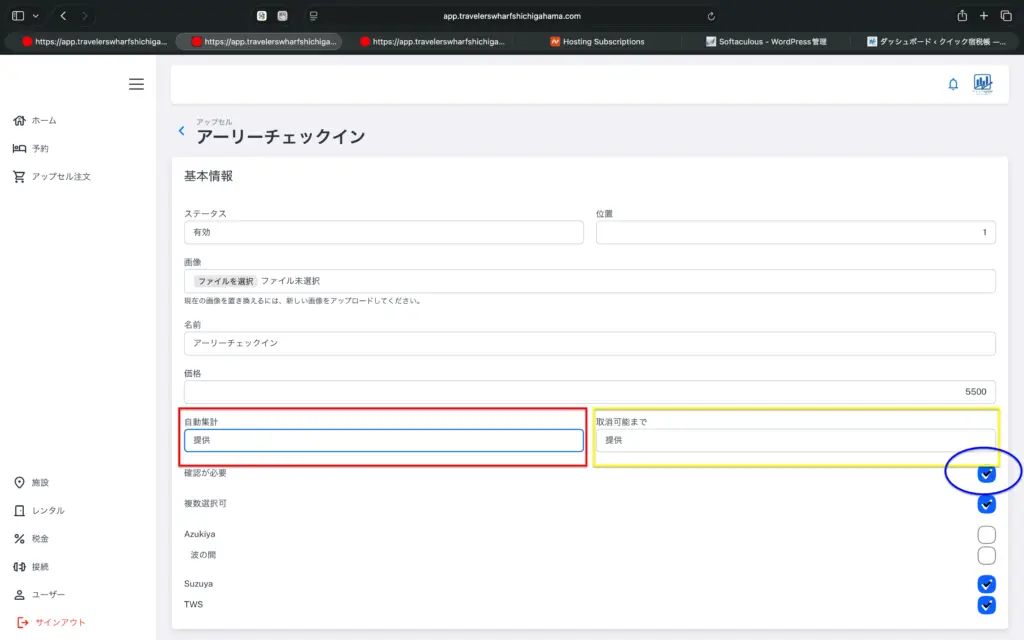
Below the yellow box, “Confirmation Required,” is checked within the blue circle. Checking this box means that the product will be sold as a “Request” rather than an “Order.” Let’s take a quick look at what will happen in guest register when AutoCollect is set “Provided,” and cancellable until “Provided,” and with “Confirmation Required” is checked and the change is saved.
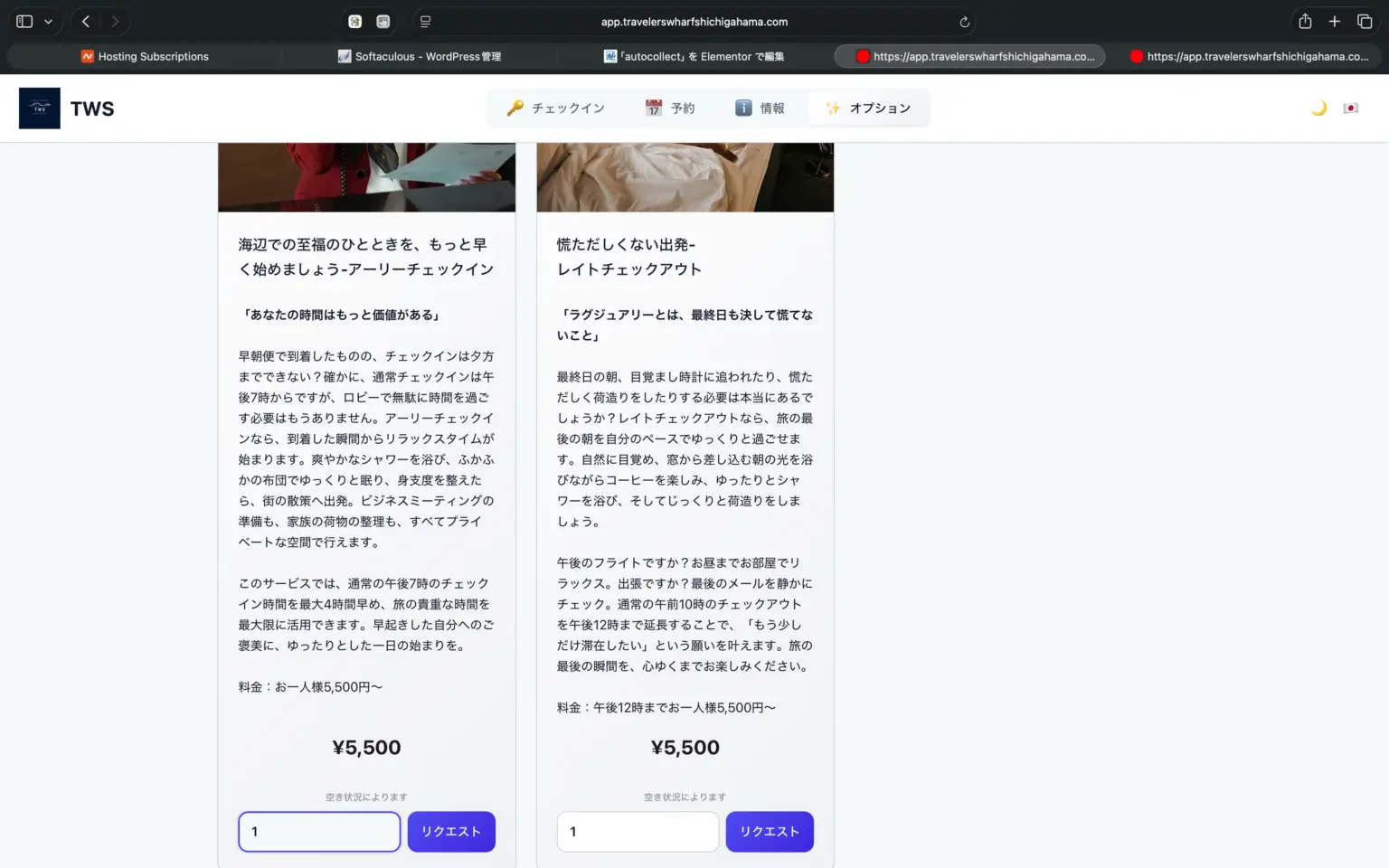
As configured, the guestbook displays “early checkin” as “Request” button instead of an “Order” button.
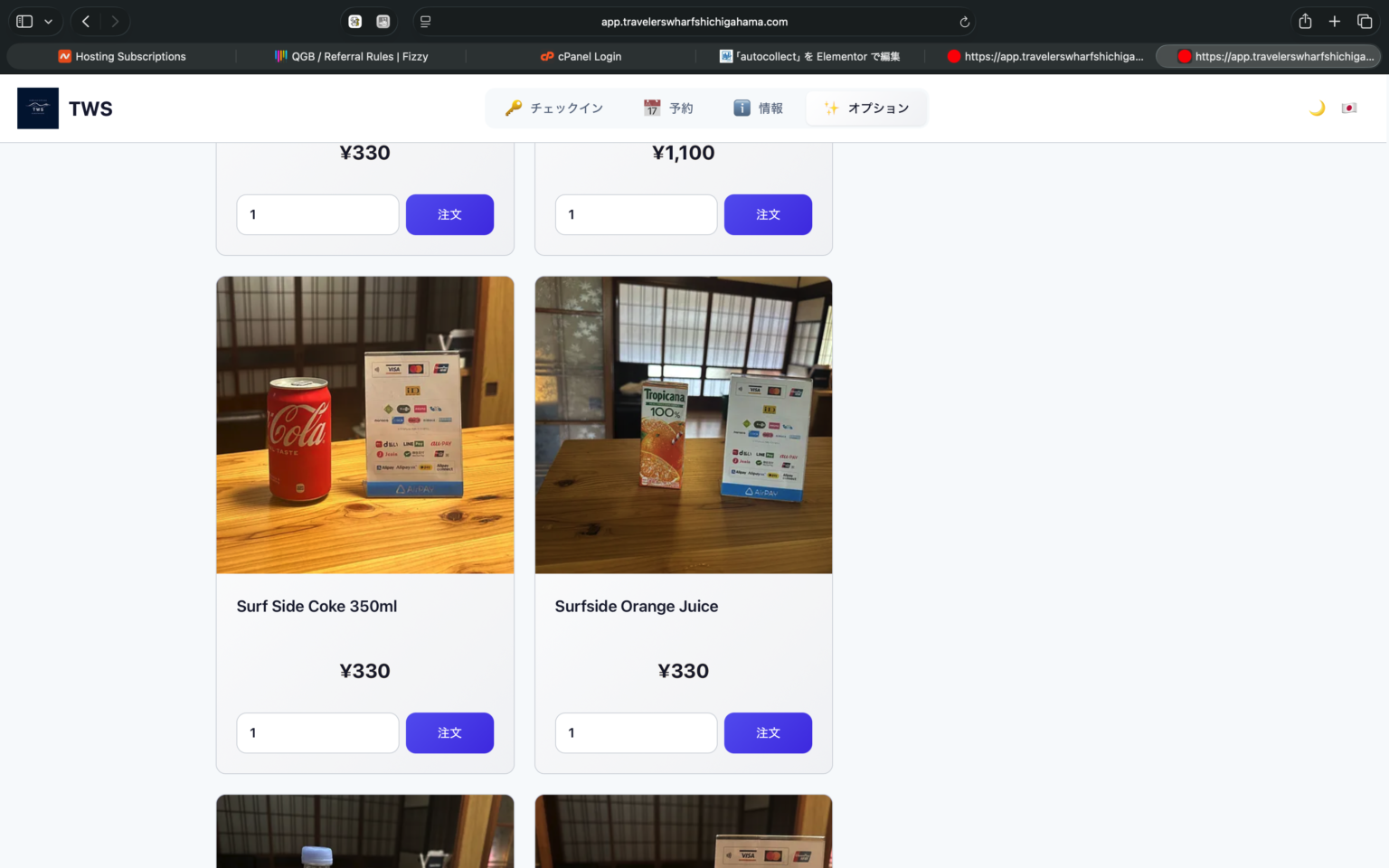
On the other hand, drinks and other items for which the “Confirmation Required” checkbox is not checked are displayed with an “Order” button.
Checking “Multiple selections allowed”on in the admin panel, guests can order the items selected up to the number of guests at a time. Now, let’s check how the upsell orders are displayed in the management screen after clicking the request for early check-in.
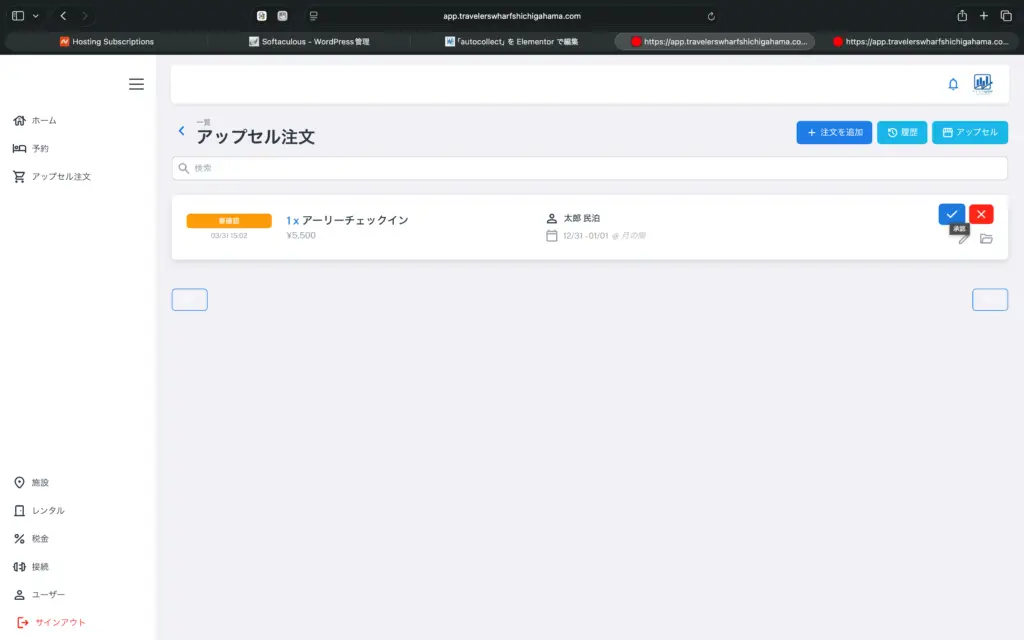
① When you click “Upsell Order” in the left menu, a checkmark and an X will appear first. Hovering over the checkmark will show you “Approved,” and hovering over the X will show you “Rejected.” Clicking the X will reject it. If you click the checkmark (=approved), it will show you next page….
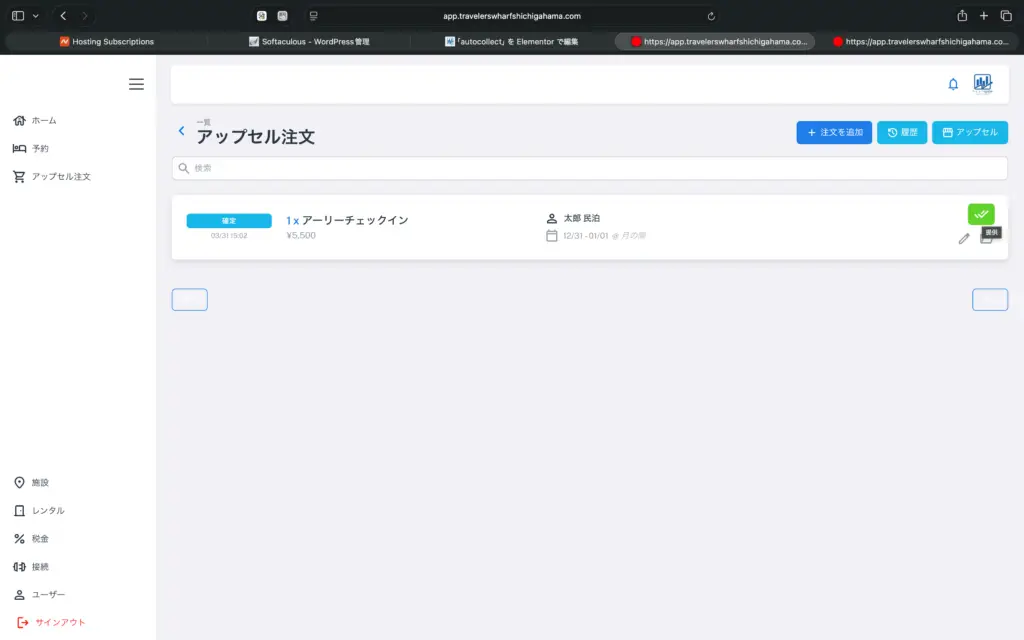
② Next, a green double-check icon will appear, and when you mouse over it, it will say “Provided”. We previously set AutoCollect when it is “Provided”, and the guest can cancel the order until it is “Provided”. Therefore, when you press this double check, the payment will be processed, and the guest will no longer be able to cancel that request or order on the guest book.
Important: From the guest’s perspective, the differences in these sales and payment methods on the guest register screen are limited to simply knowing that there are “requests” and “orders,” and that some items allow quantity specification while others do not. Adding clearer information to the product description, such as “Only one of this item can be requested during your stay,” “This request will be finalized once the host confirms it,” “Payment for this item is due upon departure,” or “This item requires advance payment,” will clarify the payment rules and make ordering easier. Please combine automatic payment (automatic billing) and its deactivation, request-based sales requiring confirmation, and the ability to select multiple items.
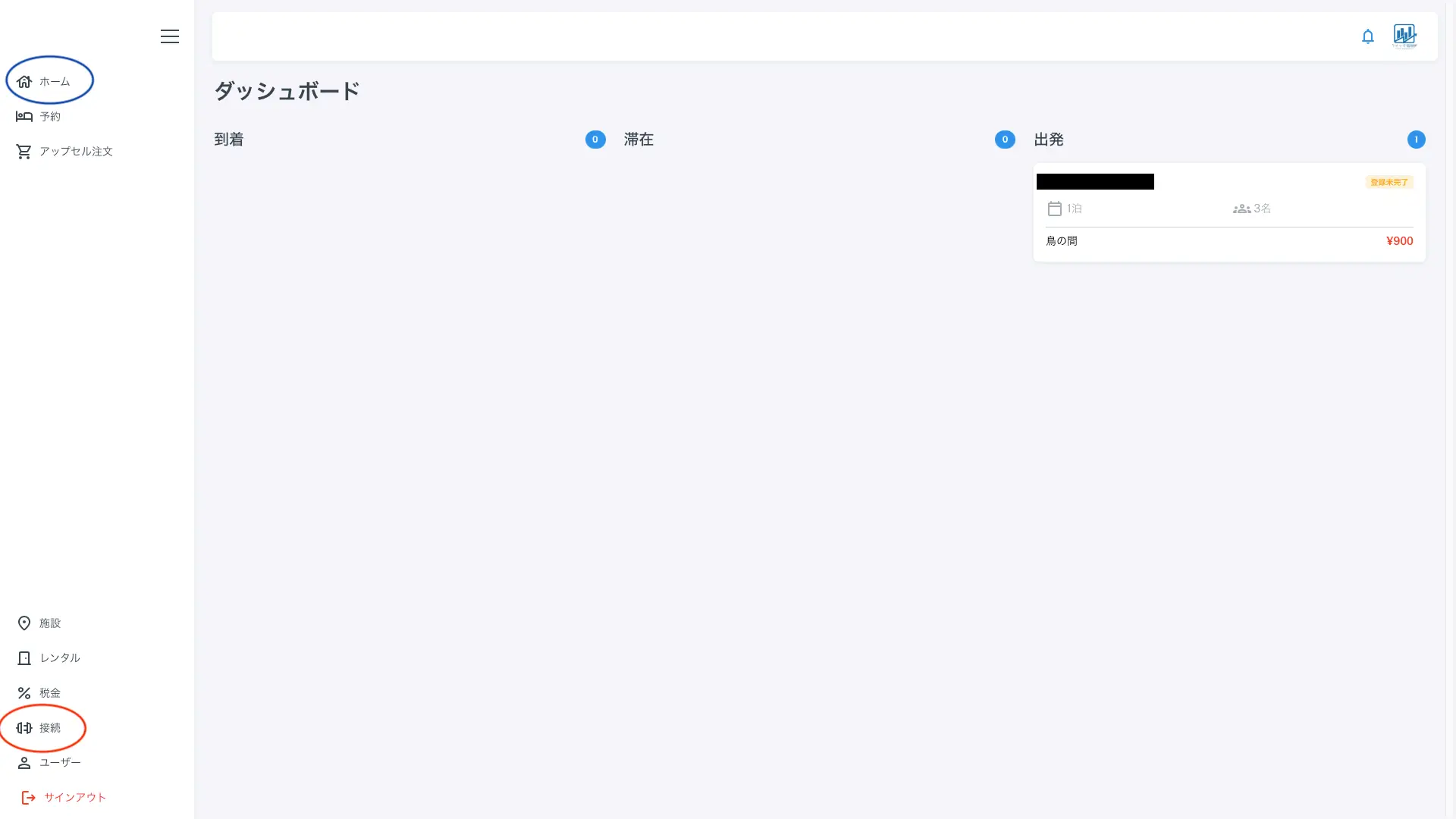
Please note that there are taxes charged and collected locally, such as accommodation taxes. You can set up accommodation taxes and consumption taxes from the “Taxes” section (indicated by the red circle in the lower left corner of the management screen shown in the image above). On mobile phones, press the hamburger menu (three lines) in the upper left corner to open the menu.
In the image above, you can access the tax settings screen by clicking “Taxes” in the lower left in red circle, and you can return to the dashboard (settings screen) at any time by clicking “Home” in the upper left which is marked in blue circle.
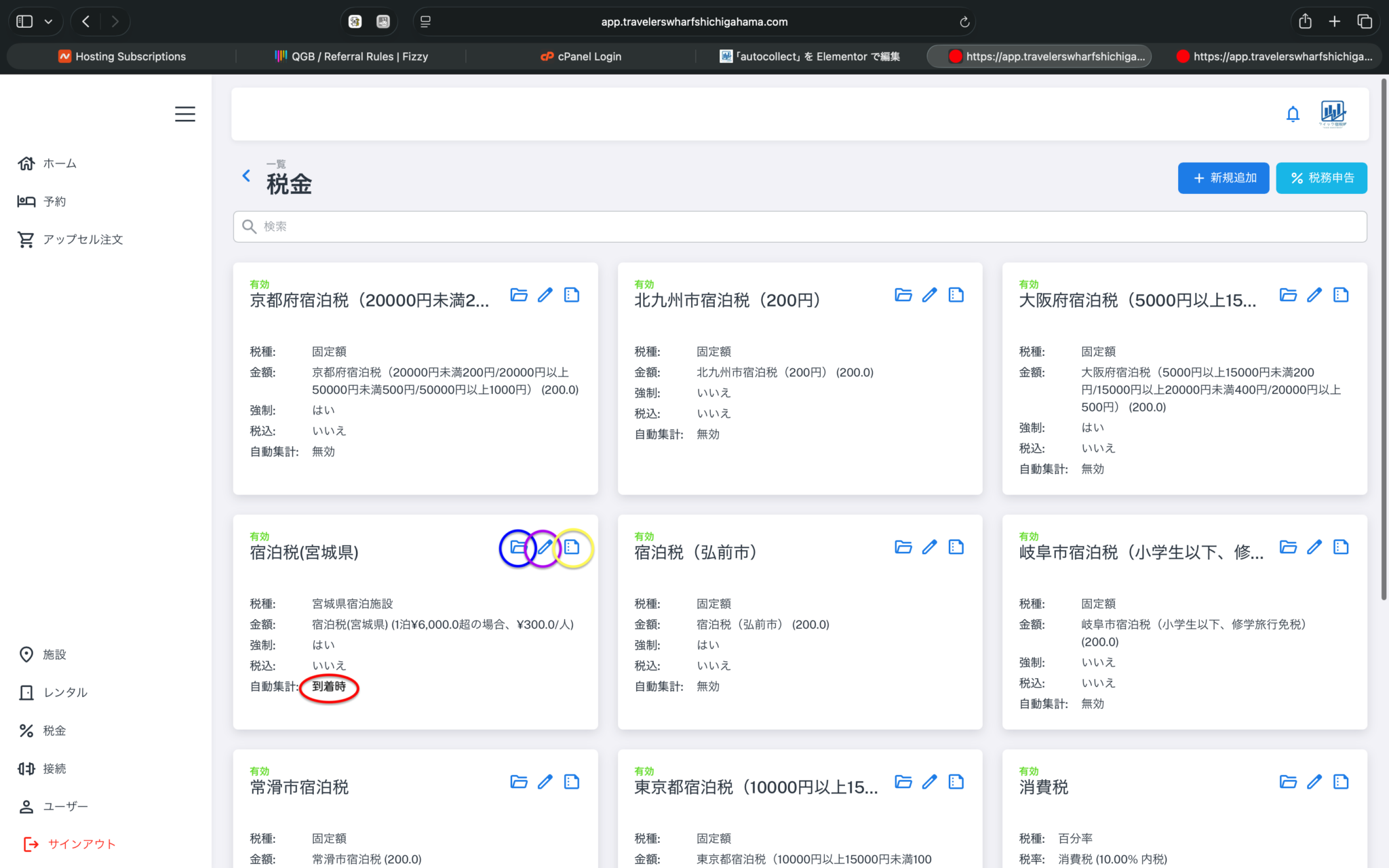
The image above shows the tax list screen. In the box for Accommodation Tax (Miyagi Prefecture), the red circle indicates “At Departure.” You can choose from “Invalid,” “At Arrival,” or “At Departure.” To view the details, click the blue circle “folder icon,” to edit, click the purple circle “pencil icon,” and the yellow circle “file icon” is the button to create the accommodation tax collection ledger (monthly summary). You can also add new taxes, such as hot spring tax or other regional taxes, using the “Add New” button in the upper right corner of the screen. Consumption tax and reduced consumption tax rates may also change due to tax reforms, so you can change the settings as needed.Please make changes using the pencil icon. Regarding the “Tax Included” field, this does not mean whether the accommodation tax or consumption tax is included, but rather whether the price sent from the channel manager includes the accommodation tax and consumption tax, or whether the price of the product includes consumption tax. Except for age-based pricing for children, we recommend setting prices to include tax. We have not verified prices excluding tax. Since both accommodation tax and consumption tax are mandatory in Japan, please select “Mandatory”.
For accommodation tax, we recommend “Charge upon departure.” This app initially calculates a provisional accommodation tax based on the number of adults, children, and nights of stay sent via the channel manager. Next, it identifies each guest’s age from their birthdate entered in the guest register and adjusts the accommodation tax calculation accordingly if the facility has age-based pricing. Naturally, the calculation is based on the accommodation tax rules of each local government, excluding tax.
Therefore, the guest register (frontend) and the management screen (backend) display the message, “If the guest register is incomplete, the accommodation tax may not be calculated correctly.” By default, the app simply calculates the average nightly rate based on the number of people, but child rates can also be set in stages. This specification is necessary because some local governments do not collect accommodation tax from children under 12 years old.
However, statistically, most guests promptly fill out the guest register and try to pay any additional charges at the inn right away. This can lead to situations where, for example, parking fees are paid before check-in. This is completely inappropriate when applied to the collection of accommodation tax.
For example, a couple in their 40s were planning a trip together, but unfortunately, the wife caught a cold. The cost was 18,000 yen. Instead, their 10-year-old daughter stayed with her father. According to the inn’s terms and conditions, a 10-year-old costs 2,200 yen per night. The guest register already had the husband’s and wife’s birthdays entered. The threshold for the accommodation tax in Miyagi Prefecture is 6,000 yen, and 600 yen (300 yen x 2) was charged “upon arrival.”
It requires a change from the OTA side, a 300 yen refund via credit card will be incurred, and there are fees for refunds via Stripe. It suddenly becomes very busy.
This example demonstrates the crucial importance of verifying the number and ages of guests actually staying at the property when imposing accommodation tax. Taxing guests who don’t show up due to illness is also inappropriate under local tax laws. Selecting “Charge at departure (checkout)” allows for manual correction of the balance (folio) until checkout in case of unforeseen circumstances. If a guest checks out without completing the folio correction, the remaining balance (balance) may be charged in a lump sum according to auto-collect rules. Always check the management screen to ensure the folio is displayed and calculated correctly until checkout.
For beverages and other services, you can select “Disabled,” “Always,” “Until Provided,” “Upon Arrival,” and “At Departure” for automatic billing, and “Confirm,” “Provided,” and “Always” for the cancellation period. If set to “Disabled,” automatic billing will not occur. Please use these options appropriately according to the characteristics of your products and services.