Beds24 is a German PMS (Property Management System) and channel manager. It has strong connections with international OTAs, and recently it has also been able to integrate with Rakuten Oyado (formerly vacationstay). Some hotels rely entirely on a single booking platform because it is easy to use and understand, but this system centralizes inventory to prevent “double bookings” when selling rooms through multiple platforms. Once you start using this, you will hardly ever need to look at each individual booking site (called an OTA) anymore.
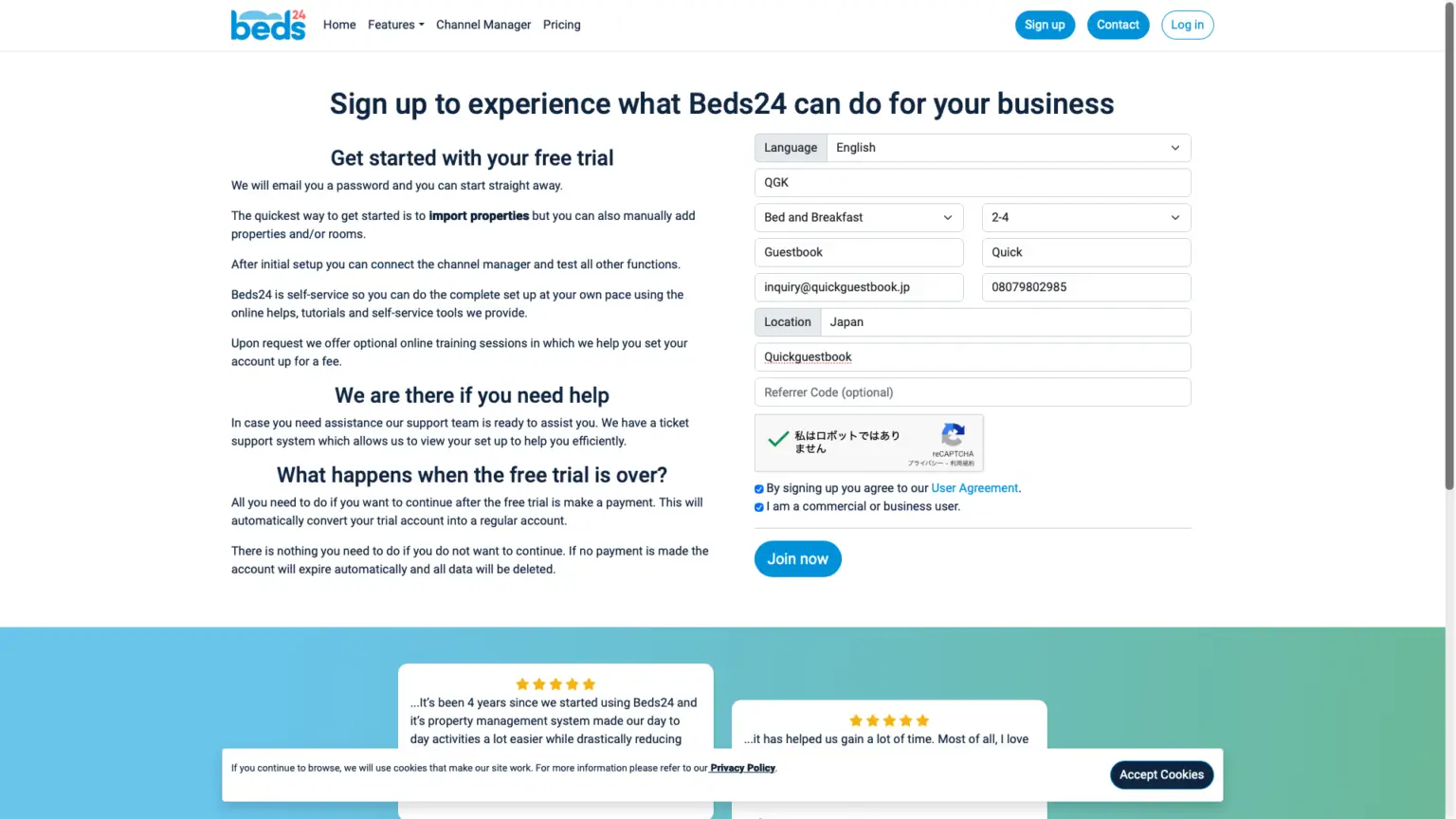
Clicking “Sign up” in the upper right corner will take you to the screen shown above.
While English is the easiest language to understand, Japanese is not an option. A Japanese version is available, but it’s not particularly difficult, and we provide support, so please get used to the English version. Select English for Language, your business name or company name for Business Name, and choose B&B for the type of facility (you can change this later). Please enter the number of facilities, email address, phone number, country, and a suitable name for the username. “Join Now” means to register.
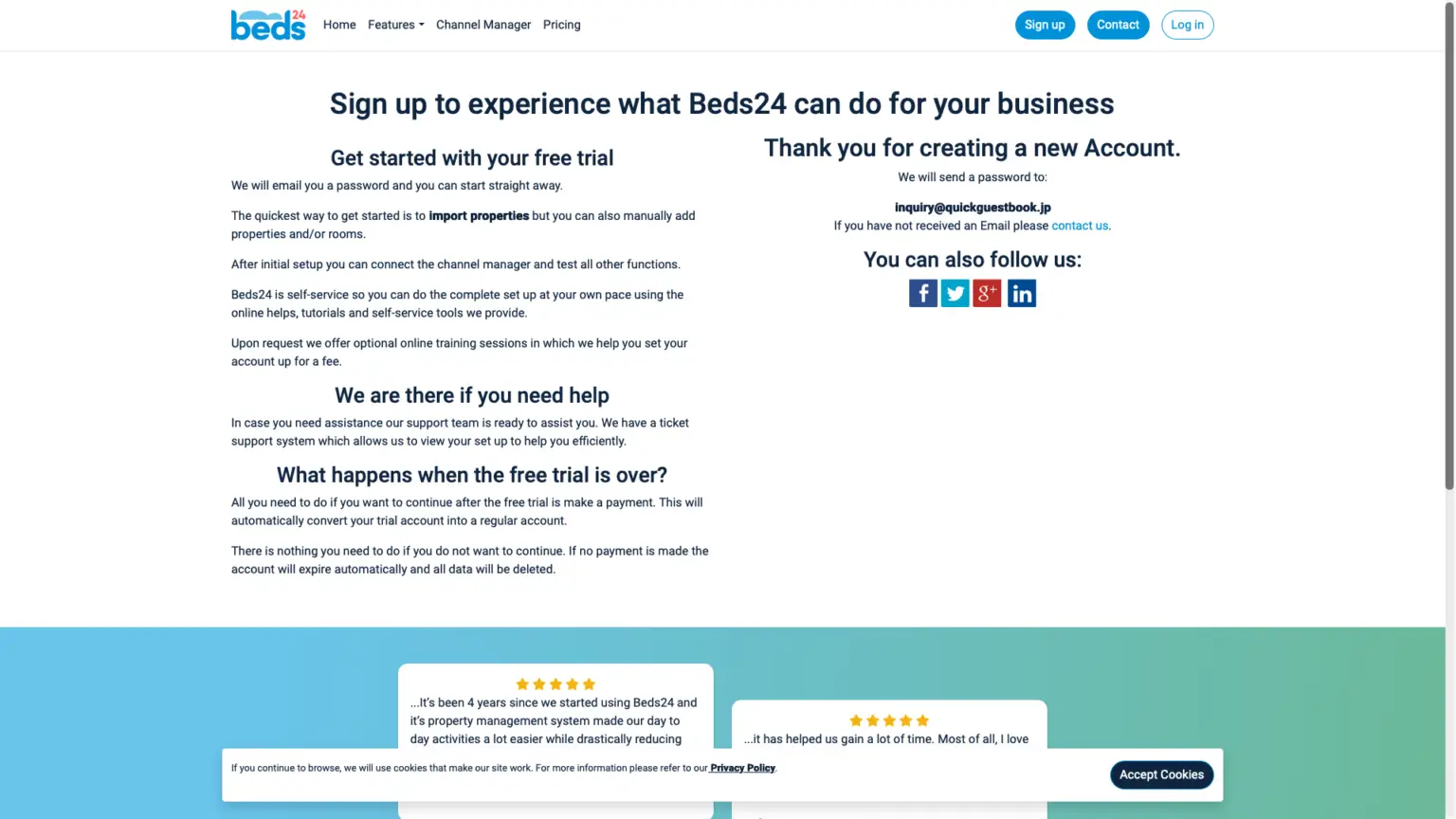
When you click “Join Now,” you will see a screen like this. Please check your email for a confirmation message.
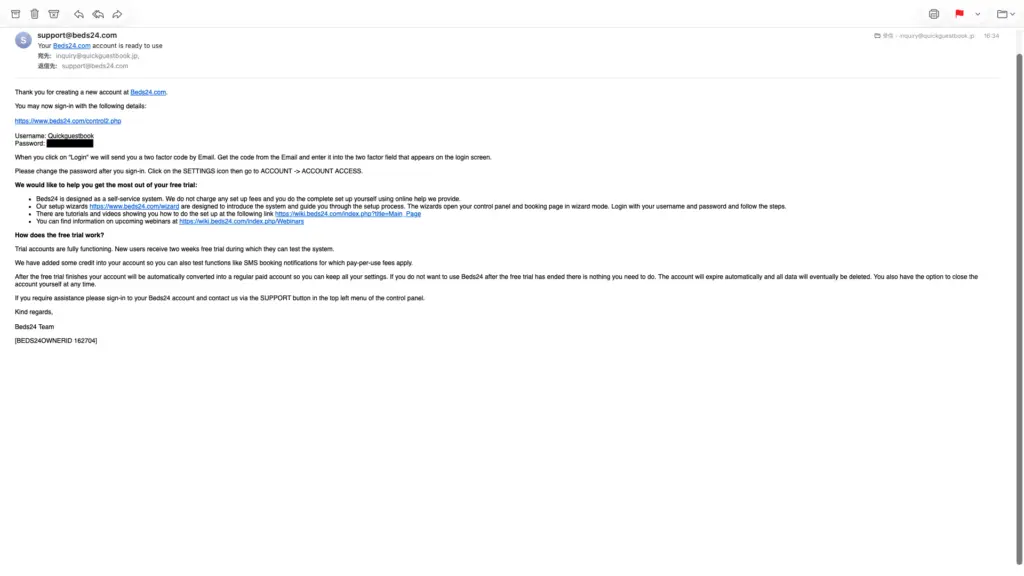
You might be surprised by all the English, but the important parts are your username and password. Take a screenshot and save them. Go back to the Beds24 screen from before, and this time select “Sign in” under “Sign up” to log in. There is a two-week trial period, depending on the size of your facility. You can complete the migration and setup in two to three hours. It says you can change your password under Account → Account Access. If I recall correctly, two-factor authentication was also introduced recently.
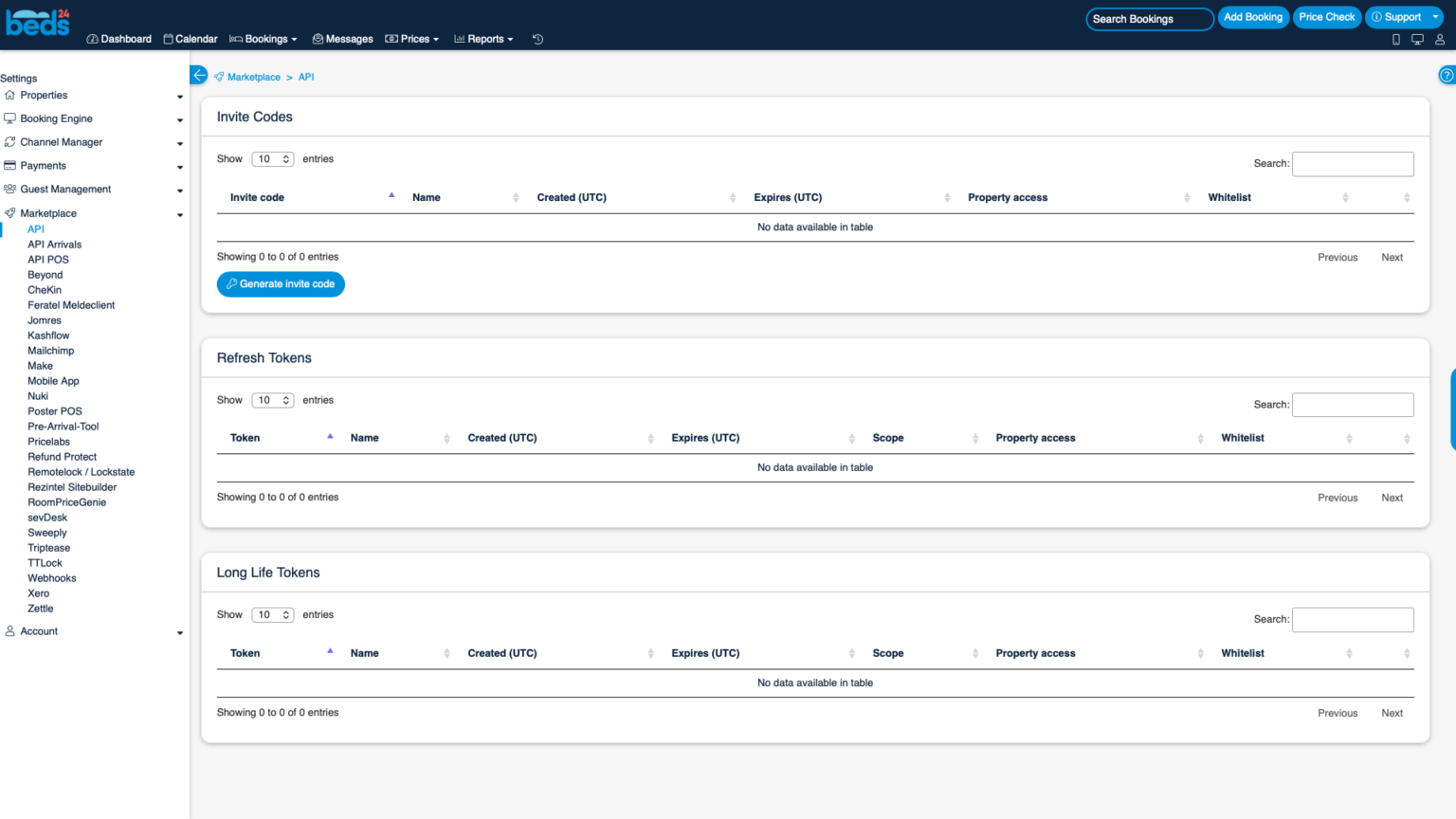
From the left-hand menu in Beds24, select Marketplace → API. You will see the screen shown above. Press the button labeled “Generate invite code”. Beds24 will issue a token to connect to the external application. You will then see the screen below.
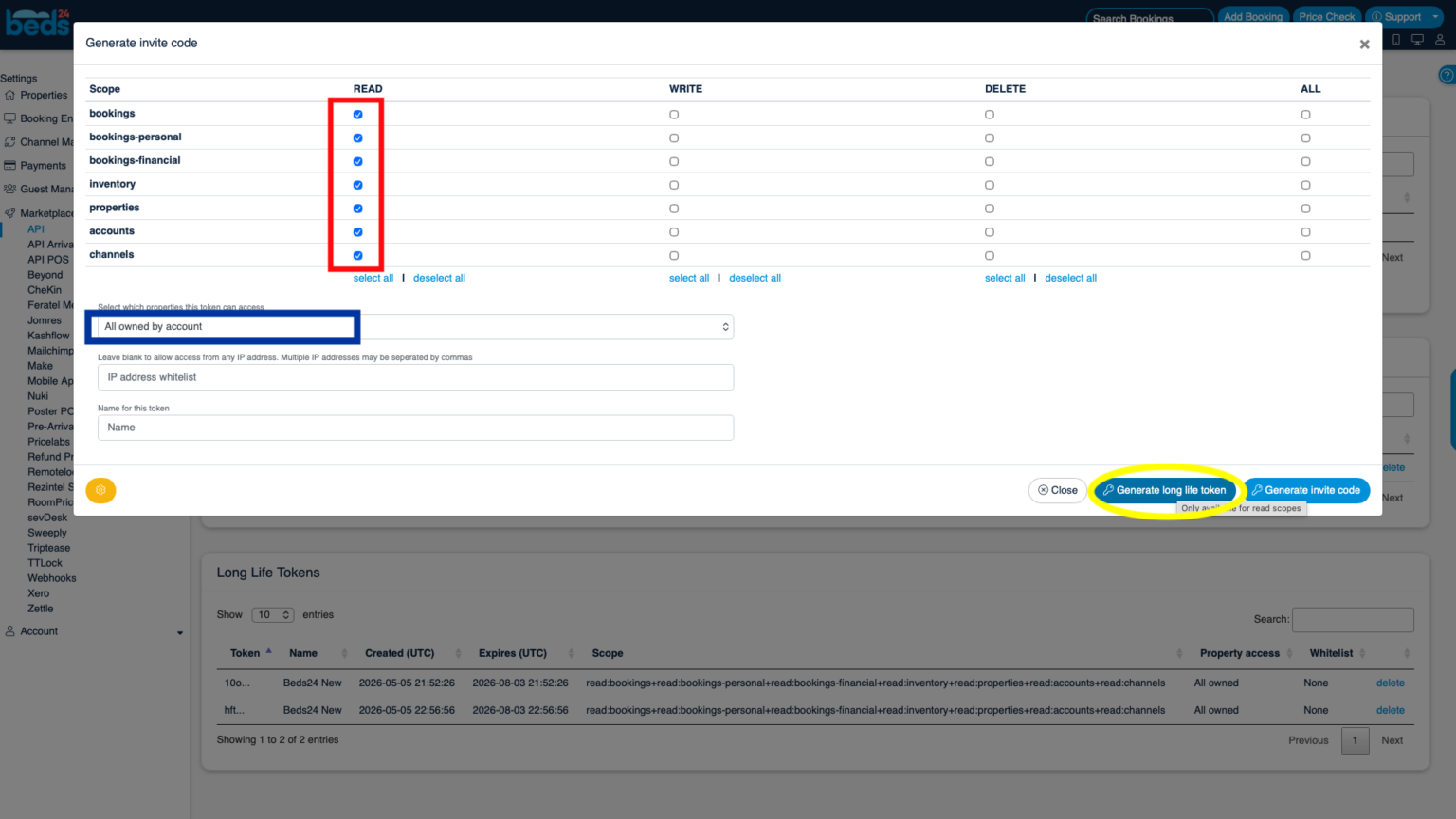
Please check all the boxes in the Read column for bookings-personal (reservation information), bookings-financials (reservation amount information, etc.), inventory (inventory), properties (facility), channels (channels), etc. You have selected which information can be read. Quick Accommodation Tax Ledger does not write to Beds24 in principle, nor does it delete information on Beds24. Please select Read only. Next, set which facilities’ information can be shown to the app and read. Select all owned by account in the blue square box. Select all facilities owned by the account. This setting means that Quick Accommodation Tax Ledger can read reservation information for all facilities and all rooms. You can also select which rooms to connect on the app side. At the bottom is Name, but if the number of rooms is very large, for example, 400 or 500, the number of API requests may be too high and Beds24 may be limited. You may need to increase the number of accounts to connect, so in that case we recommend naming them, for example, Beds24 1 or Beds24 2. Finally, when you press Generate Long Life Token, an Invite Code, also known as a “token,” will be issued.
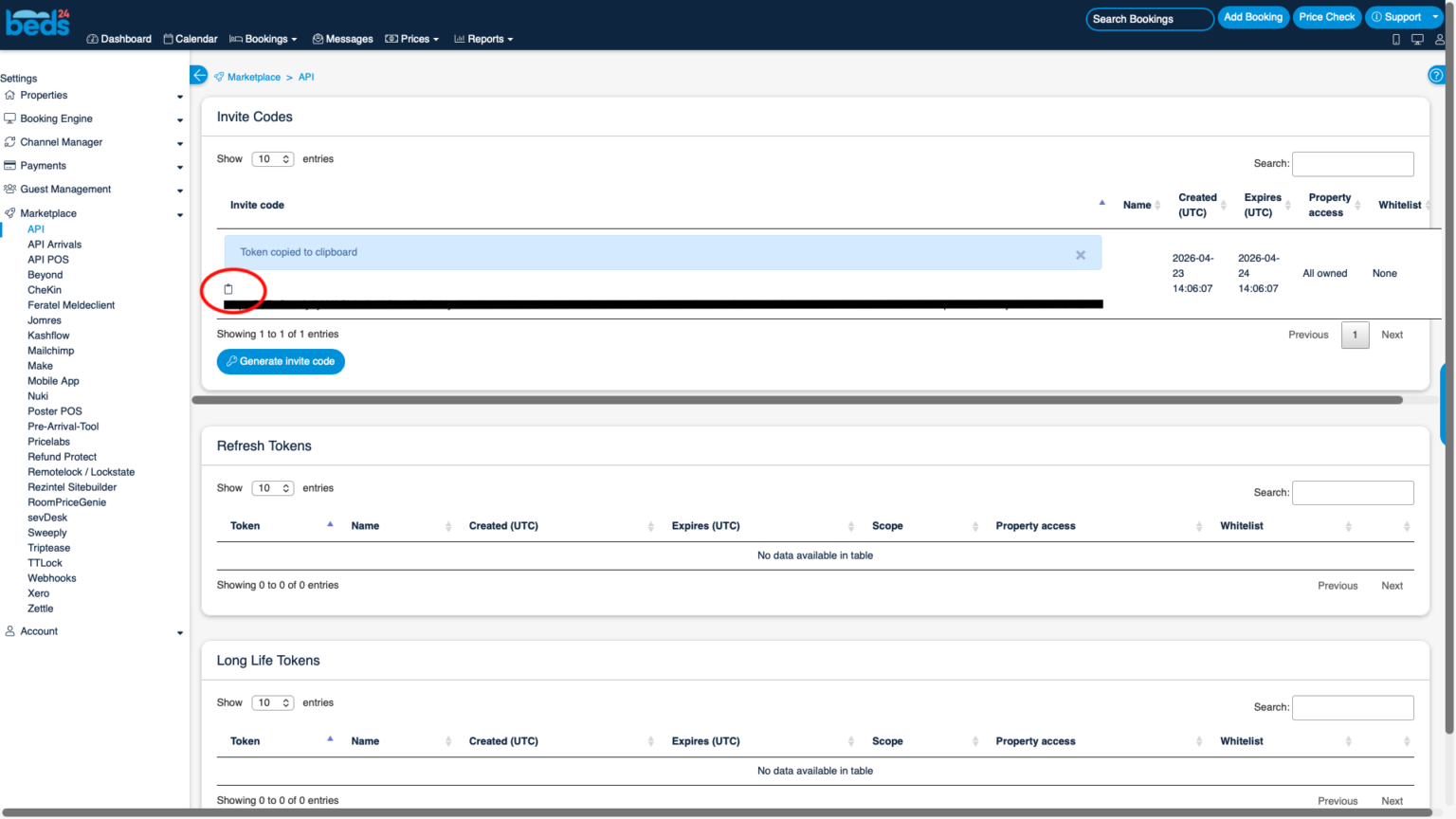
Clicking the notepad-like icon above the issued token allows you to copy it. This copy can only be made at the time of issuance, so you’ll need to copy it to another notepad or similar application for easier management.
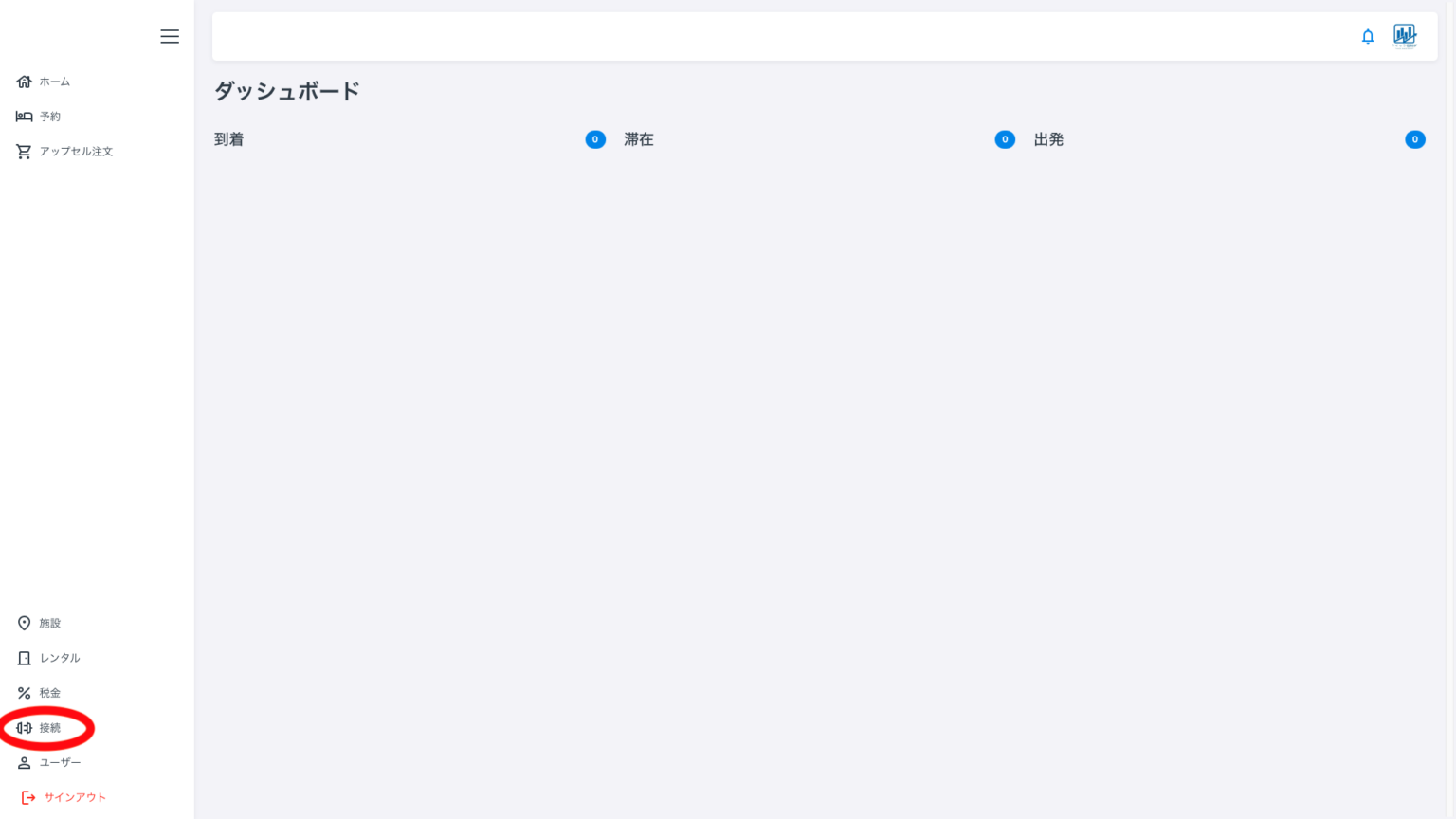
Now, paste the token you just entered into the Quick Accommodation Tax Register. Click “Connect” in the left-hand menu. The following screen will appear.
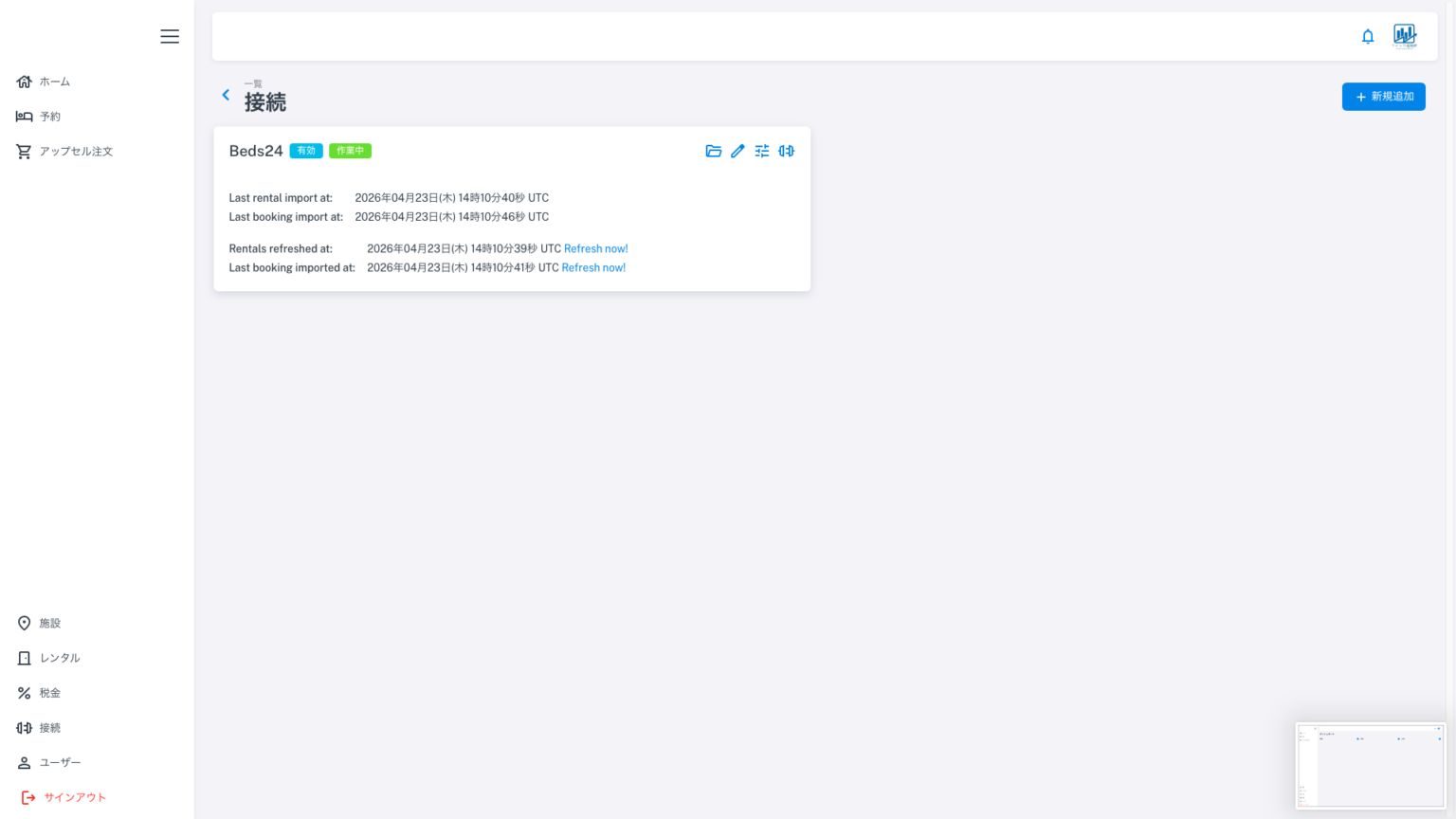
The image above shows that one connection to Bed24 has already been established. Please click “Add New” in the upper right corner.
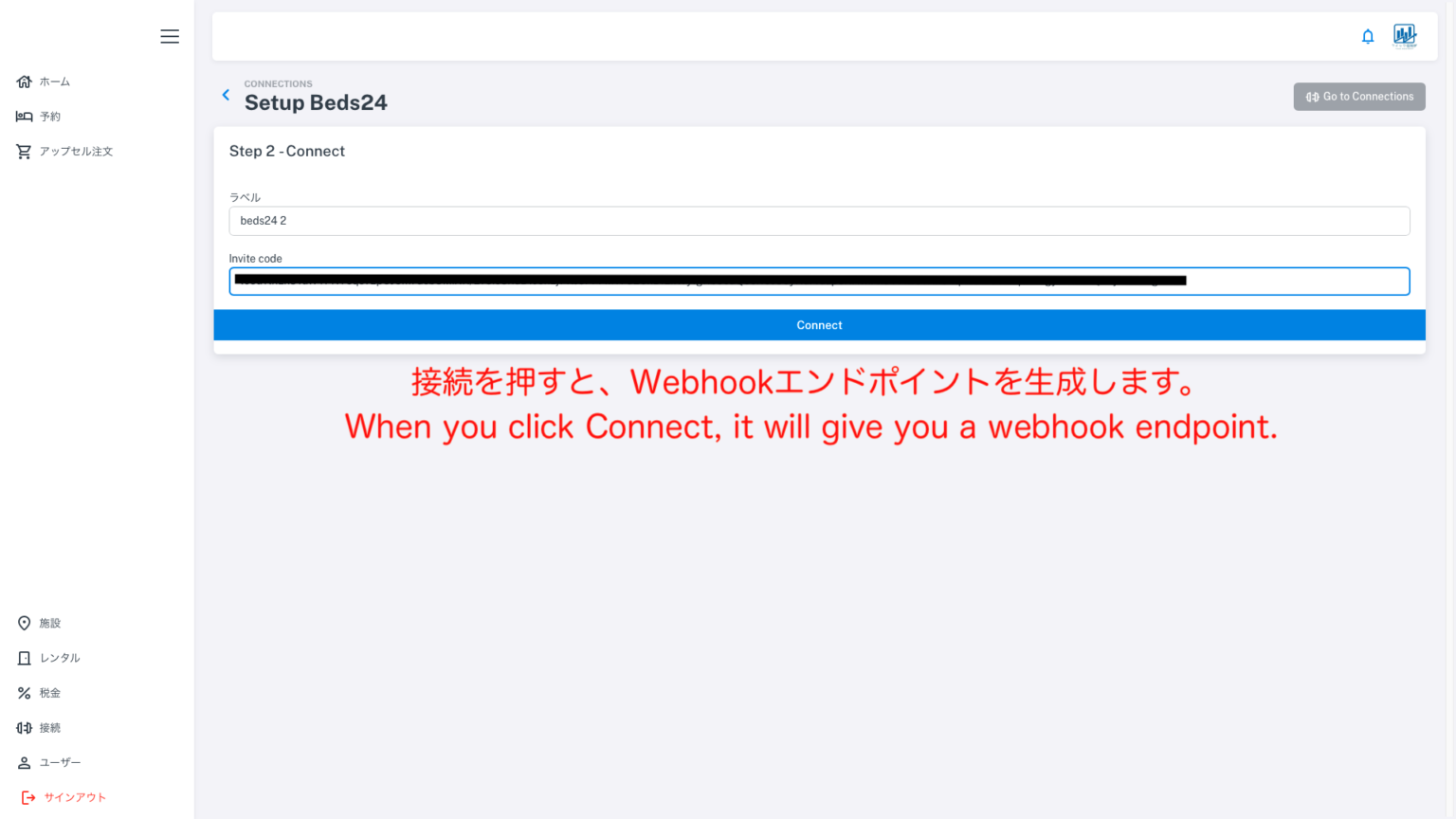
I’ve arbitrarily entered “Beds24 2” as the label this time. Paste the token you just entered into the section labeled “Invite Code”. Pressing “Connect” will display the Webhook endpoint (URL). Paste that endpoint into Beds24. Copy it.
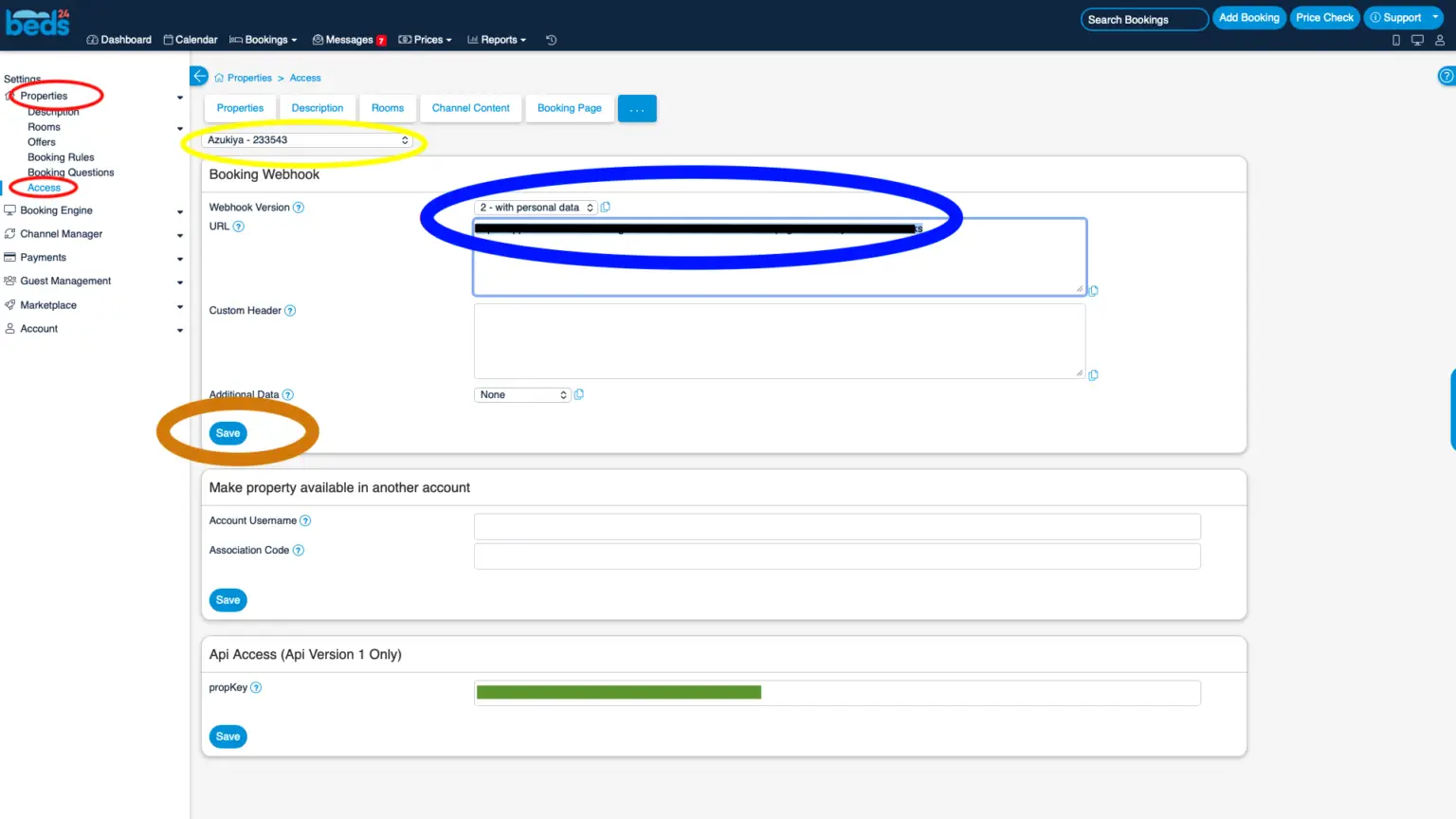
On the left-hand menu in beds24, click on “property” (indicated by the red circle) followed by “Access.”
The dropdown menu (indicated by the yellow circle) allows you to view and switch between all registered facilities.
In the area indicated by the blue circle, switch the Webhook version to “2-with personal data,” and paste the webhook endpoint URL you copied earlier into the area hidden by the black mesh. Select each of the dropdown menus (indicated by the yellow circle), change the setting inside the blue circle for all facilities to “2-with personal data,” and paste the webhook endpoint URL. The green area below is irrelevant for this step.
Once you have finished making changes for all facilities, save using the orange circle. The connection will then be complete.
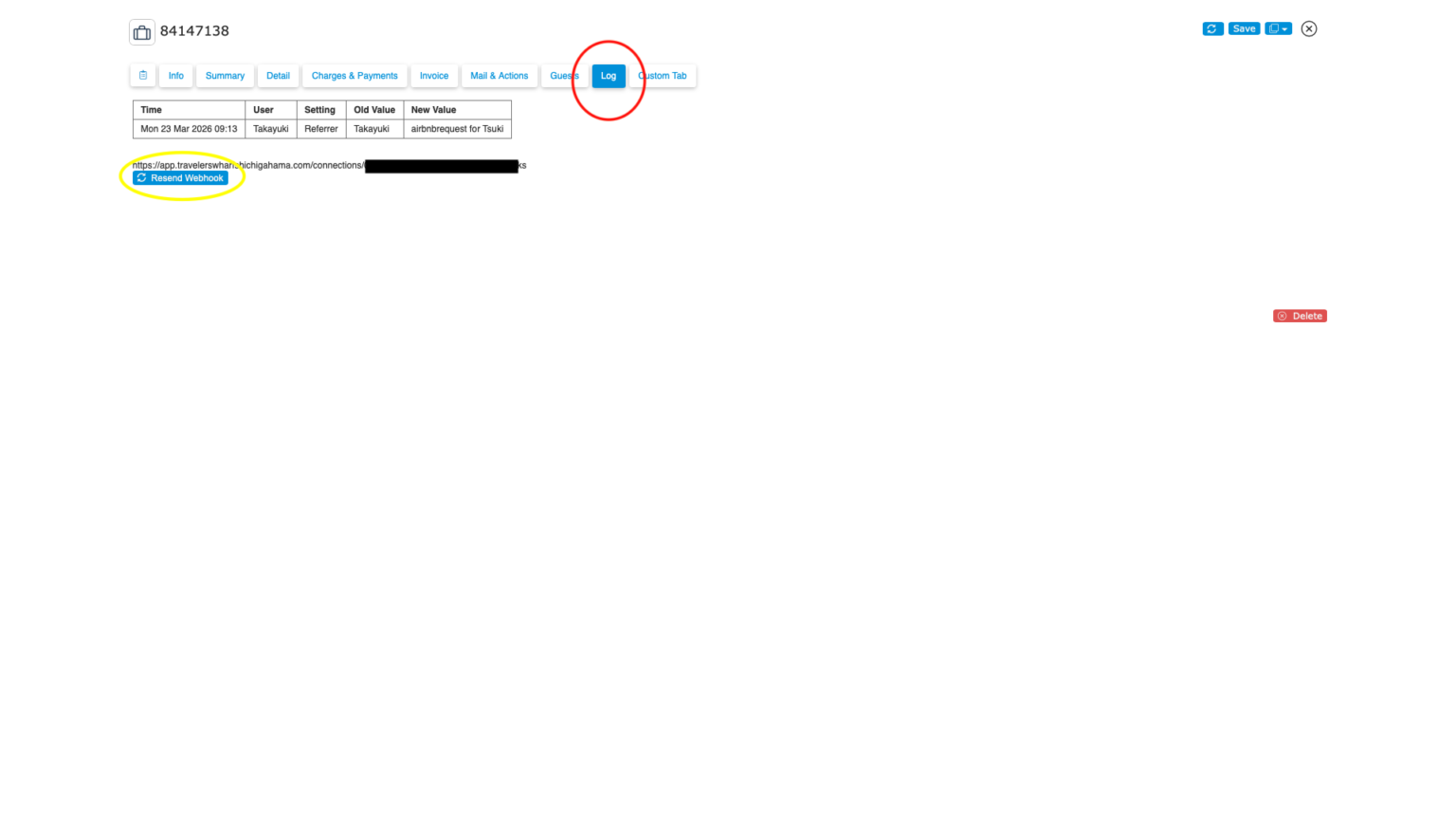
*The image above is a screenshot of beds24. During the 8-month development period, there was one instance where a specific reservation was not sent to the guestbook system. In the summary of the reservation in question, among the many tabs at the top (Info, Summary, Charge & Payment, Invoice, etc.), there is a tab called “Log.” At the bottom of that screen, there is a button called “Resend Webhook”; pressing this button will manually resend the reservation.
To avoid situations where you might not even notice a reservation sending failure from Beds24, please connect beds24 to Google Calendar. This is not only for that purpose, but also allows you to share reservation information with part-time staff such as cleaning staff using Google Calendar, and customize the content shared. This allows you to quickly discover if a reservation is missing from the guestbook system! *This is one of the features of beds24’s Channel Manager.
In this way, a business improves in quality through many people (multiple perspectives) and multiple display methods (integration of multiple systems).
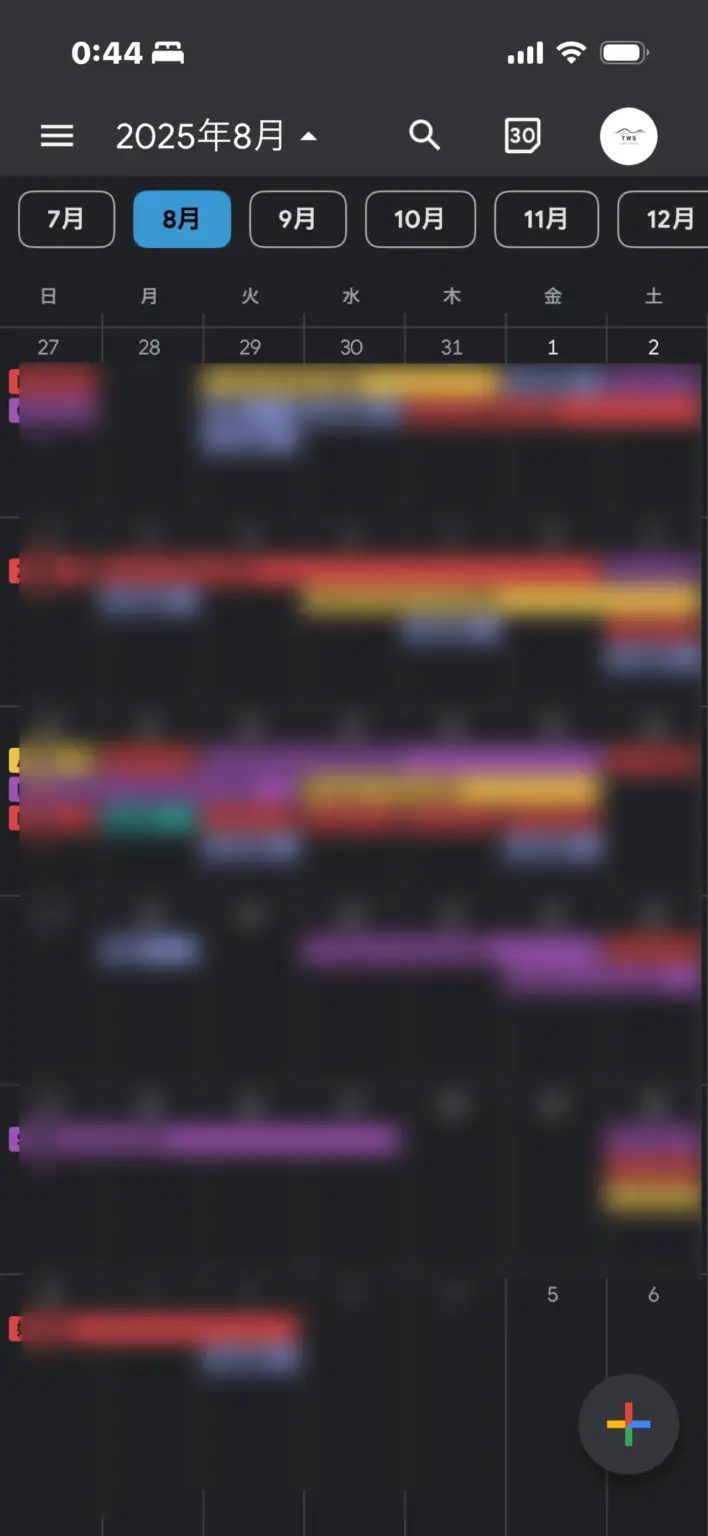
It’s unfortunate that I can’t show you everything in detail, but you can view each room reservation on your mobile phone using the Google Calendar app, as shown in the calendar. Of course, it updates automatically.
Using the guest’s “name” displayed here as a clue, you search for the guest’s registration in the Quick Tax Register.
This is also supported by the Quick Tax Register. Basically, all you need to do is check on the screen whether the guest has properly filled out the registration, what means of transportation and when they are expected to arrive, whether the accommodation tax calculation is correct, whether the guest has paid, whether there are any additional orders from the guest, whether those orders have been made to the guest, and whether the guest has paid for them.
In reality, you will likely start a free trial when you begin your subscription, and you can see the process in the video below.