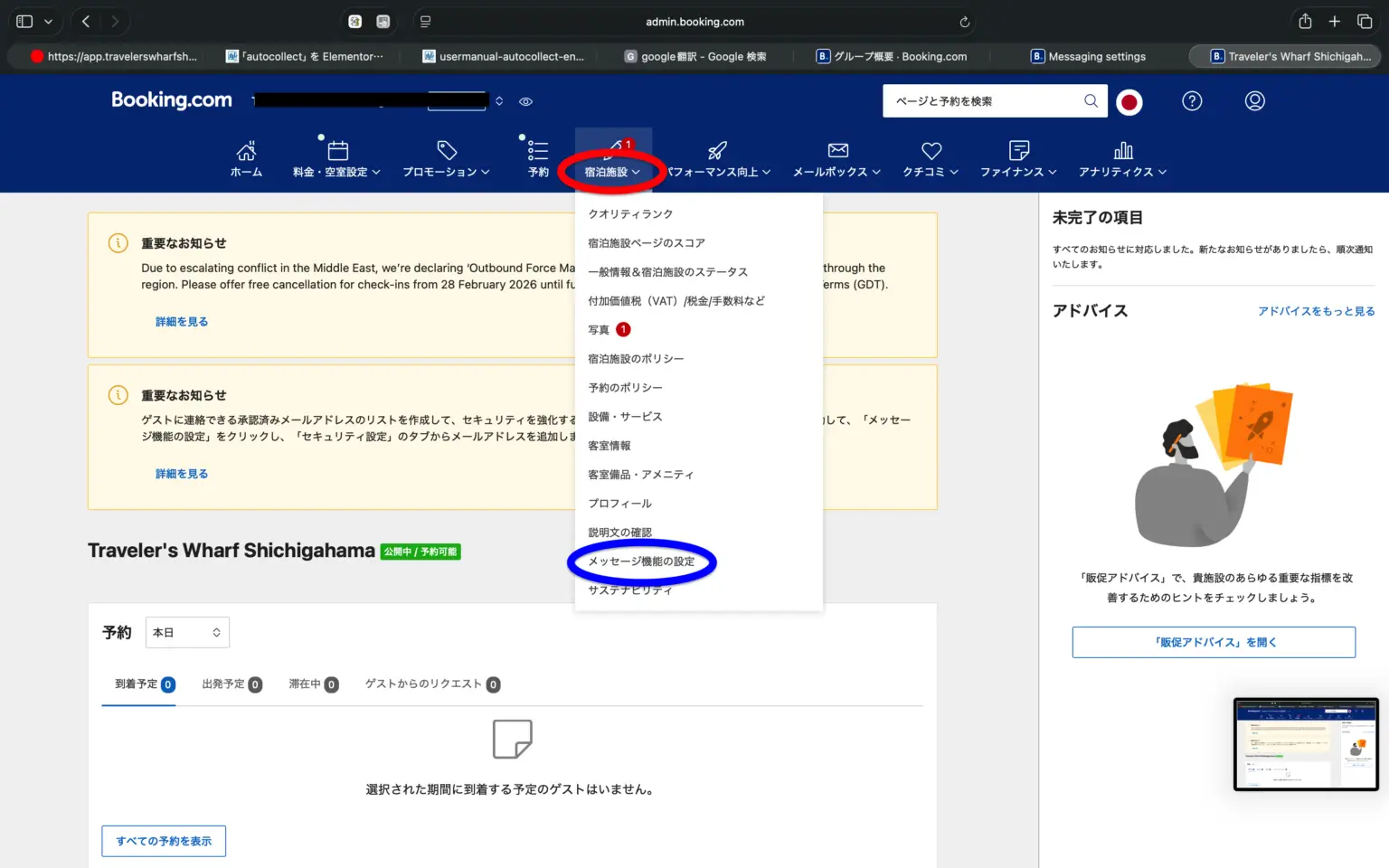
The above is the booking.com extranet settings screen. From the accommodation tab, please click on the Messy function settings.
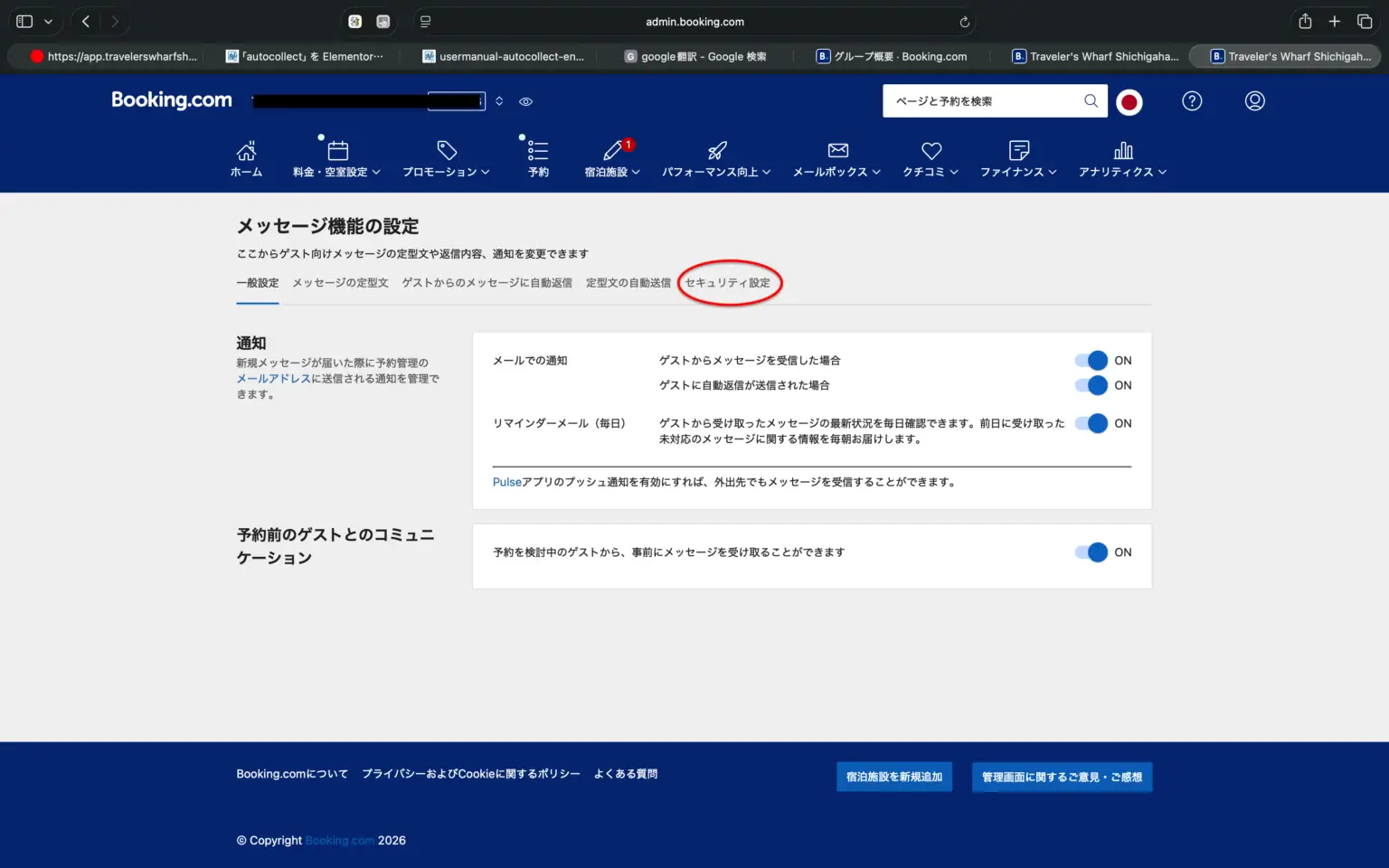
This is the settings screen for the messaging function. In the middle of the screen, you’ll find the security settings tab (button).
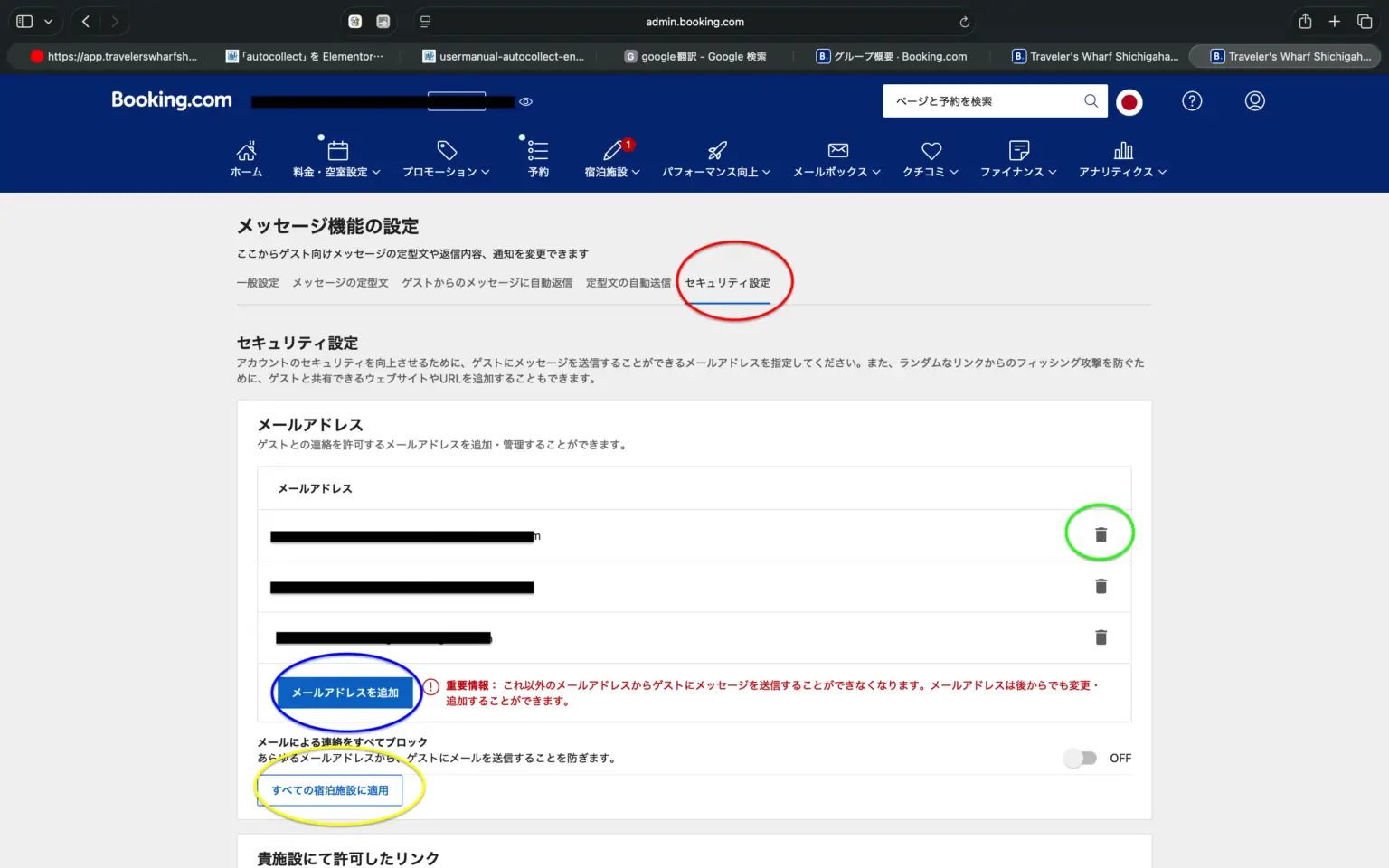
Upon opening, you’ll first see the settings screen for the sender of emails. While it’s standard to send emails to guests from the booking.com admin panel, booking guests have an alias email address set up (for example, quickguestbook@guest.booking.com). To send emails directly to this address from other email software, you must register the sender’s email address.
By default, QuickGuestbook automatically sends multiple invitation emails and reminder emails to guests to complete the guestbook using noreply@app.quickguestbook.jp. Unless you add nobodyreply@app.quickguestbook.jp on this screen, you won’t be able to send emails to guests’ email addresses (via booking). Adding the email address (blue circle) and clicking “Apply to All Properties” (yellow circle) will copy the same settings to all properties you use and register with booking.com.
Customers using the white-label option should set nobodyreply@app.yourdomain.com here.
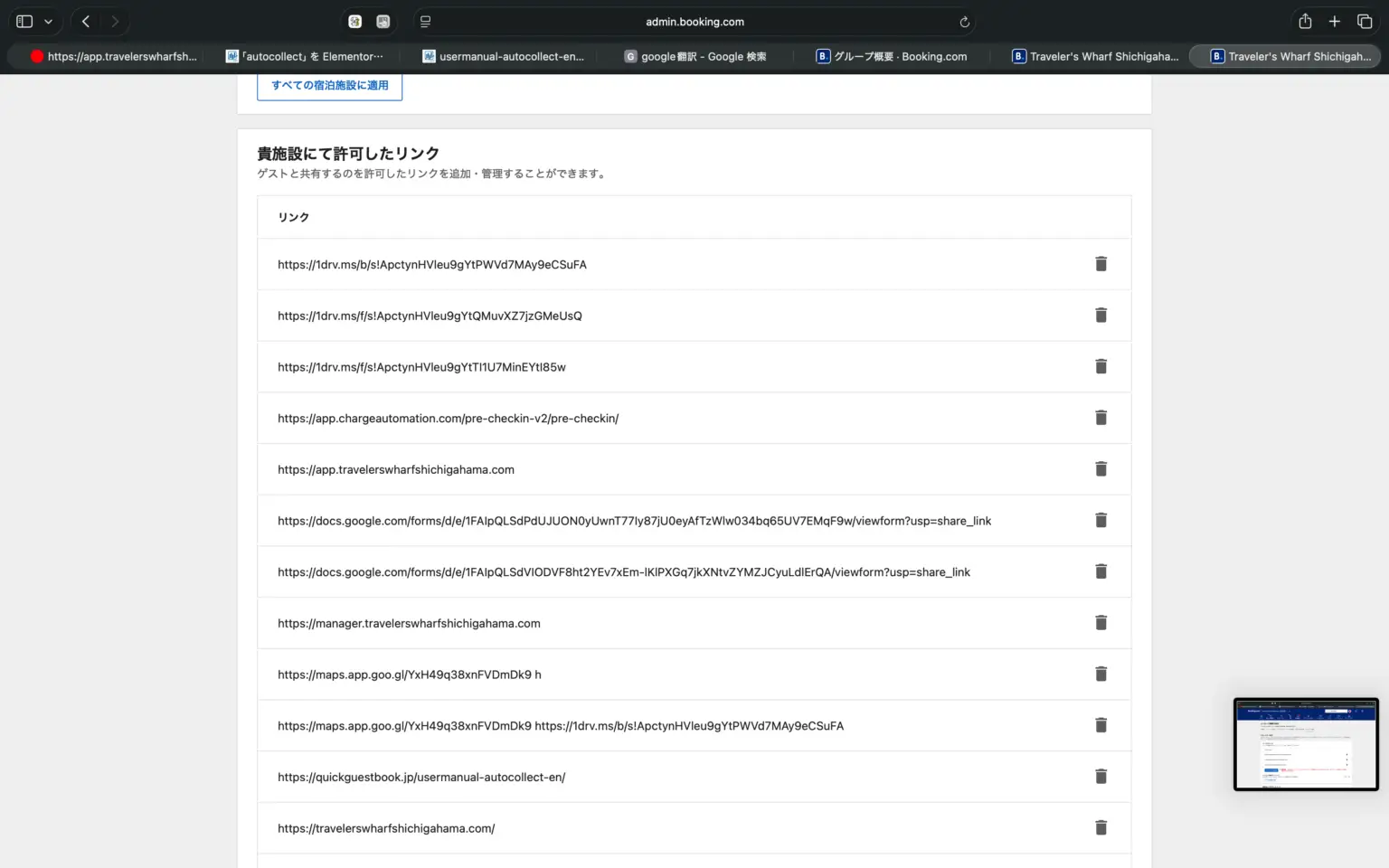
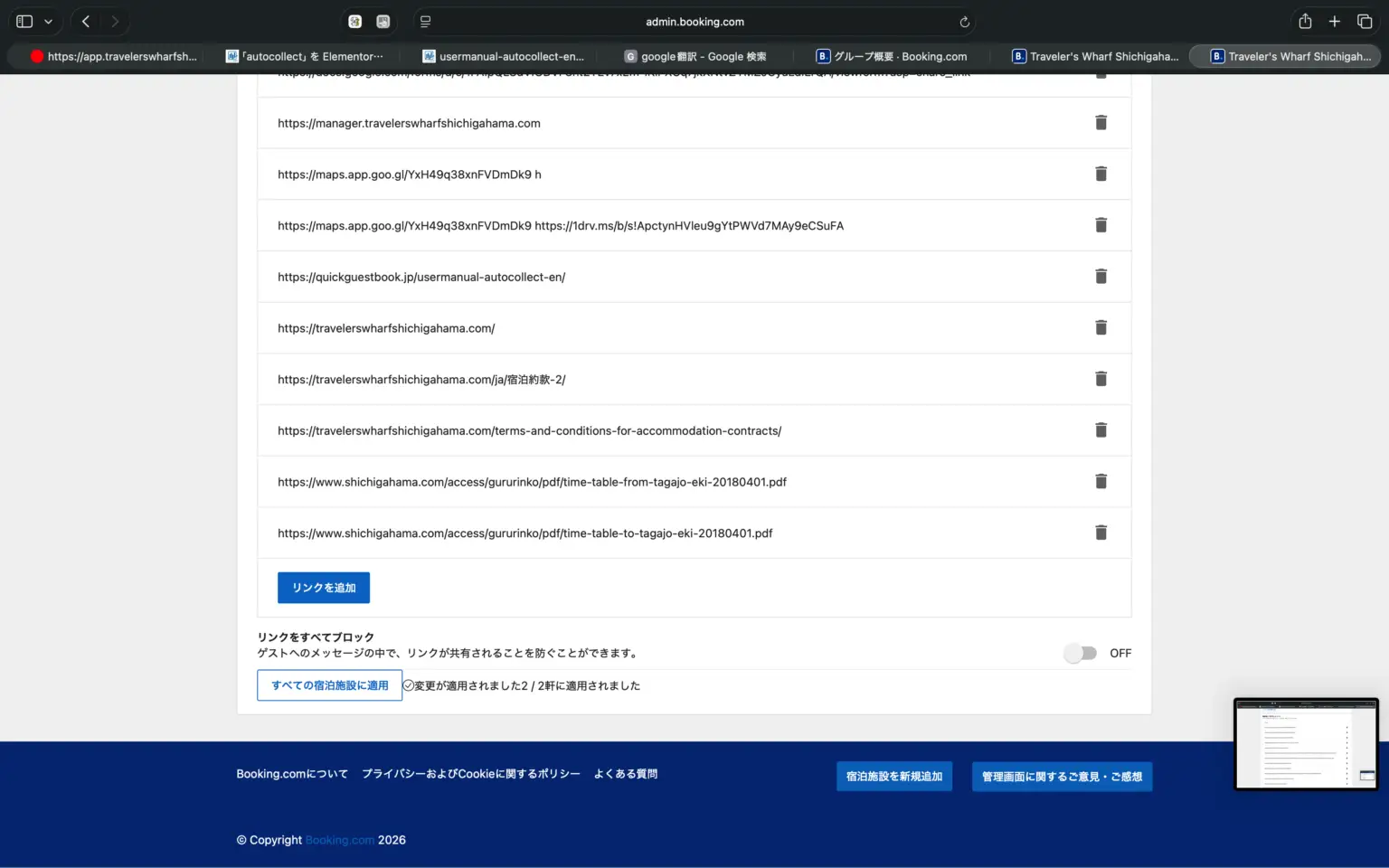
Next is the link settings. Even if you add and allow the sender’s email address, if there is a URL link in the body of the email, the booking mail server will automatically remove it. Specifying the link to be attached here will allow the attachment and prevent it from being removed. The URL you paste does not need to be an exact match.
If you are using app.quickguestbook.jp, add app.quickguestbook.jp/guest-portal/ here. If you are using a white label, add app.yourdomain.com/guest-portal/ here, and then click Apply to all properties. You can copy the settings to all registered properties.