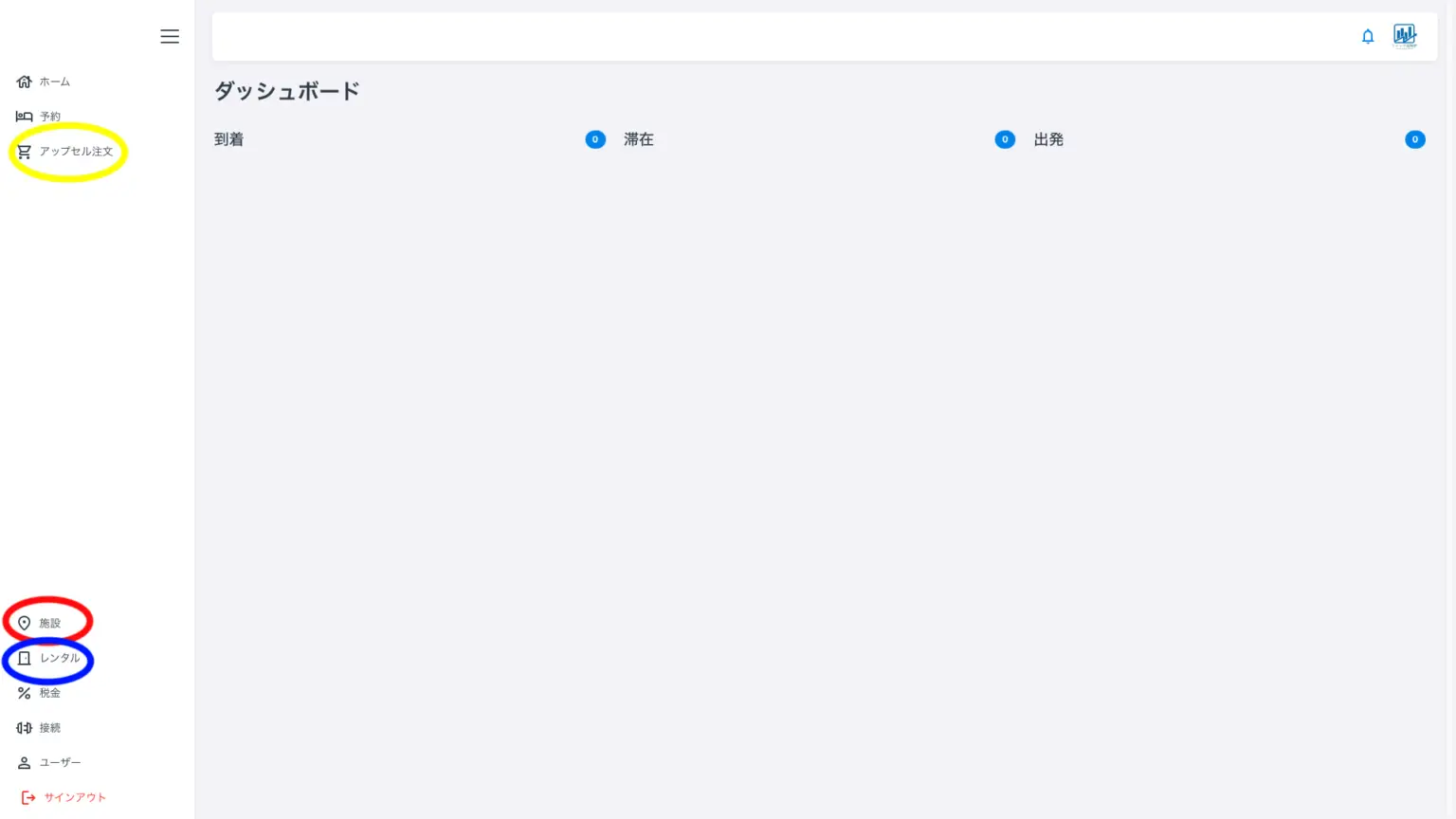
The screen above is the dashboard. You can access this screen by clicking “Home,” two buttons above the yellow circle in the upper left corner of the menu.
The red circle indicates the facilities for accommodation settings, and the blue circle indicates the rental (or property) settings for guest rooms. This section will explain how to set the logo for accommodations. Click on the facility marked with a red circle. The following screen will appear.
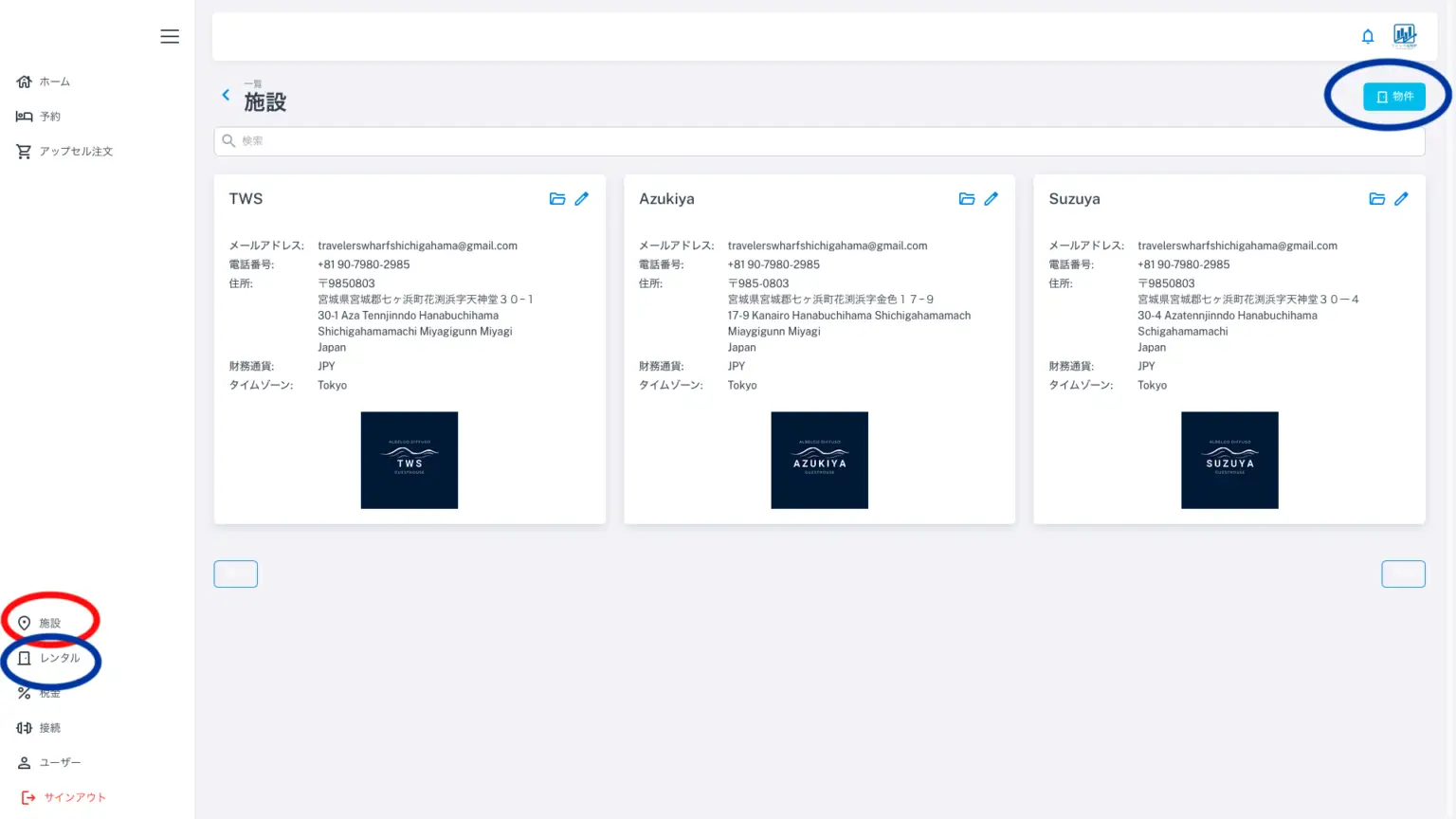
Connecting Quick Accommodation Tax Register to beds24 will automatically load and display registered properties. The API account must be visible in beds24. Since the settings in beds24 are displayed as is, the text may be in English. While displaying in Japanese is convenient in Quick Accommodation Tax Register, it is also possible to display in both Japanese and English as described above. This setting will not be overwritten in beds24. Data is sent from beds24 to Quick Accommodation Tax Register, but not from Quick Accommodation Tax Register to beds24.
You can check the contents using the “folder” icon in the upper right corner of each property, and edit them using the “pencil” icon.
If accommodations are not displayed, please check the connection with beds24 again. The API settings, Pop key settings, or API account may not be making the property visible. Please check here again for details.
In Japanese, “rental” ≠ “property” and “home” ≠ “dashboard,” but they are the same thing in the app.
To edit the logo, press the “pencil icon.” The following screen will appear.
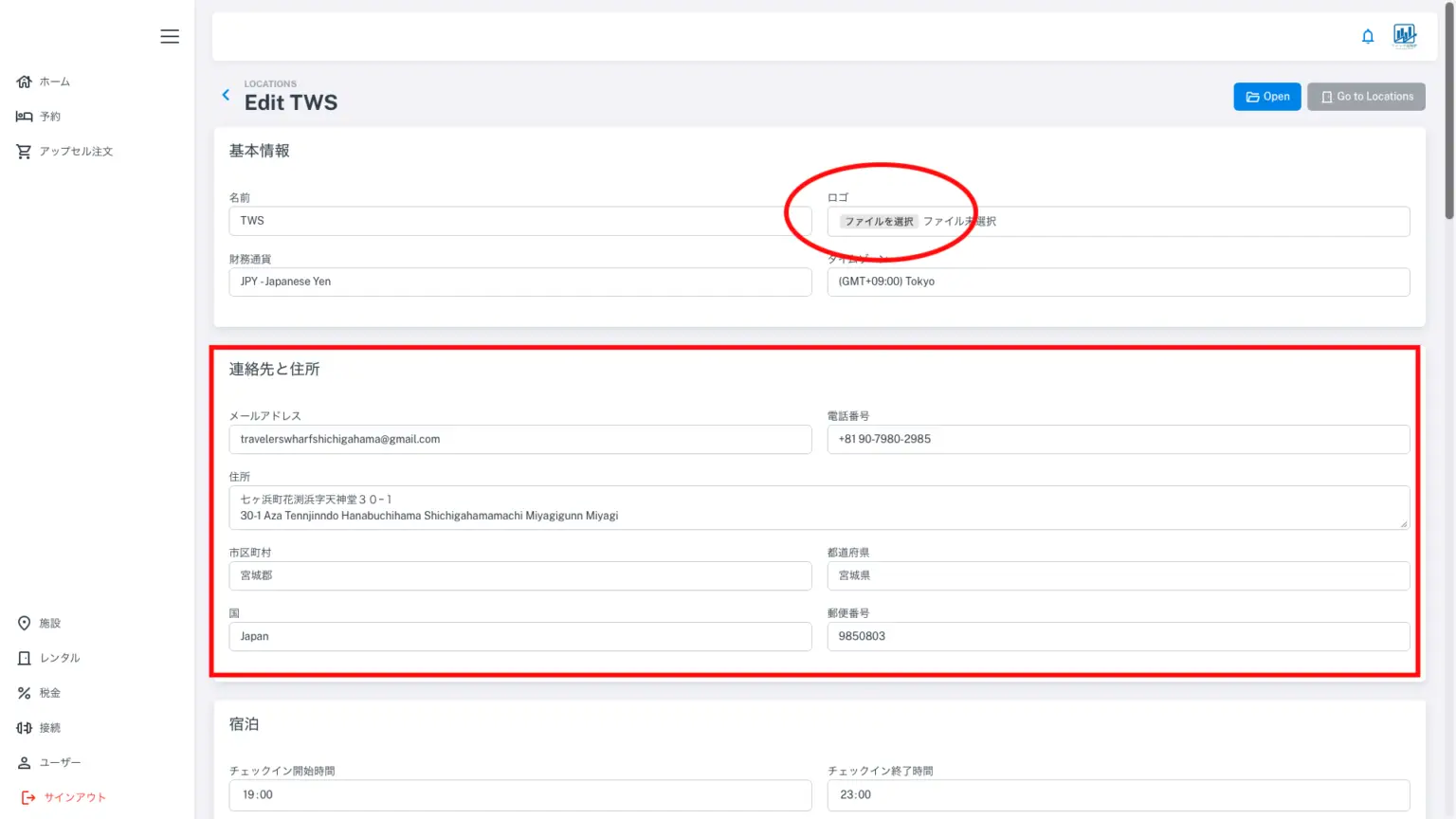
Selecting a file using the red circle on the screen above allows you to set the logo.
The area marked with a red square below is where you edit the facility’s information. This information will appear in the guest register, so please enter it accurately. Inaccurate information may cause guests to get lost. The guest register section of the Quick Guest Register uses the address and OpenStreetMap. If you want to use Google Maps individually, please add a link in the information field.
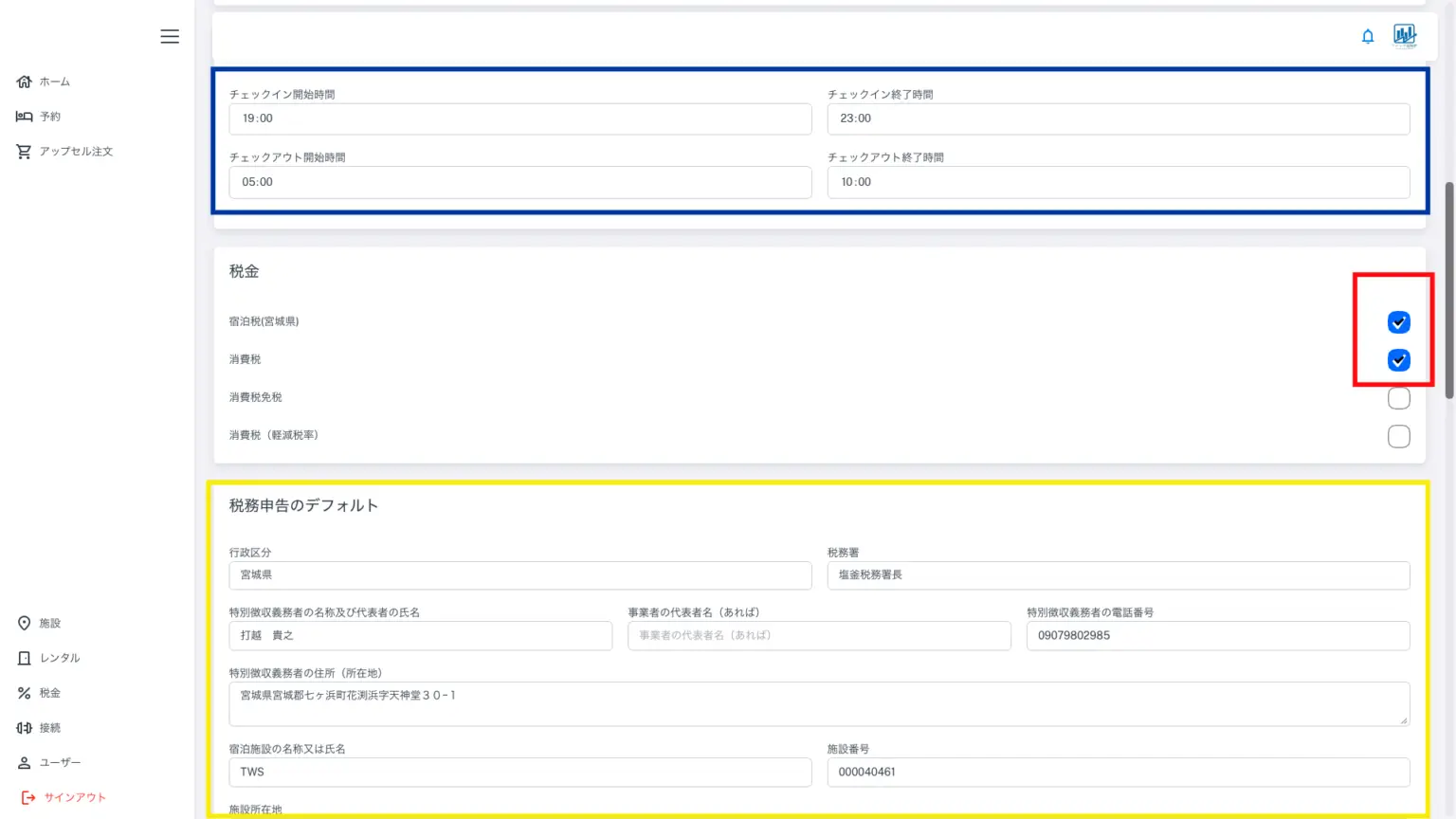
The blue box allows you to set the start and end times for check-in and check-out. Any other check-in and check-out times can be charged as early check-in or late check-out, so please enter them accurately. Ensure they match the settings on the OTA and Beds24 sides. In the Quick Tax Ledger, if you select “Arrival” or “Departure” for additional items or auto-collect (automatic billing) of accommodation tax, payment will be automatically processed at these set times.
The checkboxes marked with red squares are for the property’s tax settings. Here, select which accommodation tax applies to the property and which consumption tax is included in the accommodation price. This is where you select which accommodation tax applies and which consumption tax is included in the amount sent from Beds24. Checking all four boxes will prevent the folio (account) from displaying correctly, so be sure to select only the accommodation tax and consumption tax. If taxes are not displayed, it is likely that the property has not yet been created.
Please refer to this page for tax settings.
The yellow square box indicates the section that will be reflected in the accommodation tax declaration form and collection ledger (monthly summary). Please fill it out accurately based on the special tax collection obligor certificate issued by the local government.
It is important to ensure that the check-in and check-out dates match, as these are also set on OTAs and Beds24.
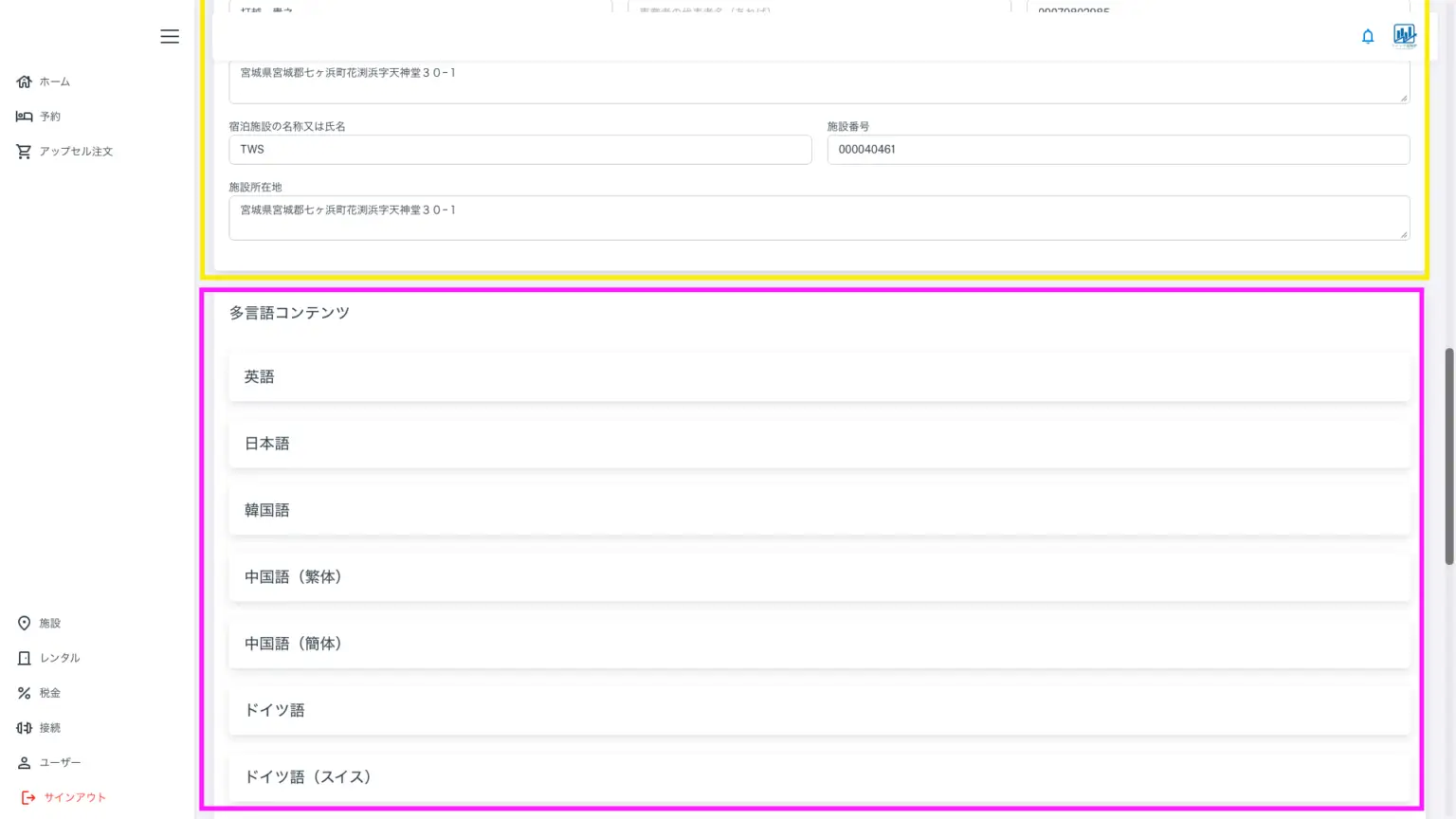
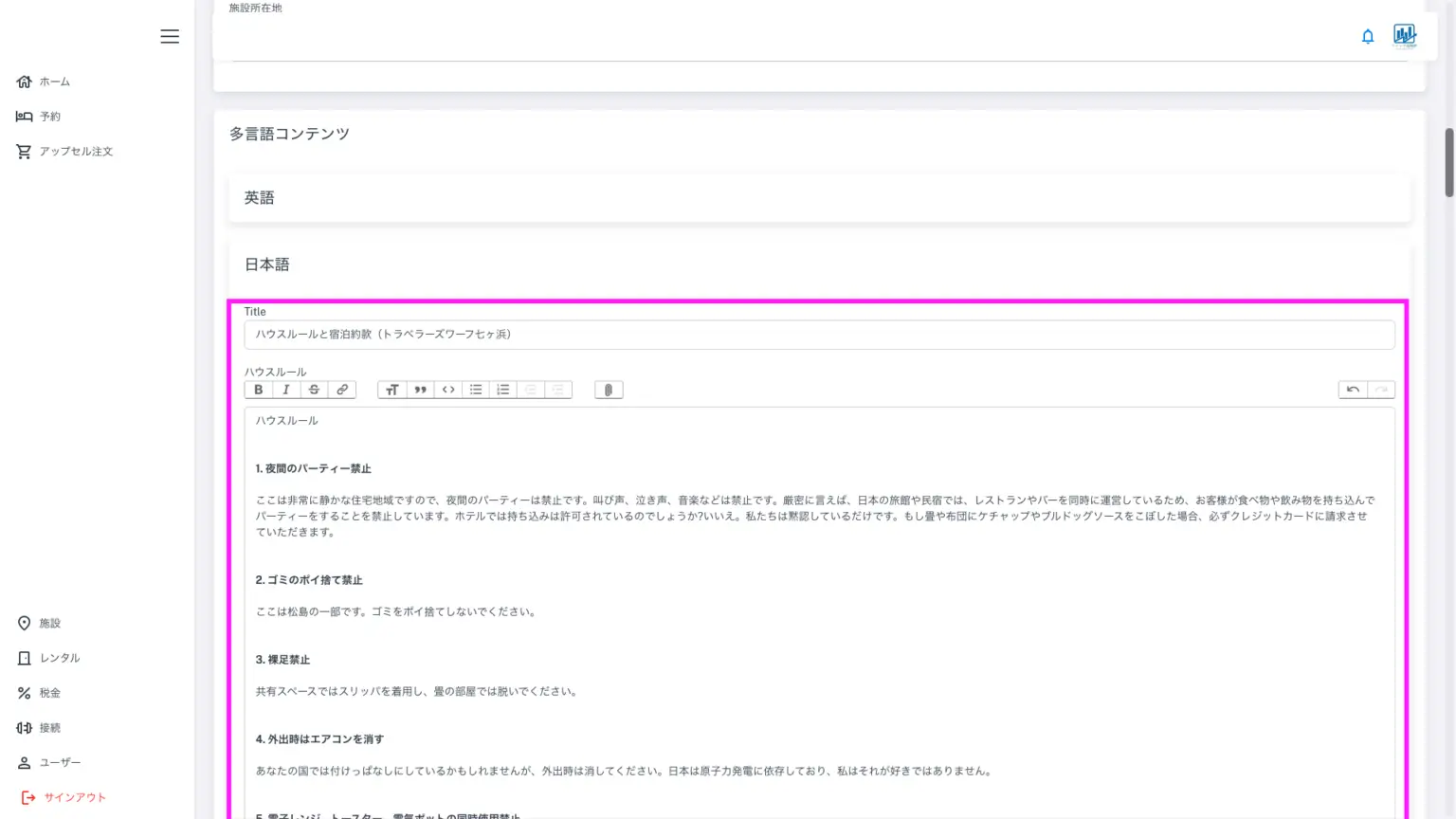
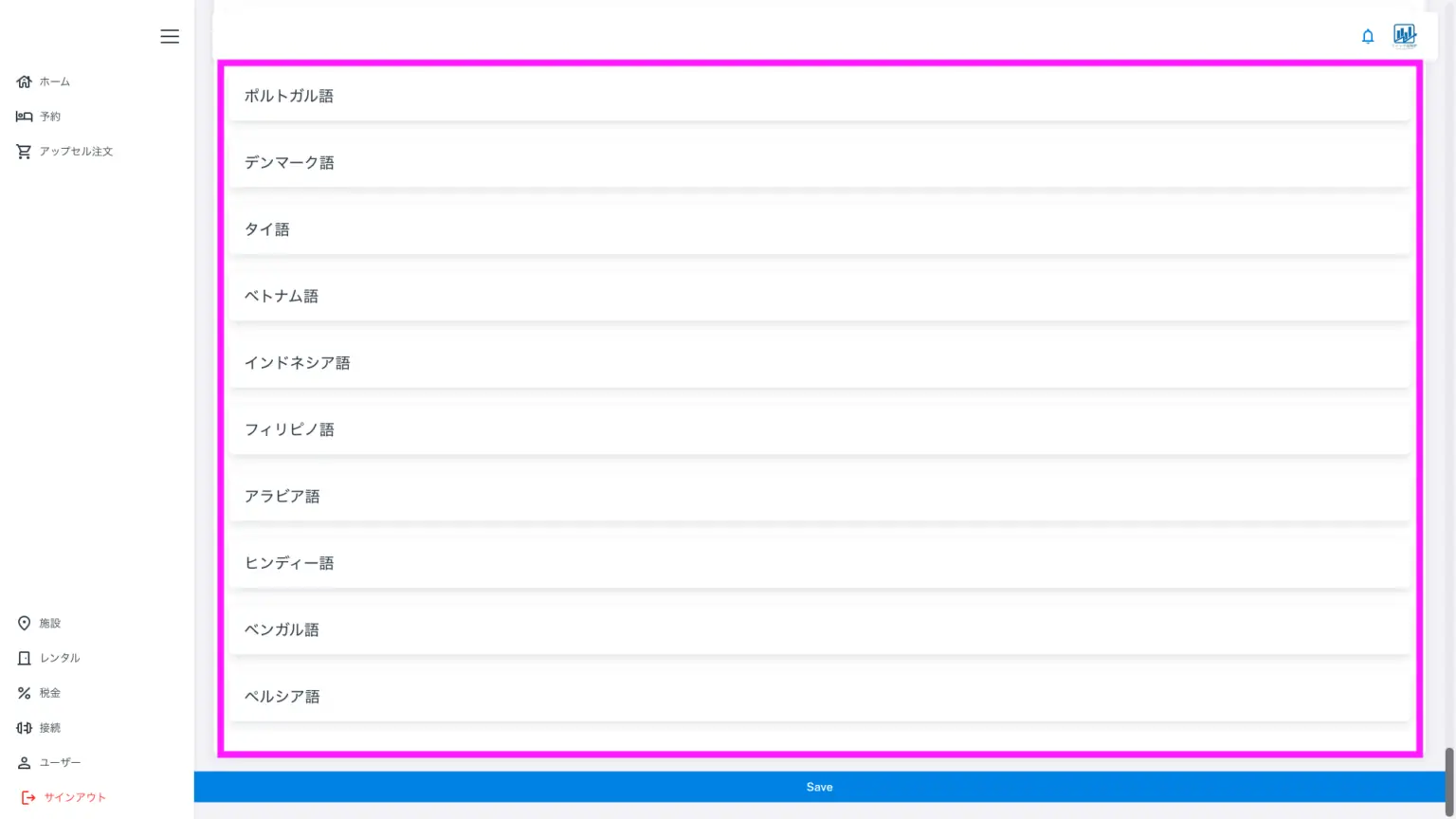
The area marked with a purple square is not for multilingual facility information. This is the section for listing house rules and accommodation terms and conditions. Since this is the section where guests sign the guest register at the front desk, please fill it out accurately. First, fill it out accurately in Japanese, then translate it into English, and then copy and paste it into the other 18 languages. You can see a sample of this guest register section here.
You can switch languages using the flag icon at the top of the guest register. To save your changes, press Save at the bottom.
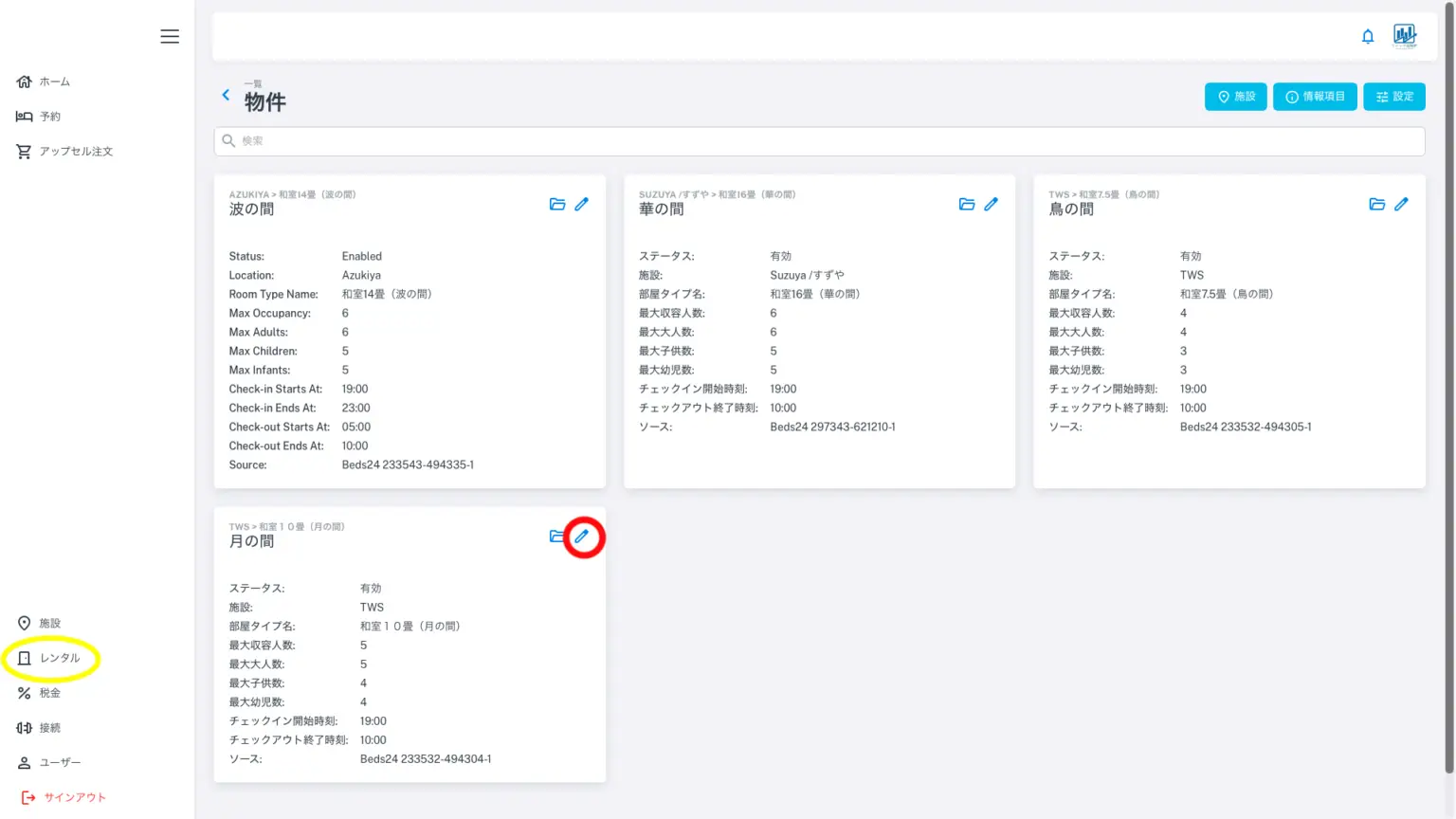
Clicking the yellow circle icon (Rental) will take you to the property screen. Similar to facilities, data is automatically imported from Beds24, but you can set the name for the guest register.
Clicking the red circle icon (pencil icon) will bring up the screen shown below, where you can edit the details.
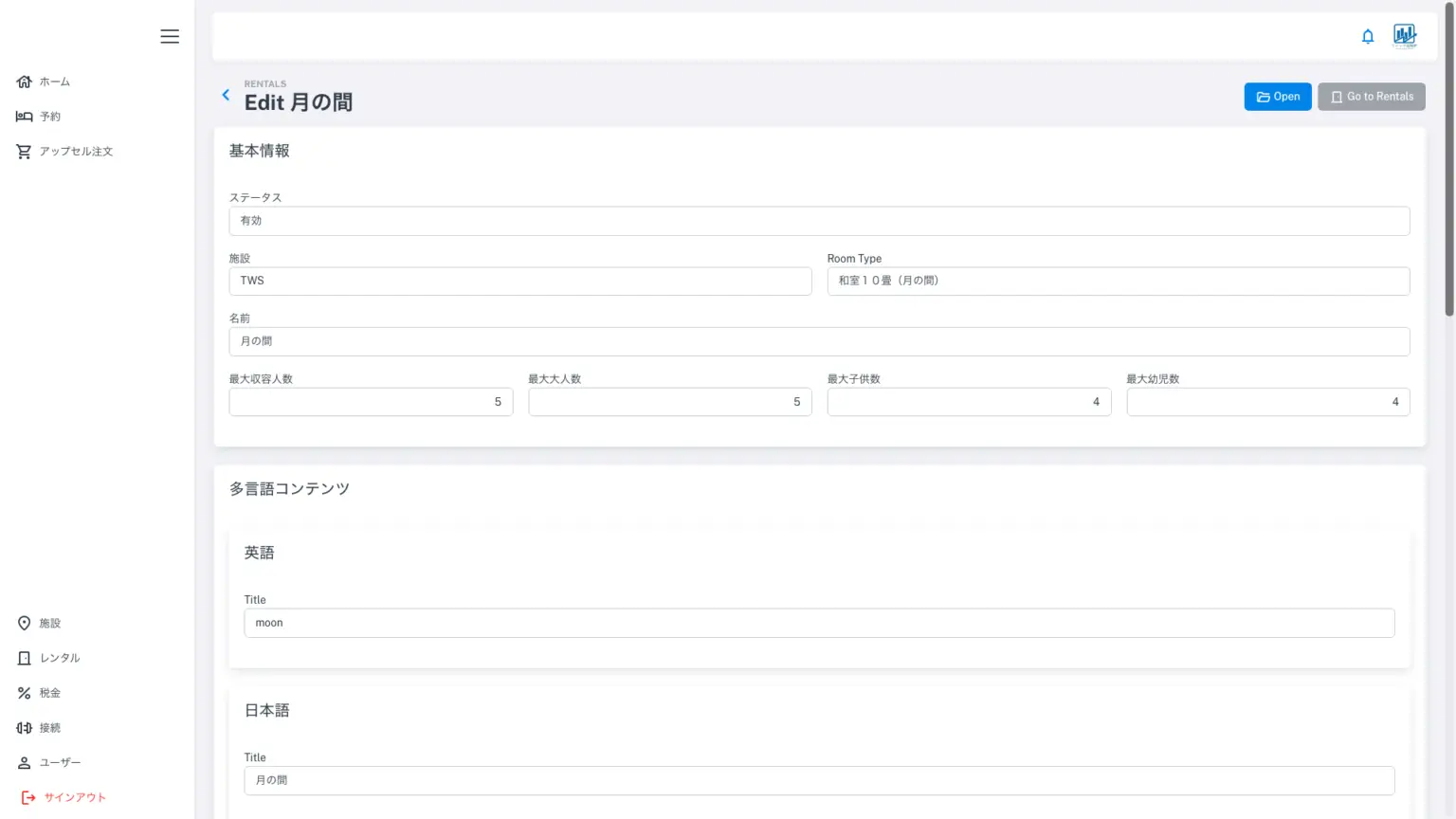
The facility is selected from a dropdown menu, and the room type is entered manually. It may also be a unit name. The name is the room name displayed in the app. You can translate it into 20 languages using the multilingual content below. Because there are local regulations prohibiting children from staying alone, please calculate and enter the maximum occupancy for adults, children, and infants based on the total occupancy. (The maximum number of children is the maximum number of adults minus one.)
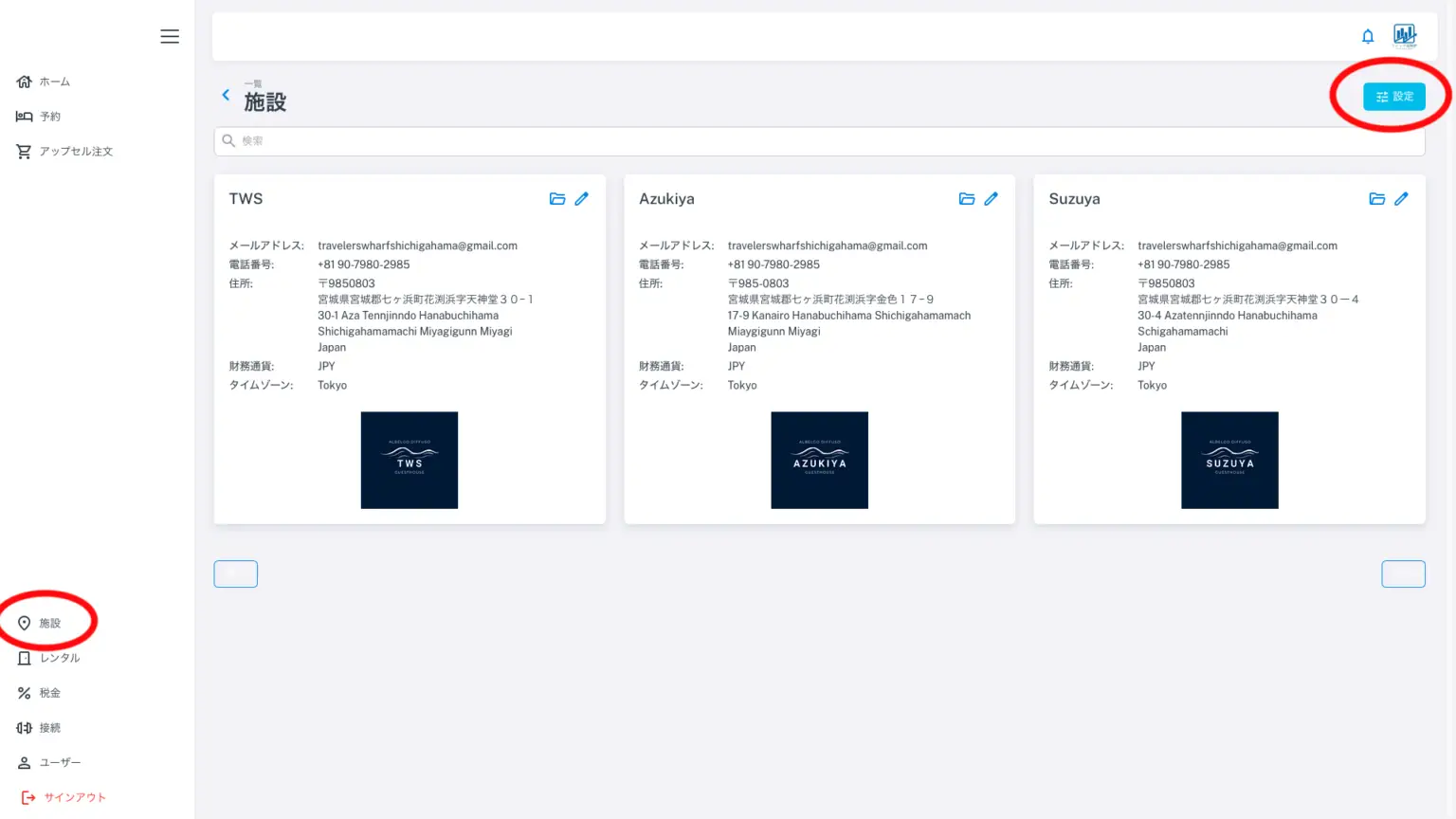
First, let’s assume that the child rates are set as follows: for example, 1100 yen (tax included) for children aged 0 to 5, and 2200 yen (tax included) for children aged 6 to 15. There are two methods for setting the same rates across all registered facilities, or setting different rates for each facility based on age. Child rates must be set from “Facilities” (indicated by the red circle on the left of the menu). This setting cannot be done from “Rental” or “Property” on the left of the menu. Next, press “Settings” in the upper right corner. The following screen will appear.
Age-based pricing bulk setting screen
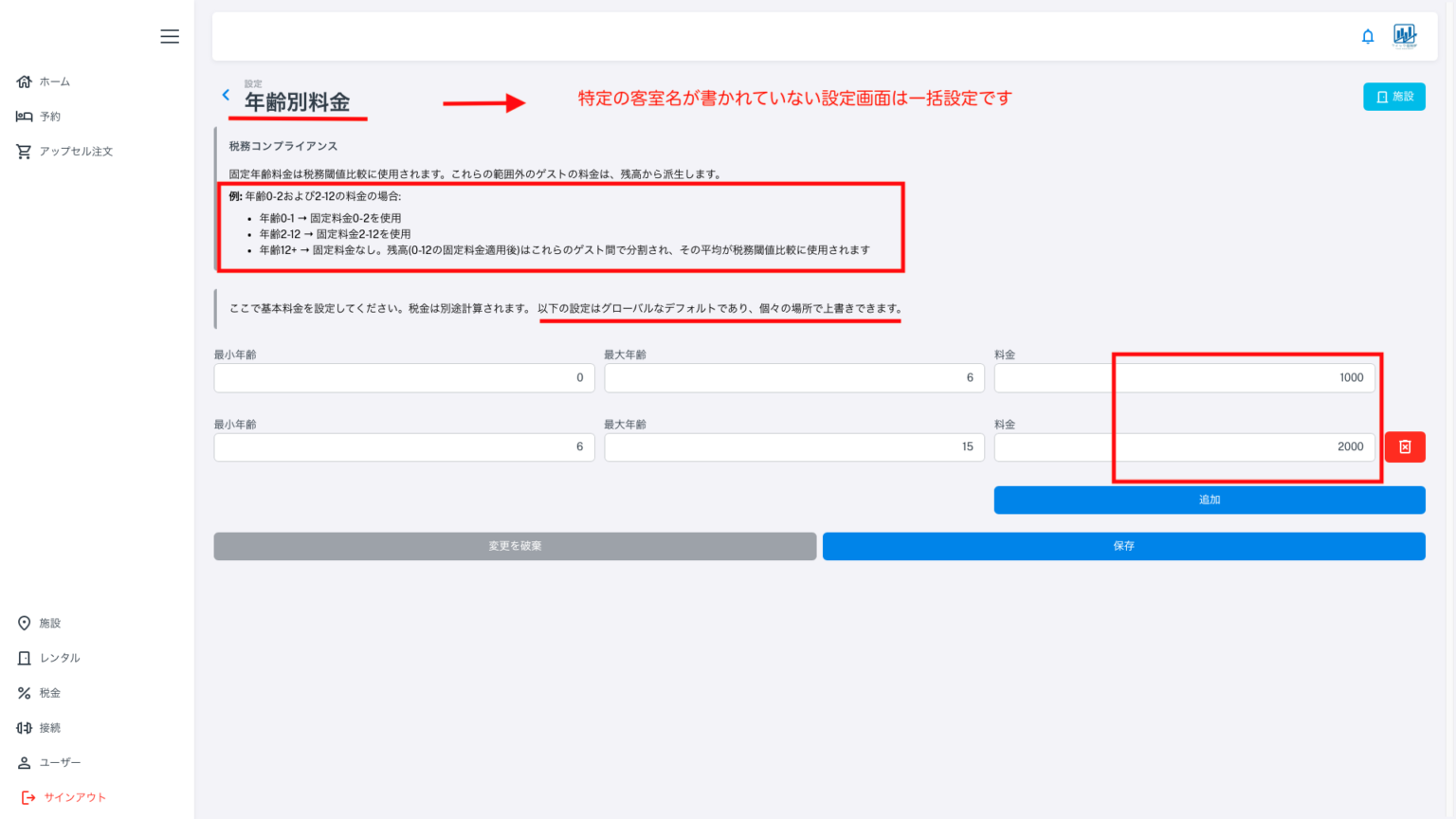
The image above shows the screen for setting age-based rates in bulk. In the middle of the screen, underlined in red, it says, “The following settings are global defaults and can be overridden in individual locations.” This is a method for setting the same age-based rates for all registered facilities at once. If settings are made for individual facilities, those settings take precedence. Bulk settings become effective only when the age-based rate settings for individual facilities are blank. Create thresholds for each age group, create the corresponding rates, and save. The child rates will then be set for all registered facilities at once.
Due to system limitations, it is not possible to set age ranges with gaps. The above settings result in a rate of 1100 yen for ages 0-5 and 2200 yen for ages 6-15. If the actual rates are 1100 yen and 2200 yen including tax, please enter 1000 yen and 2000 yen excluding tax and save (tax-exclusive input).
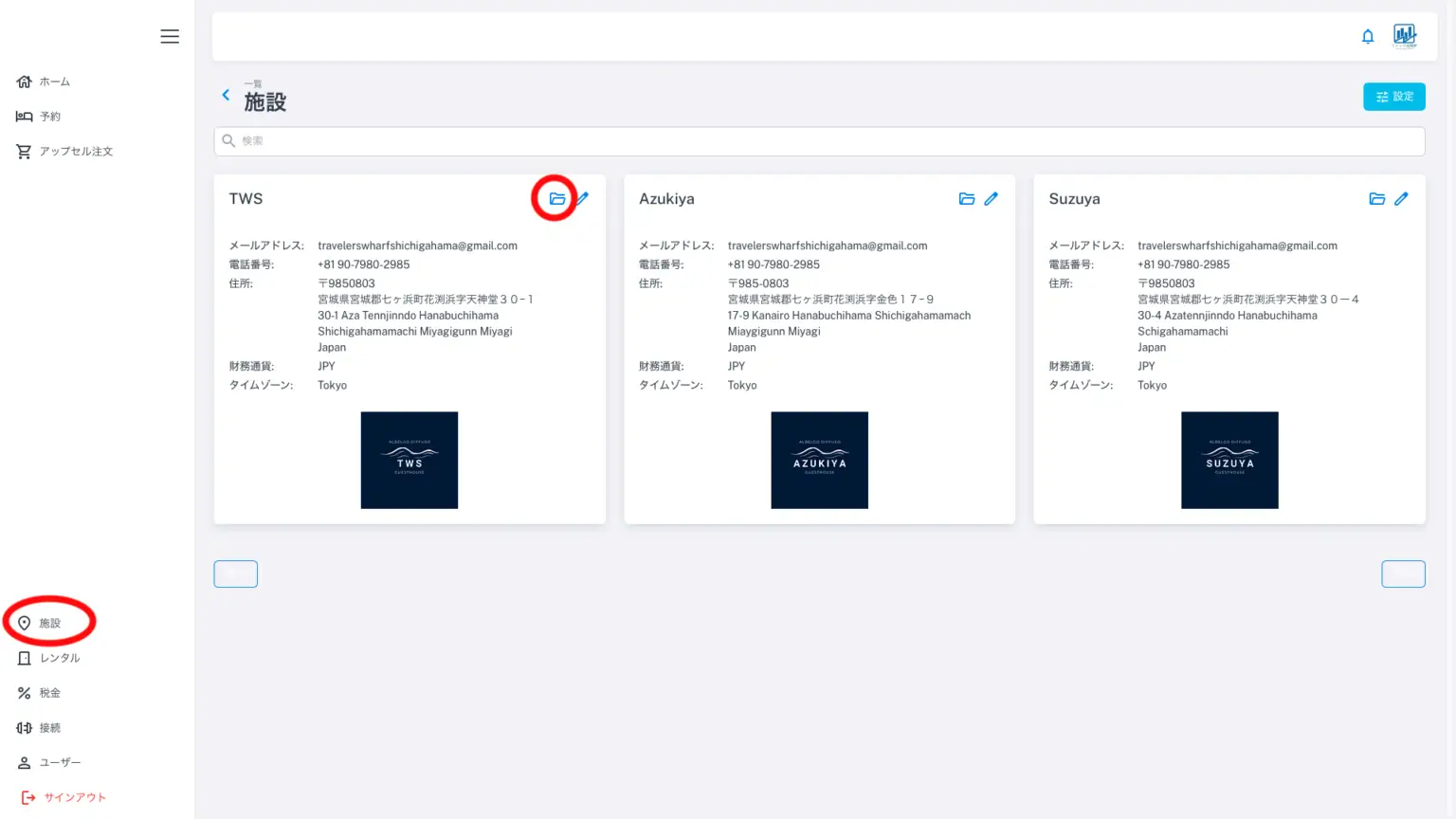
Next, let’s look at setting child rates for each facility. Click the red circle on the left side of the screen, labeled “Facilities.” Once the facility list opens, click the folder icon in the upper right corner of the facility for which you want to change the child rates individually. The screen will then look like the image below. Please note that these settings cannot be changed from the “Rental” menu or from “Properties” in the upper right corner of the screen. Both bulk and individual child rate settings must be done through “Facilities.”
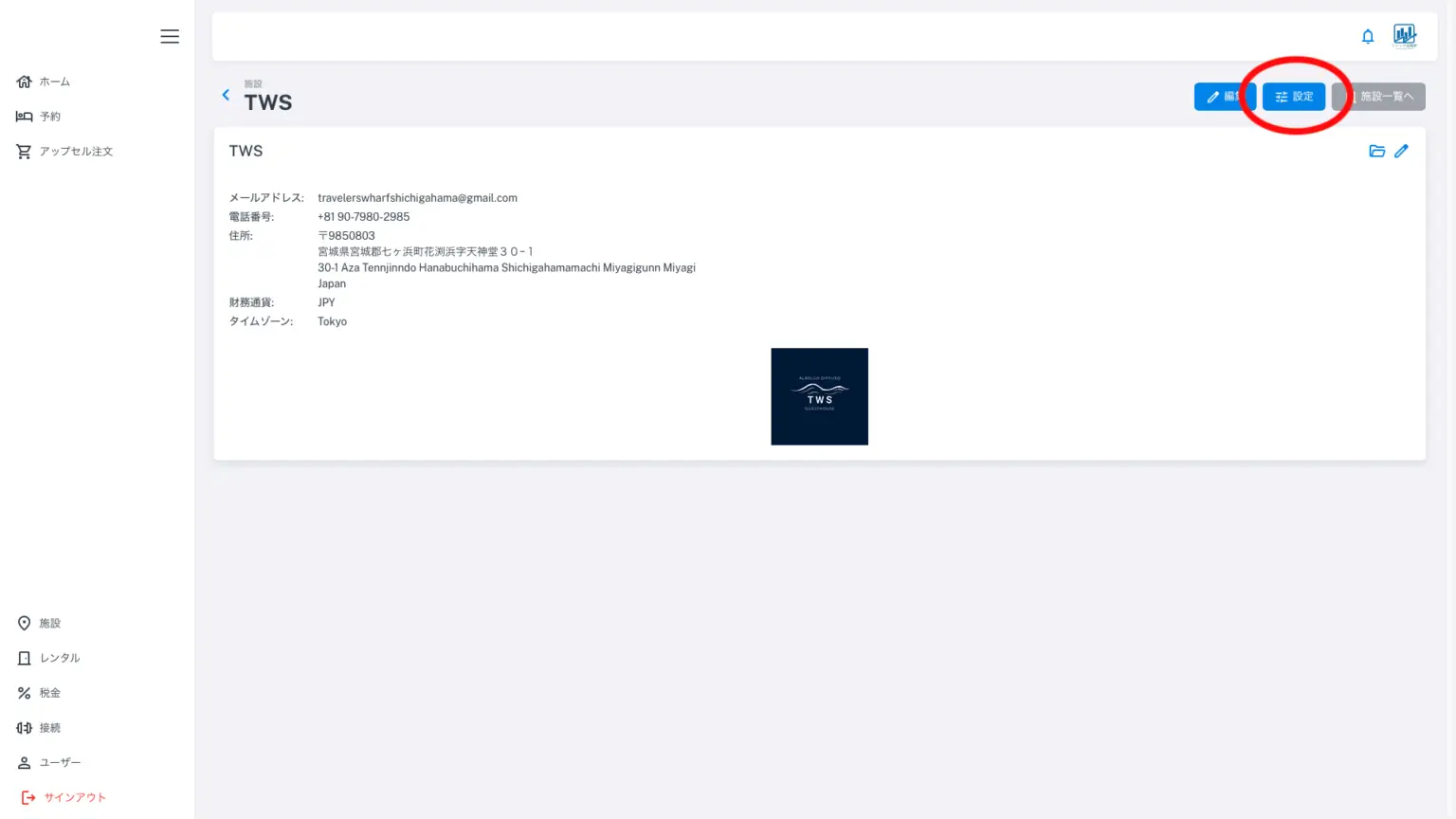
Once the target facility is displayed, press the settings button in the upper right corner. The following screen will appear.
Age-based pricing screen (for individual facilities)
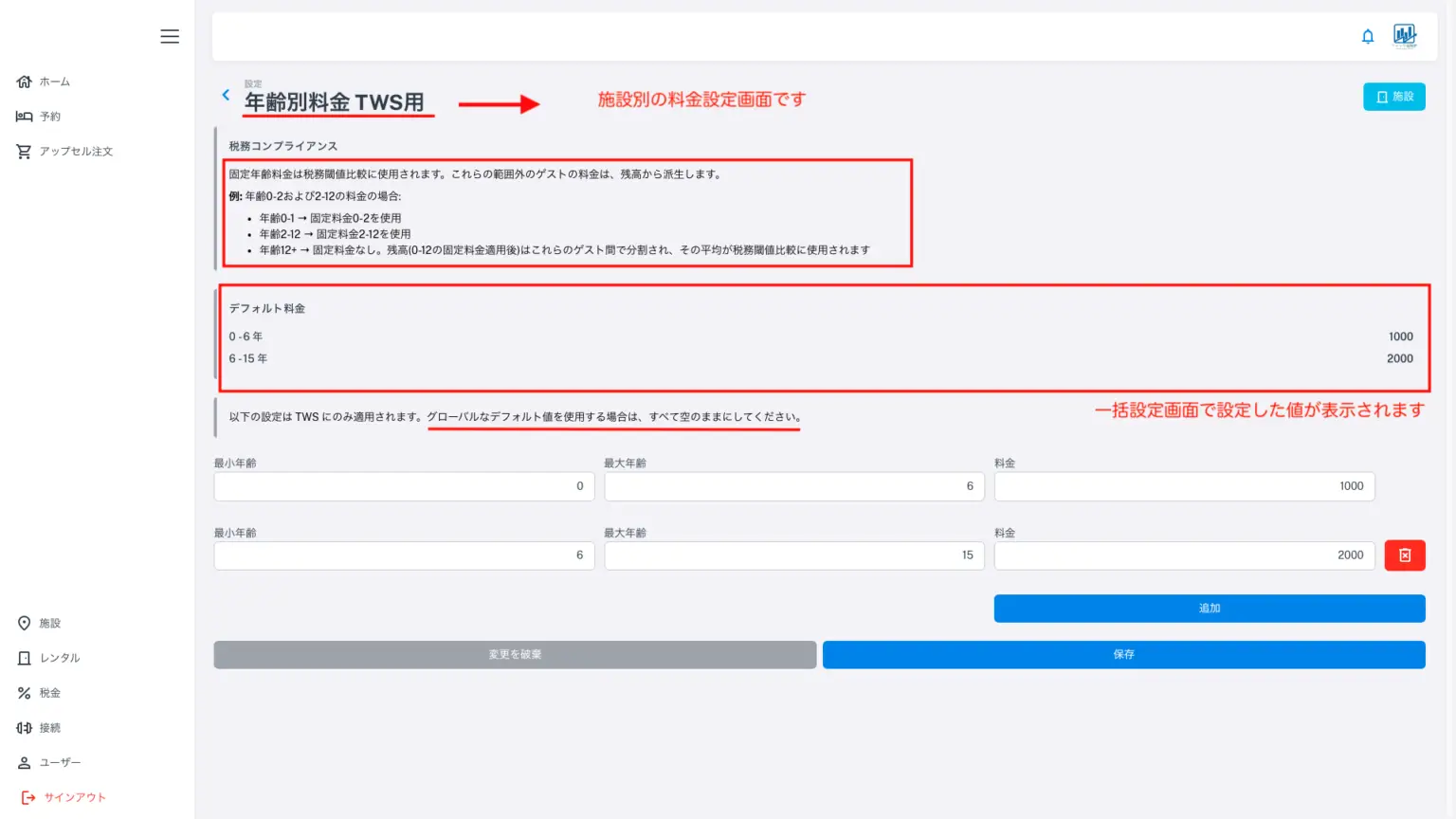
In the bulk settings, the heading that simply read “Age-Based Rates” is now “Age-Based Rates (for Facility Name)”. You can set child rates by creating age thresholds. Due to the specifications, you cannot create thresholds with gaps. If you leave the above blank, the global settings (bulk settings) will function as the default. Please use the same rate settings (excluding tax in the app) as the OTA that allows child rates. Please save any changes. If you set age-based rates individually here, they will take precedence over the global settings.
*Please enter child rates excluding tax.
*Some municipalities require verification of a child’s age for calculating accommodation tax (e.g., under 12 years old, tax exemption rule). Also, some accommodations already have child rates.
*Some OTAs, such as Airbnb, do not have child rates; we believe some kind of notice is needed on the OTA side. (The total price remains unchanged.)
*If no settings are specified in these options, the total price will be calculated by averaging (dividing) the total price by the number of people and the number of nights, assuming there is no child rate. This will be used as the base unit price for calculating the accommodation tax (taxable base amount) (excluding tax).
*The total price cannot be changed; only the weighting of the charges between adults and children will change. However, since the adult rate is calculated after subtracting the child rate from the total price, the taxable base amount (or the determination of whether the taxable and tax-exempt thresholds have been reached) will be affected by the child rate.
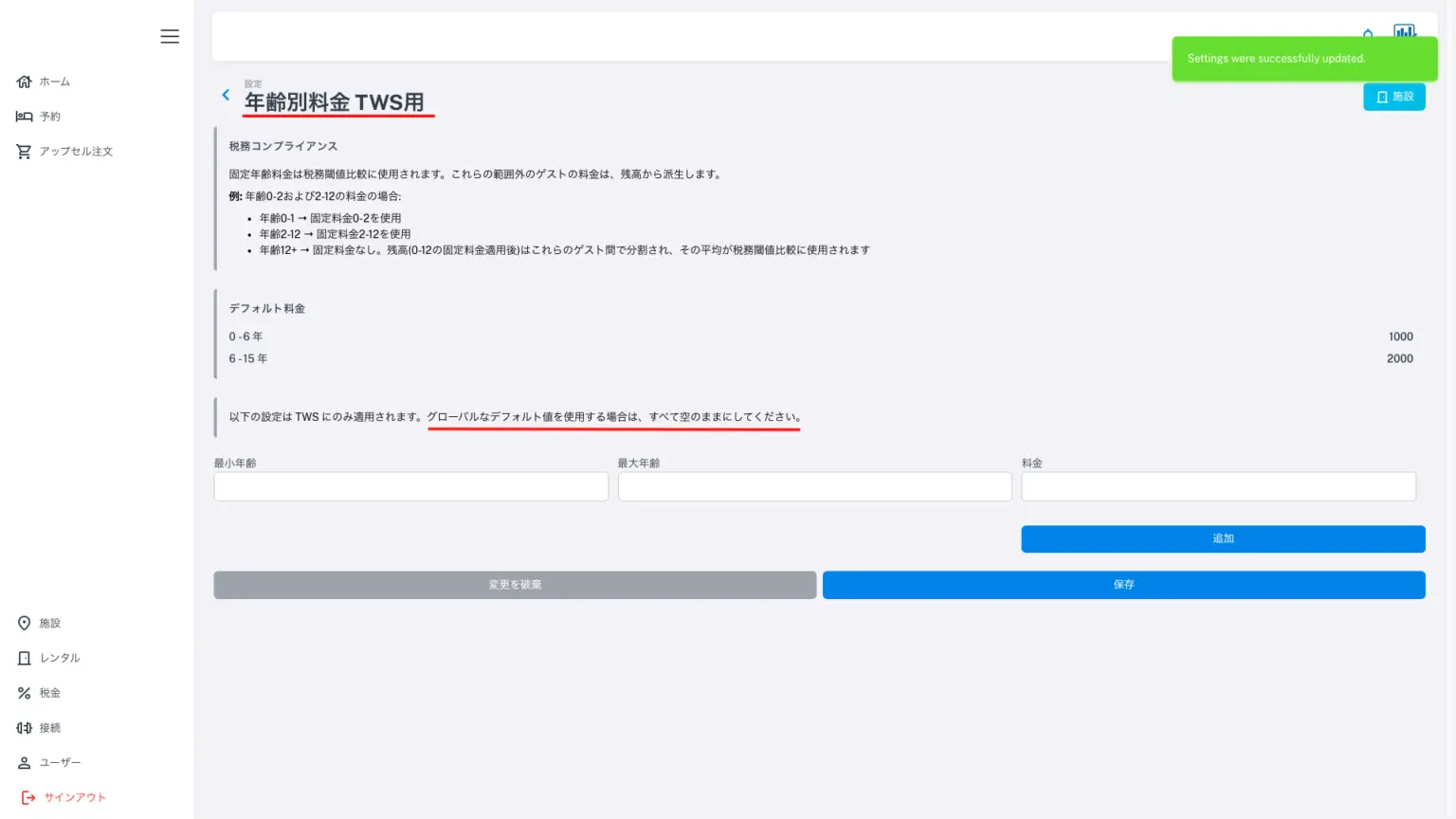
If you want to use the values from the bulk settings directly for individual facilities, you can leave the individual settings field blank. For both individual and bulk settings, if you want to delete a value you’ve already entered, use the “X” mark or leave the field blank (instead of entering 0) and save.
*Important: This is not an app setting, but we understand that some properties set a cleaning fee as an additional charge on the OTA, for example, charging a flat rate of 2000 yen for all bookings. However, according to the criteria for calculating accommodation tax, this fee should be included in the accommodation price. Whether the 2000 yen is incorporated back into the accommodation price and billed separately as a special cleaning fee, or not, please set and sell this as an additional charge in Quick Accommodation Tax Book. Otherwise, we cannot calculate the tax correctly.
*Many overseas OTAs charge a commission of 12% to 15%, and even domestic OTAs charge more than 5%. Payment through Quick Accommodation Tax Book incurs a Stripe payment fee of 3.6% + a platform usage fee of 1.3%, totaling 4.9%, resulting in significant cost savings.
* *The same applies to parking fees; if we assume that we charge the same fee of 1100 yen to both customers arriving by car and those arriving on foot, that is essentially an accommodation fee.
*Hint: The following is a screenshot of the Beds24 settings screen. Please refer to the Beds24 settings as well.
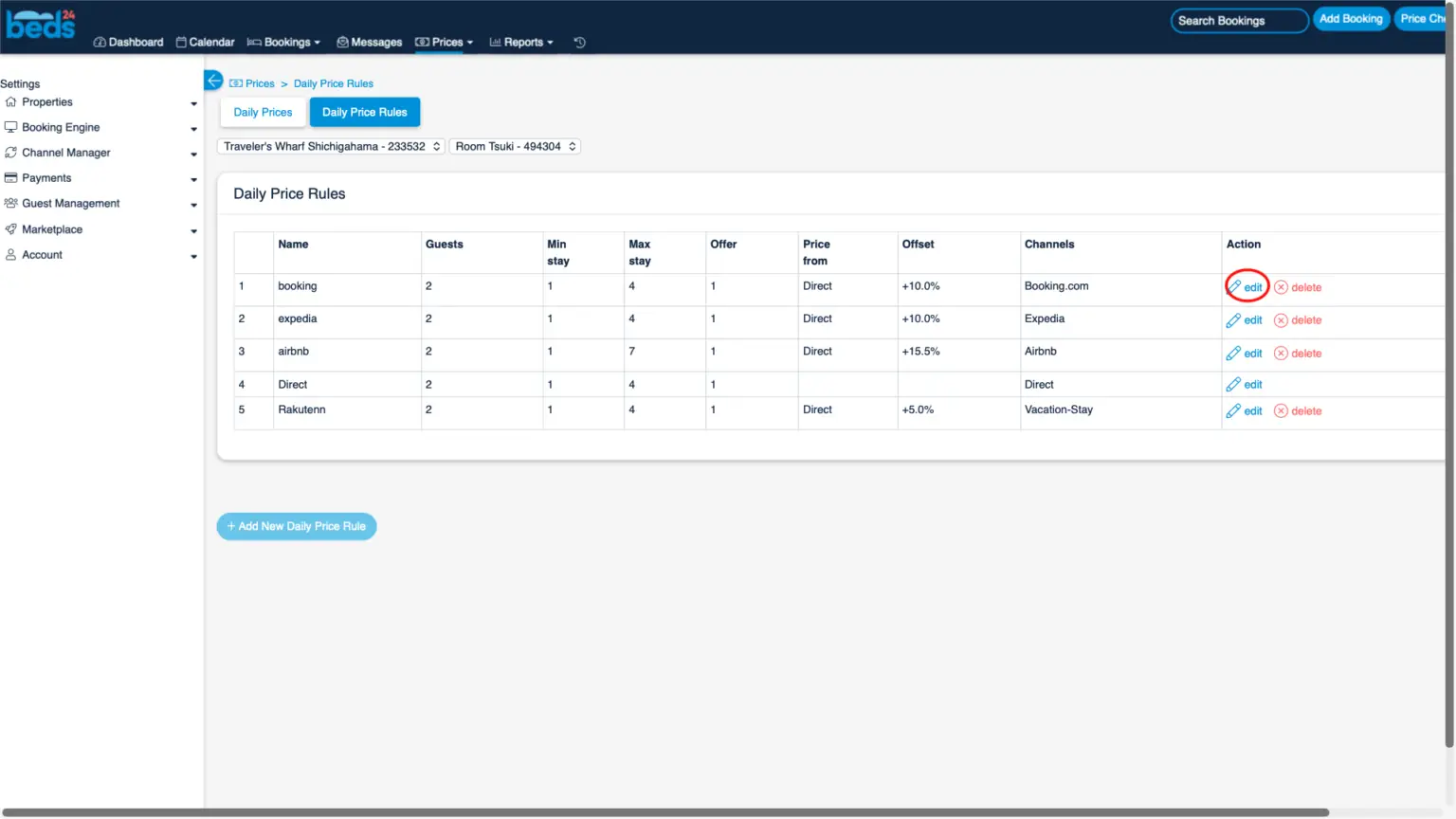
This screen appears when you click “Daily Price Rules” from the “Prices” tab at the top. You can set and manage daily base rates individually for each OTA. For this property and this room, the channels (OTAs) to which the channel manager sends data are booking, expedia, airbnb, Direct, and Rakuten Oyado, a total of five channels. Direct is this property’s own website. If your company’s website is motopress-based, connecting with Beds24 is relatively easy, so please contact us (coding and a quote are required). Now, let’s look at the booking settings.
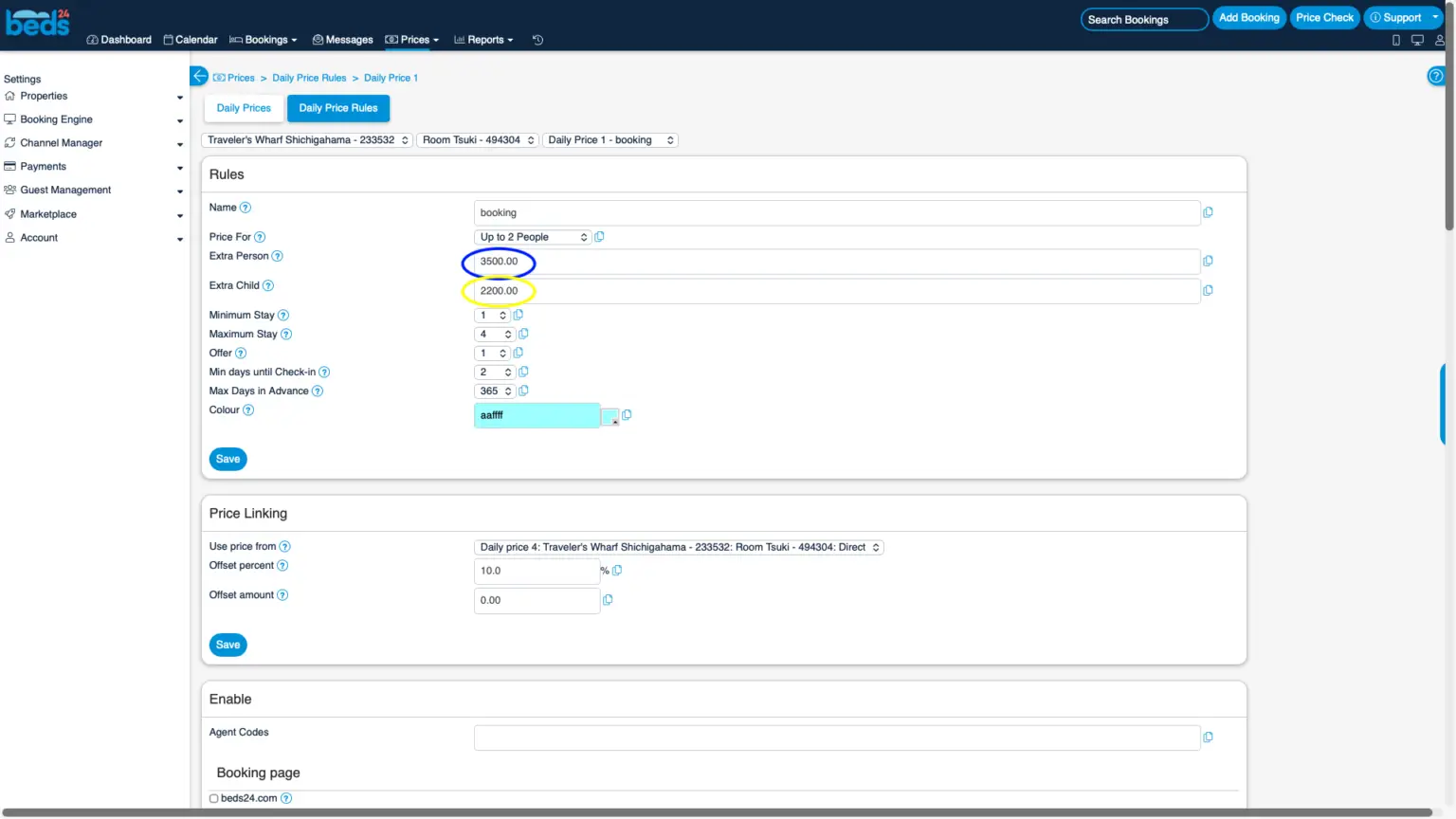
The “Price for” field, above the numbers circled in blue, sets the number of people for which the price entered on the calendar applies. In the case of this room at this facility, the price entered on the calendar is for up to 2 people, and the blue circle indicates that an additional 3500 yen is charged for each additional person thereafter. This is how Japanese-style rooms are sold. The child rate in the yellow box is 2200 yen. You can see that the channel manager only allows for one tier of age-based pricing. On the other hand, the booking system allows for tiered pricing. To match the OTA system, Quick Guestbook allows for tiered child rates.
Let’s look at the settings on the booking side. The following are the settings on the booking extranet side.
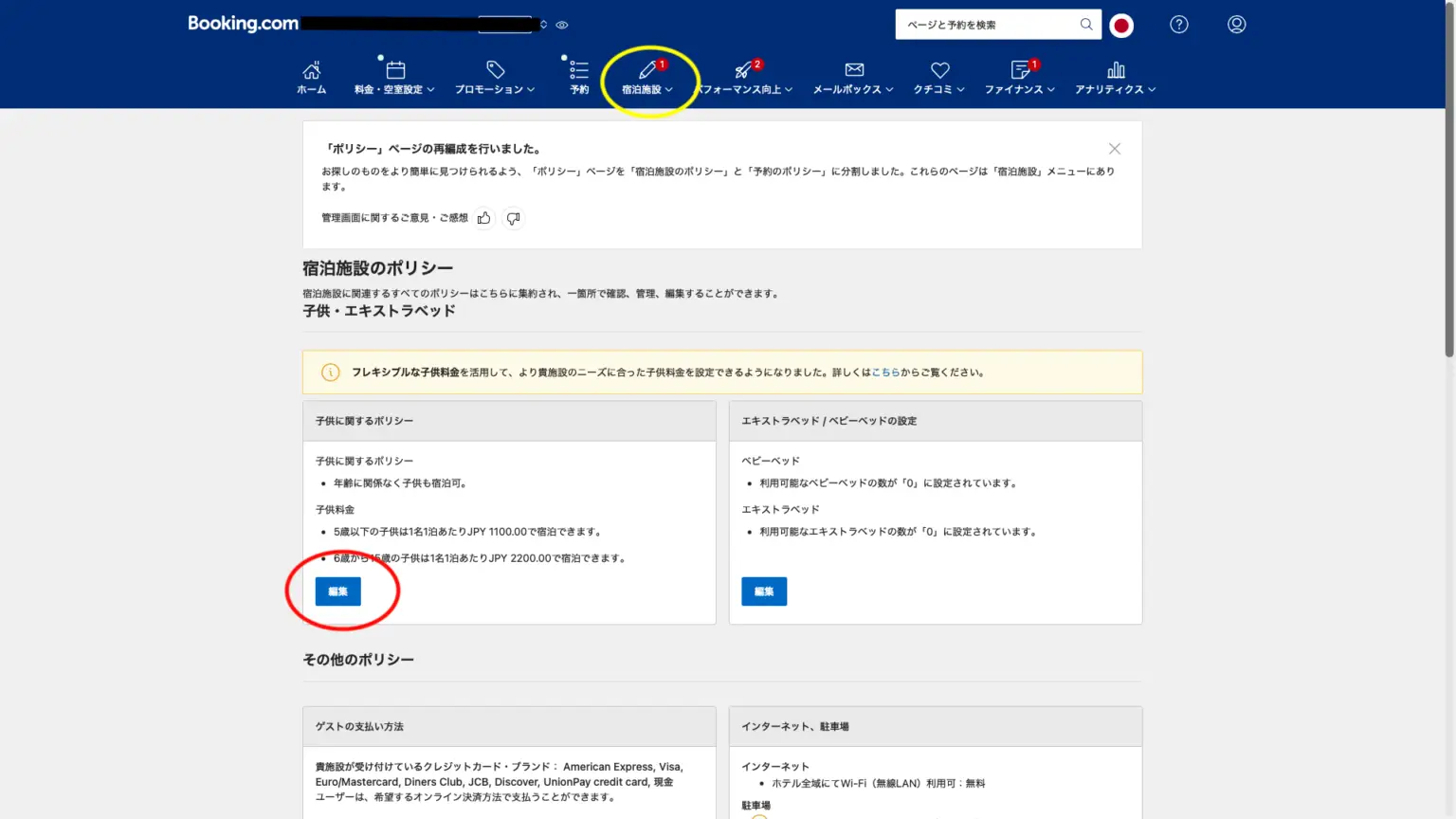
Please select the accommodation policy from the yellow circled accommodation tab. The screen shown above will appear. Pressing “Confirm” will take you to the next screen.
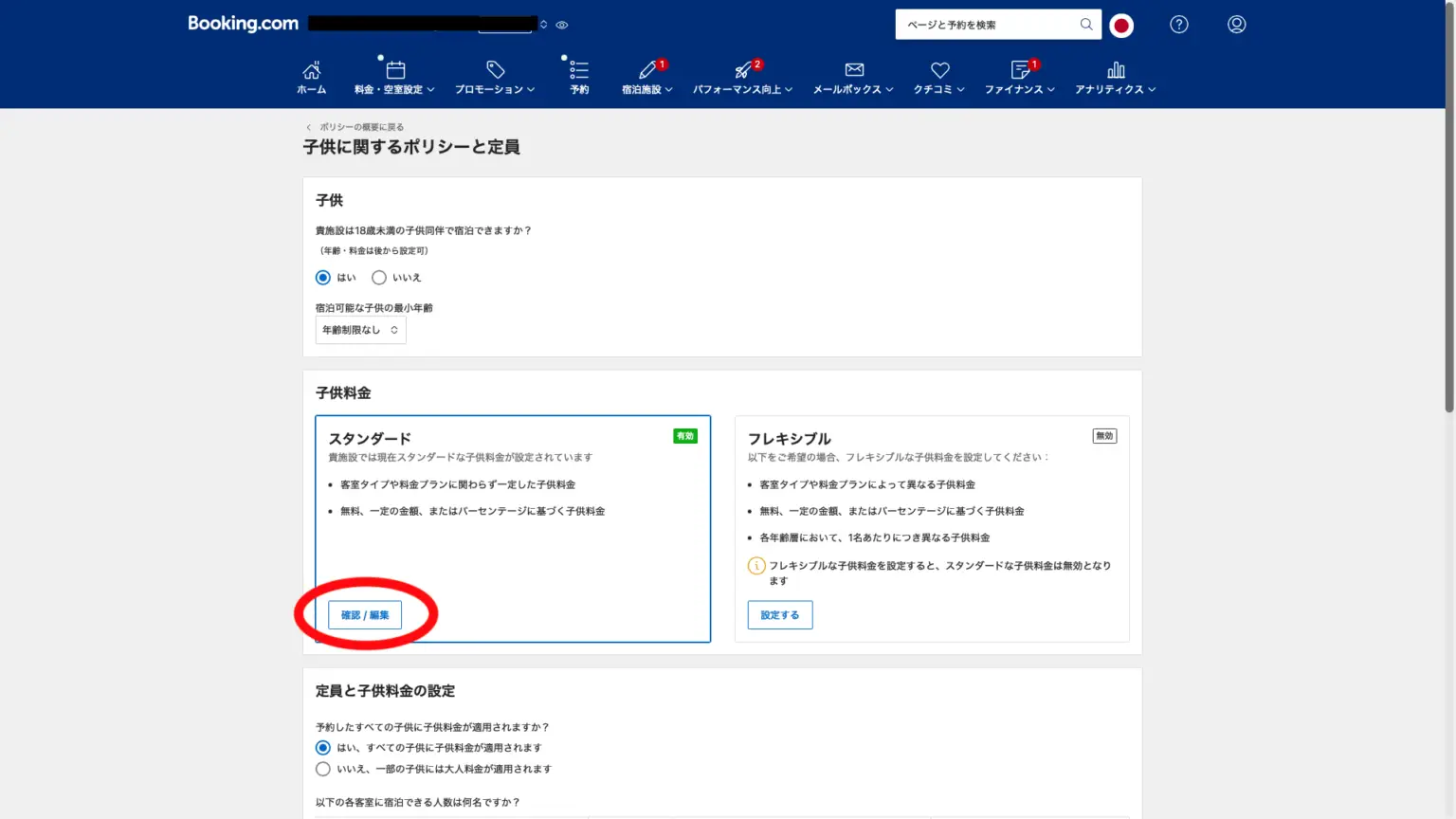
This is the screen for child-related policies and capacity settings. You can set the child capacity at the bottom of this screen. Please click the red circle to confirm/edit. The box on the right allows for more complex settings using percentages, but a unit price is preferable.
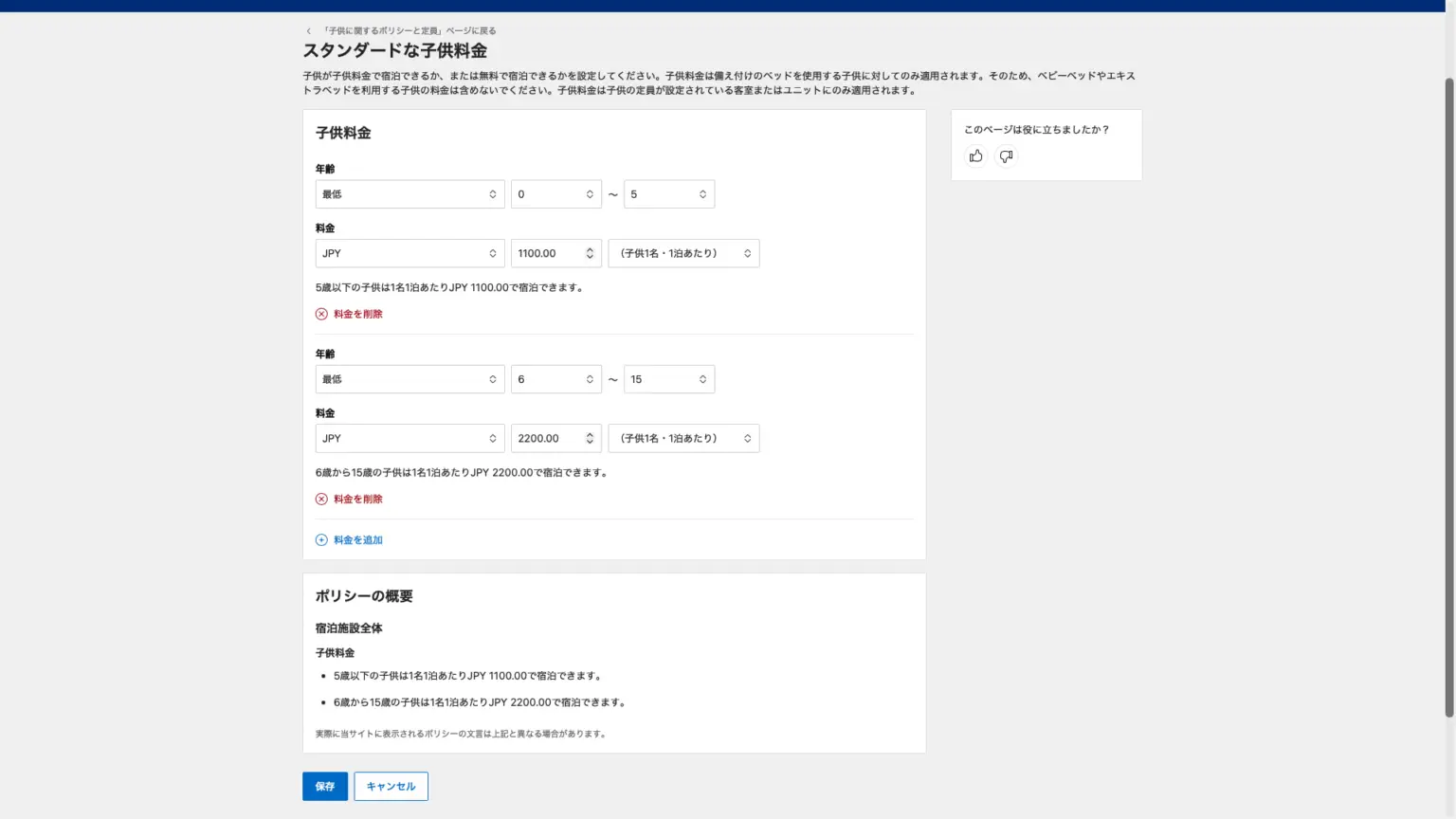
Clicking “Confirm/Edit” allows you to set standard child rates by age. Please save only when you create new rates or make changes. The rates are set at 1100 yen for ages 0 to 5 and 2200 yen for ages 6 to 15. There is also an administration screen on the extranet side where you can manually set the “rate by number of adults,” but this account is set to send the number of people for the base rate, the base rate, and additional charges (adults) from Beds24. In other words, the 2200 yen set in Beds24 is not actually sent (reflected) in booking. The setting on the booking side takes precedence.
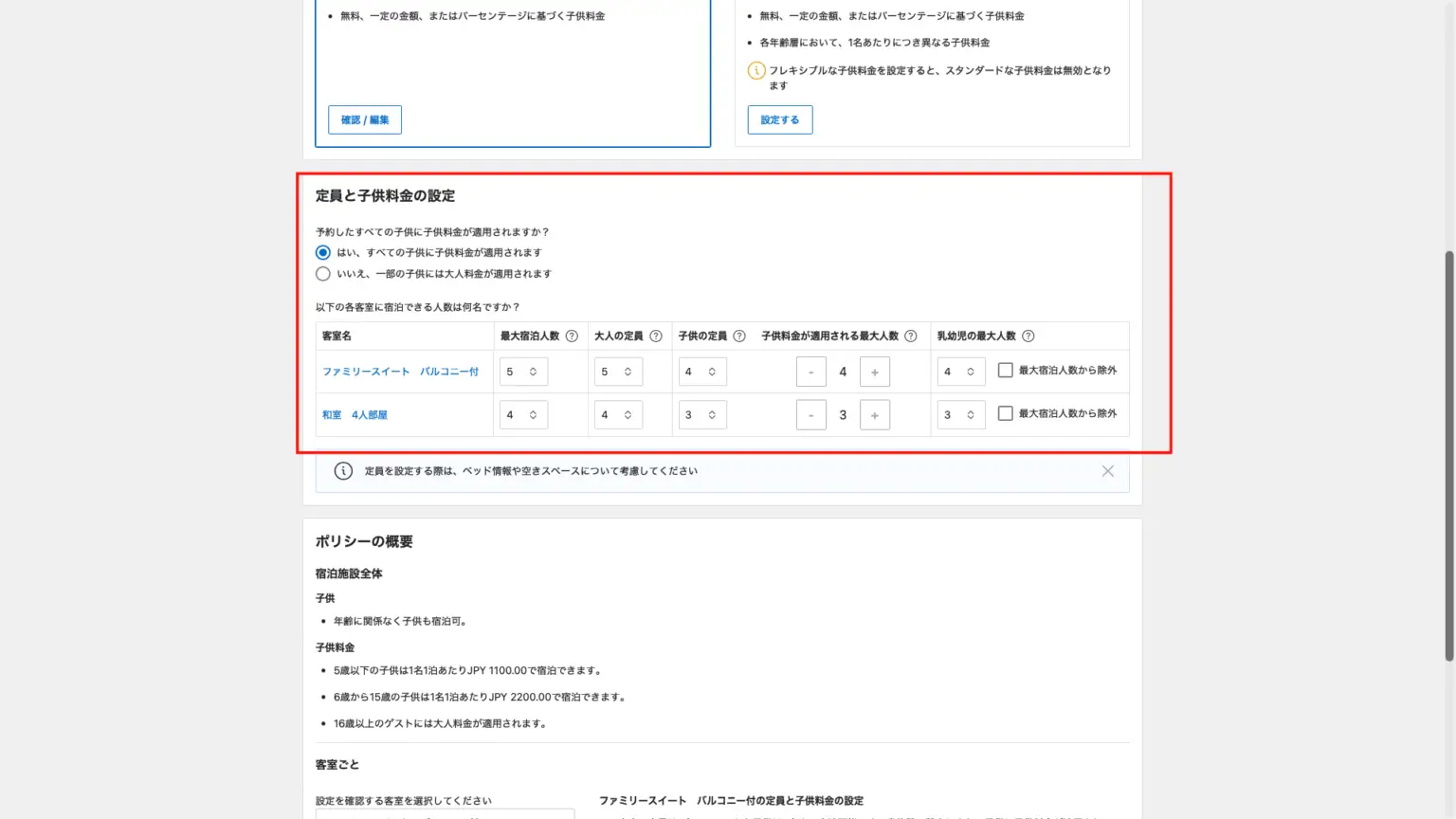
The above is part of the policy regarding children, specifically the section that sets the maximum number of children allowed per room. This also needs to be set similarly in the Quick Accommodation Tax Register.
The booking data flow is basically OTA → Beds24 → Quick Accommodation Tax Register. Beds24 does not receive all data, such as age-based pricing, so please ensure that the data matches on the accommodation tax register side.
*This is a note regarding child pricing only. Please set prices inclusive of tax for OTAs, Beds24, and exclusive of tax for Quick Accommodation Tax Book.
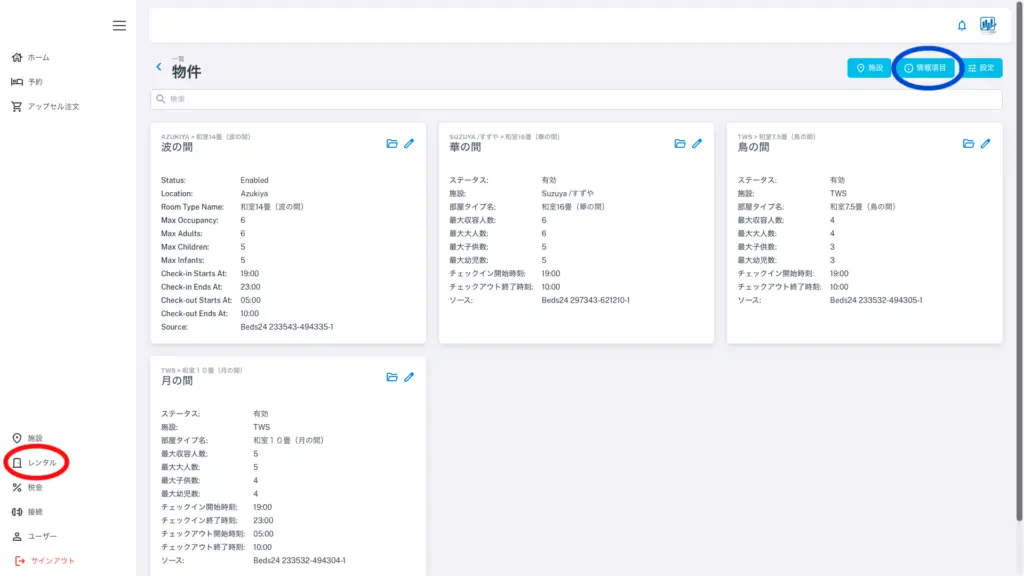
Clicking “Rental” in the left-hand menu will bring you to the screen shown above. Click “Information Items” (indicated by the blue circle in the upper right corner). You will then see the screen below.
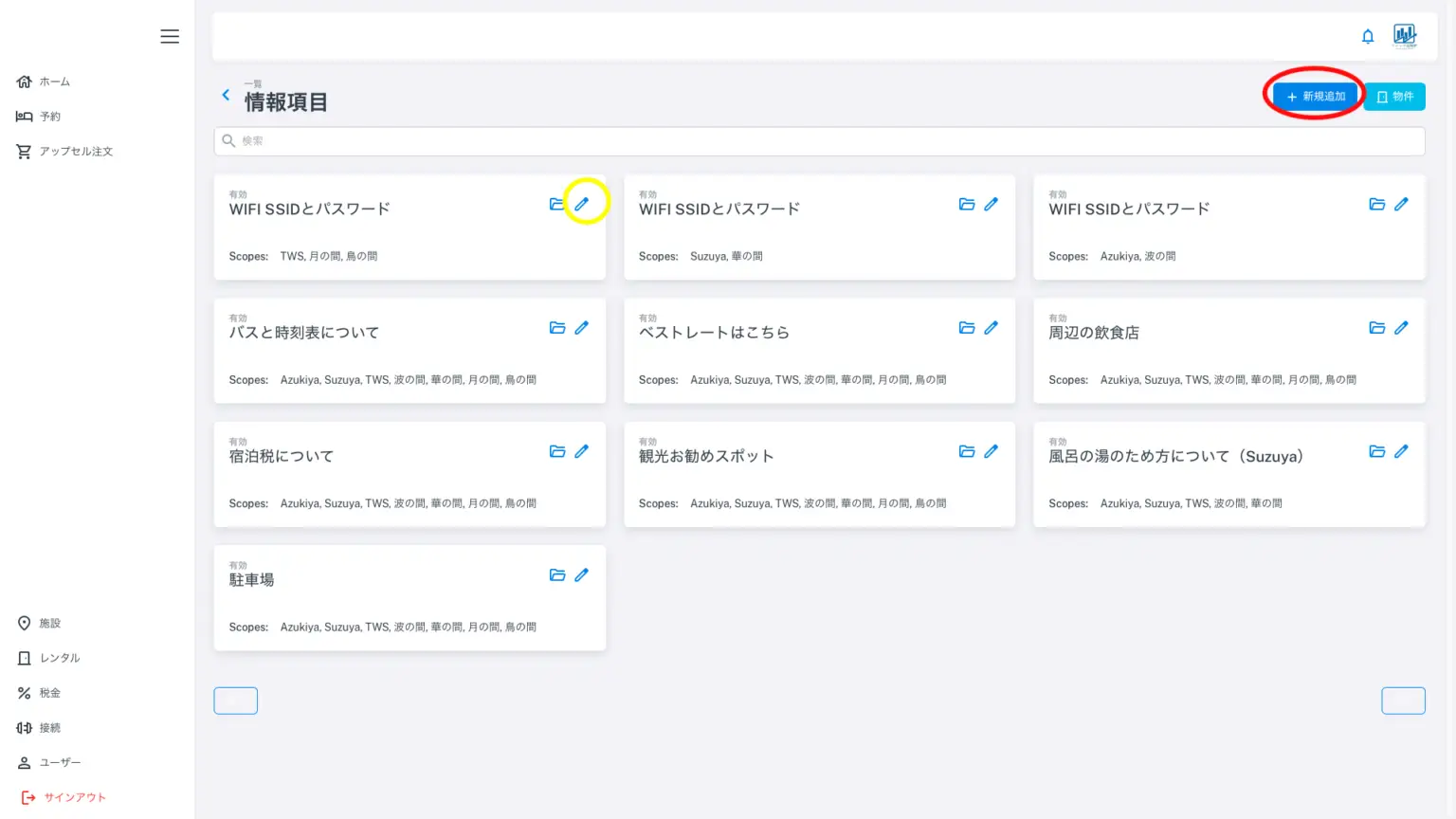
The screen above shows the “Information Items” screen, which has already been created. These serve as guides displayed in the guest register, and you can create as many as you like. This is a feature available on Airbnb, but not freely available on other OTAs. To create a new item, click the red circle “Add New” in the upper right corner, and to edit an item you have already created, click the yellow circle pencil icon. Let’s try clicking the pencil icon.
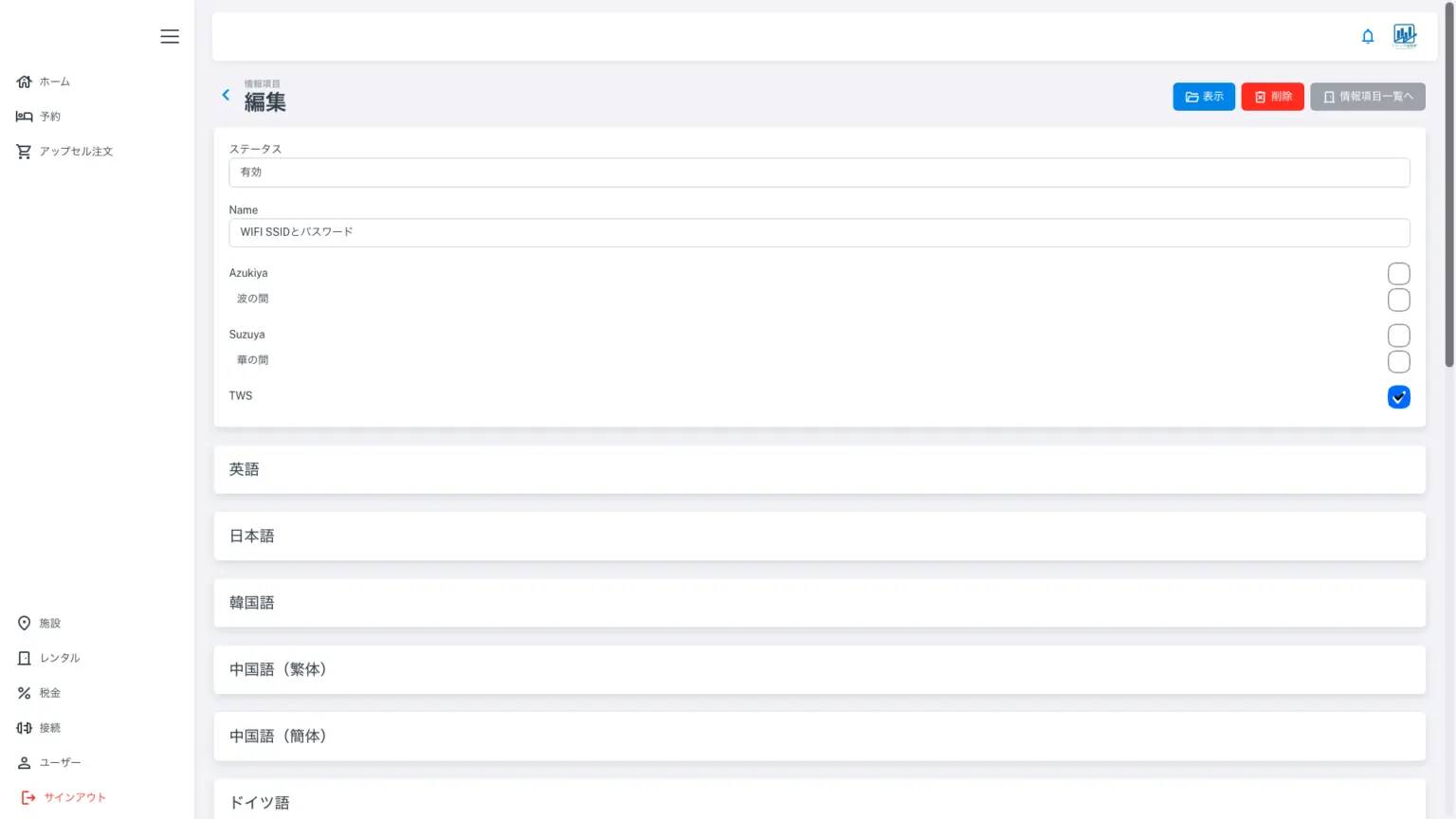
This is the information item editing screen. Enter the name in the app and check the rooms or facilities you want to display. The information item will only be displayed in the guest registers of the accommodations or rooms that have been checked. Use this check if you do not want the Wi-Fi password for facility B to be displayed in facility A.
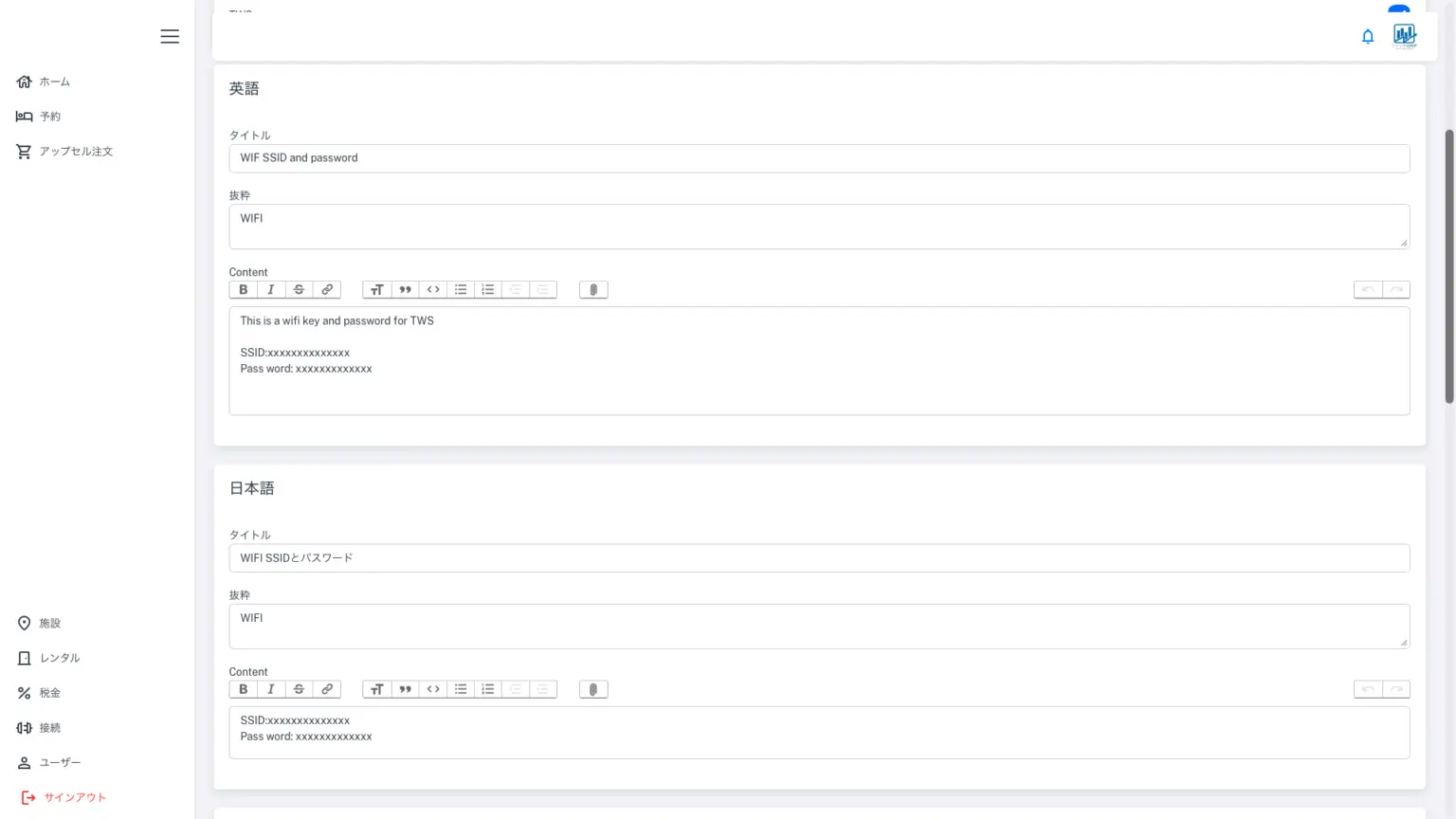
Similar to upselling, first create the content thoroughly in Japanese, then translate it into English and paste it. Then, translate the English into 18 other languages. Using Google Translate and copying and pasting will save you time.Here are the information fields in the guest register that you have completed.
Images cannot be embedded in the information fields. While you can place image links, this is not recommended as it may cause users to leave the app (be redirected to another external page) depending on how they interact with the content. If you wish to sell something or monetize your content, we recommend using upsells.