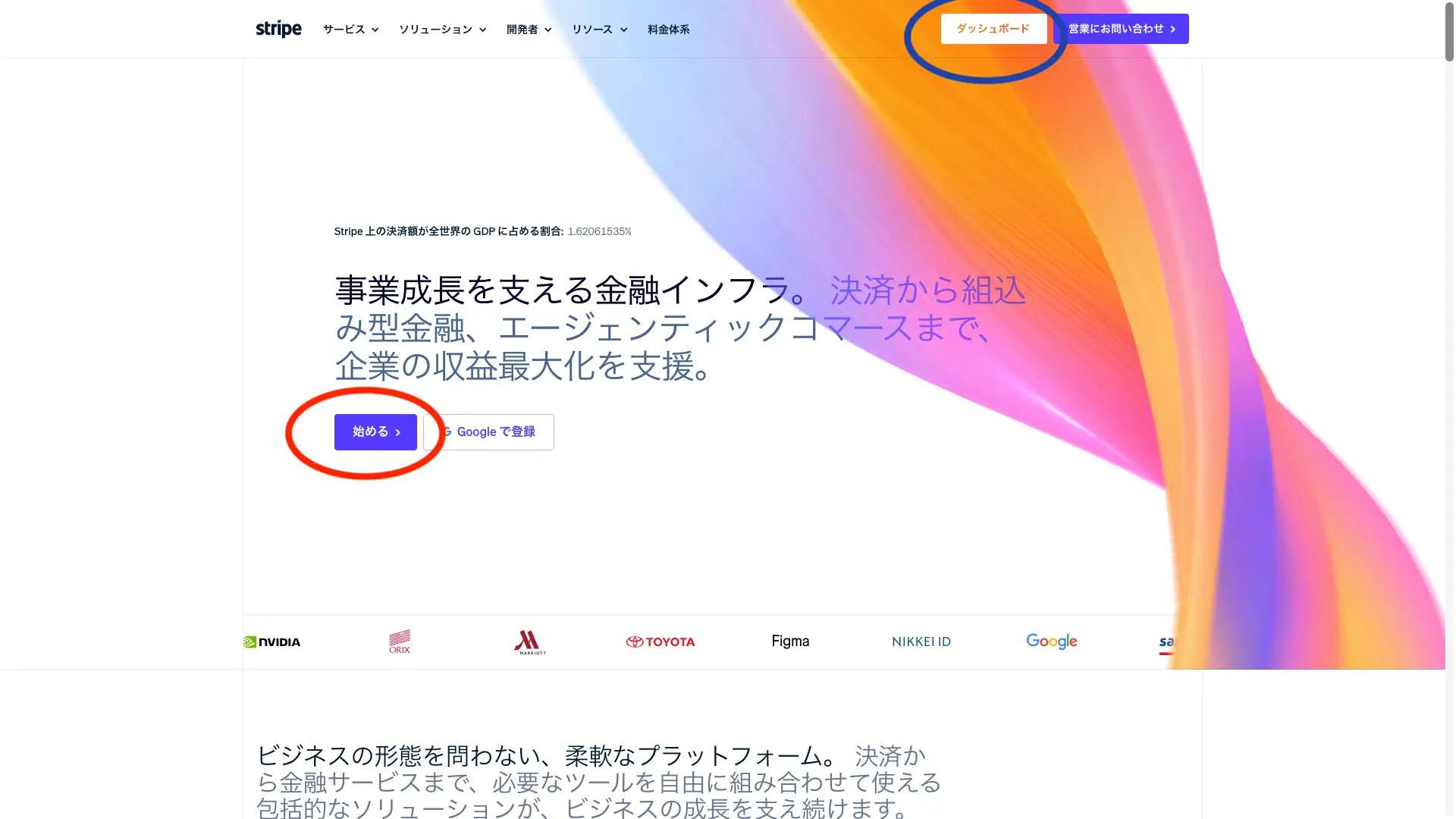
Stripe is a payment gateway. In Japan, GMO Payment Gateway is probably the most well-known. Recently, Square has also been gaining strength in brick-and-mortar sales. With Rakuten Pay, AirPay, Sumitomo’s Stella, and others, it’s truly a battleground. What we use is not brick-and-mortar payments that require a payment terminal, but all online payments. You might need one or two payment terminals, but payments are completed without even seeing or touching the customer’s credit card. It’s not like the world of tap-and-pay or PayPay. Here is the URL for Stripe. If you press the red “Get Started” button on the screen above, you will see the following screen.
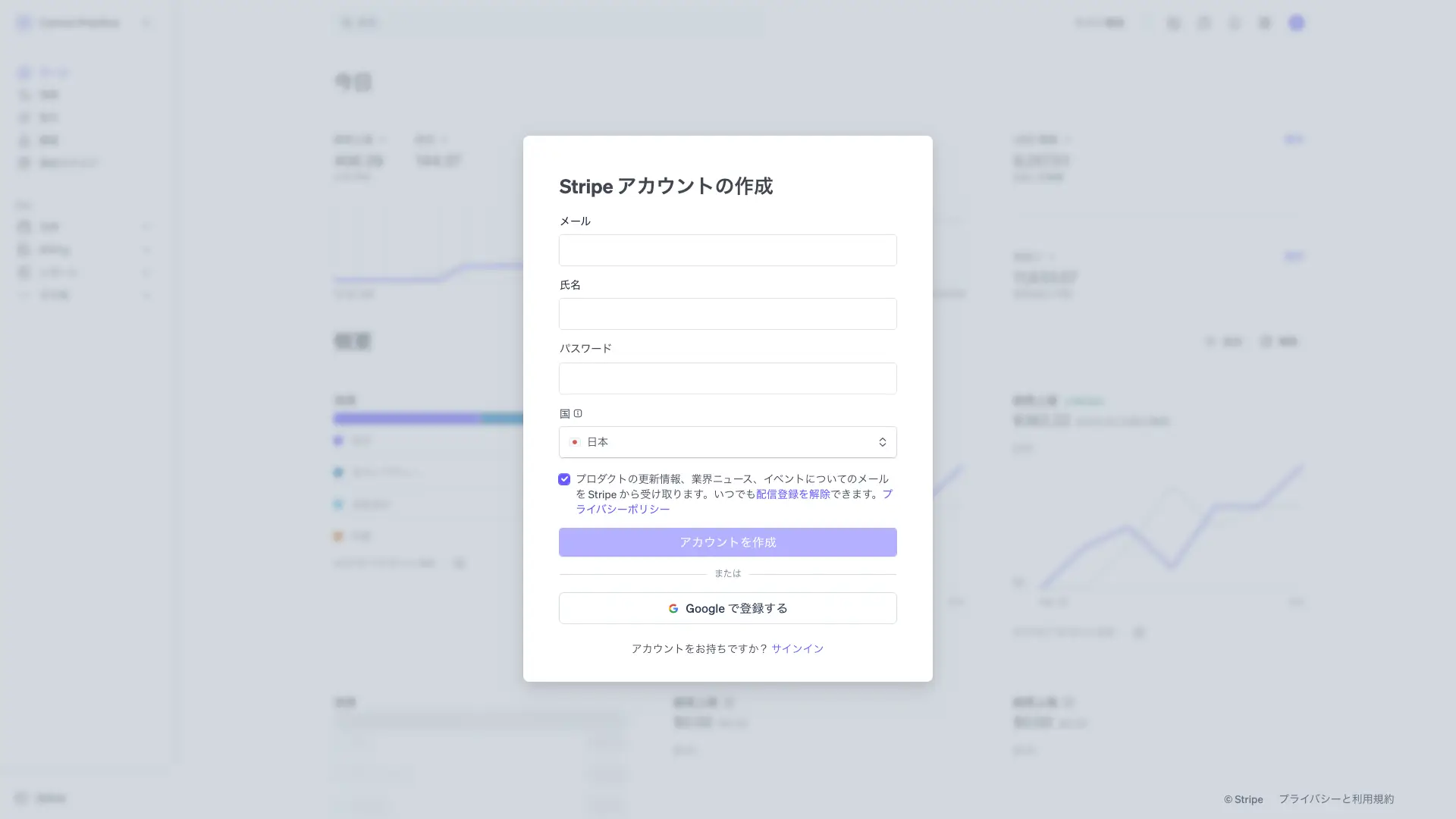
This time it’s in Japanese, so it should be fine. Please enter your email address, name, and password, then click “Create Account.” You will receive a confirmation email, so please check it. To log in, click “Dashboard” in the upper right corner of the initial screen to access the login screen.
Quick Accommodation Tax Ledger allows you to link a Stripe account to each property. For example, if you operate multiple properties, each with its own cash register, and also use other payment systems (such as Rakuten Pay), and you want to track the sales of each property later and implement a scrap-and-build strategy, we recommend registering a Stripe account for each property to “separate and understand the numbers.” When registering a Stripe account, Stripe will ask for your website URL; providing the URL of the beds24 booking portal will make the process smoother. Stripe also allows you to create group companies and aggregate figures across multiple properties, so please take advantage of this feature.
Stripe also has a mobile app. You can analyze sales and check the progress of accommodation tax collection daily. Please use this as well.
*Important: A website is required for Stripe’s review process. Create a booking portal on Beds24 and add a privacy policy and a disclose (disclosure of operational information) to it. Failure to do so may result in your application being rejected by Stripe.
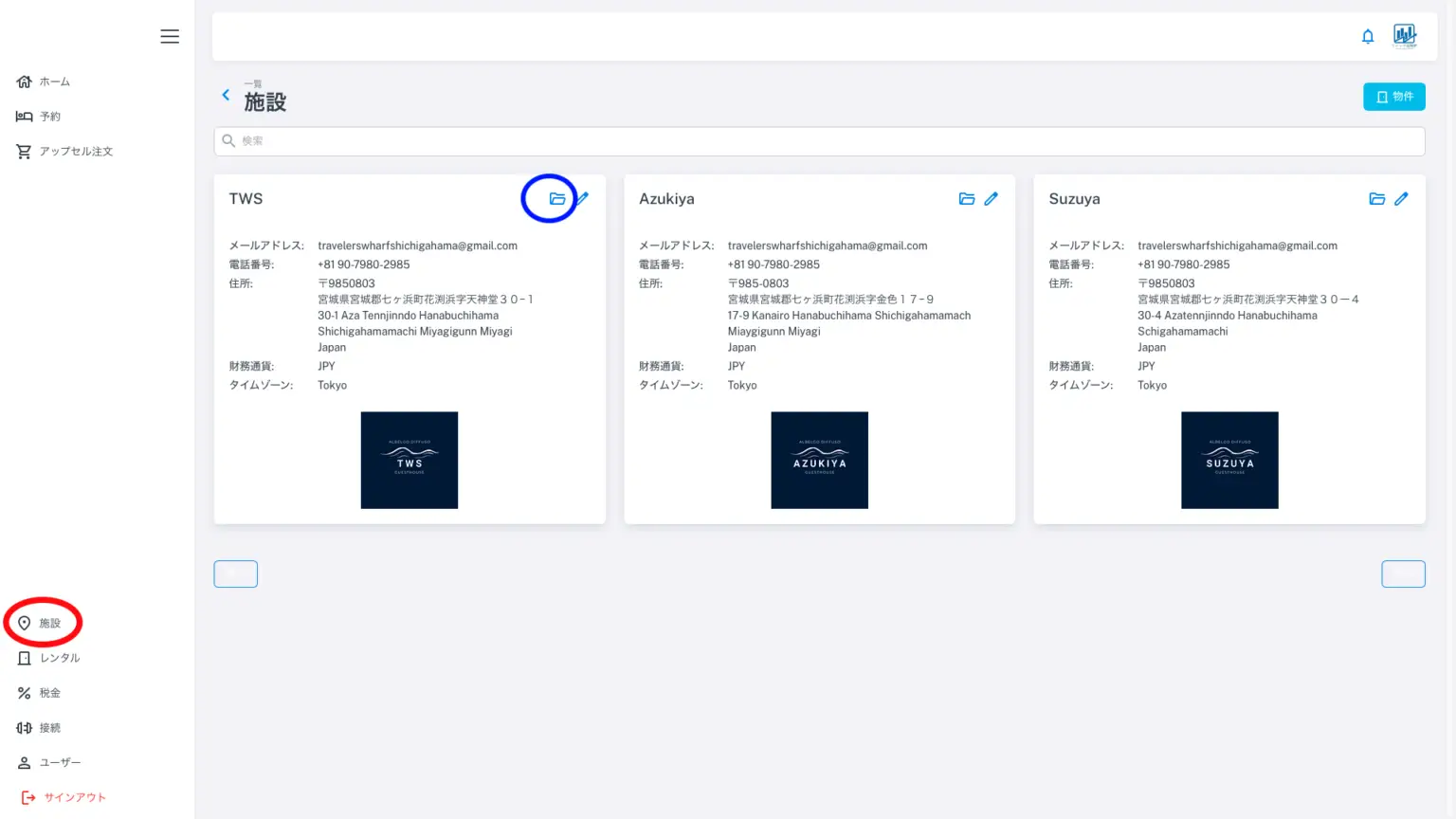
The image above shows the Quick Accommodation Tax Register screen, where a connection with Beds24 has already been established. Click the red circle “Properties” in the left-hand menu. This will display the properties registered with Beds24. Click the blue circle “Folder” icon in the upper right corner of the accommodation you want to connect to Stripe. The following screen will appear.
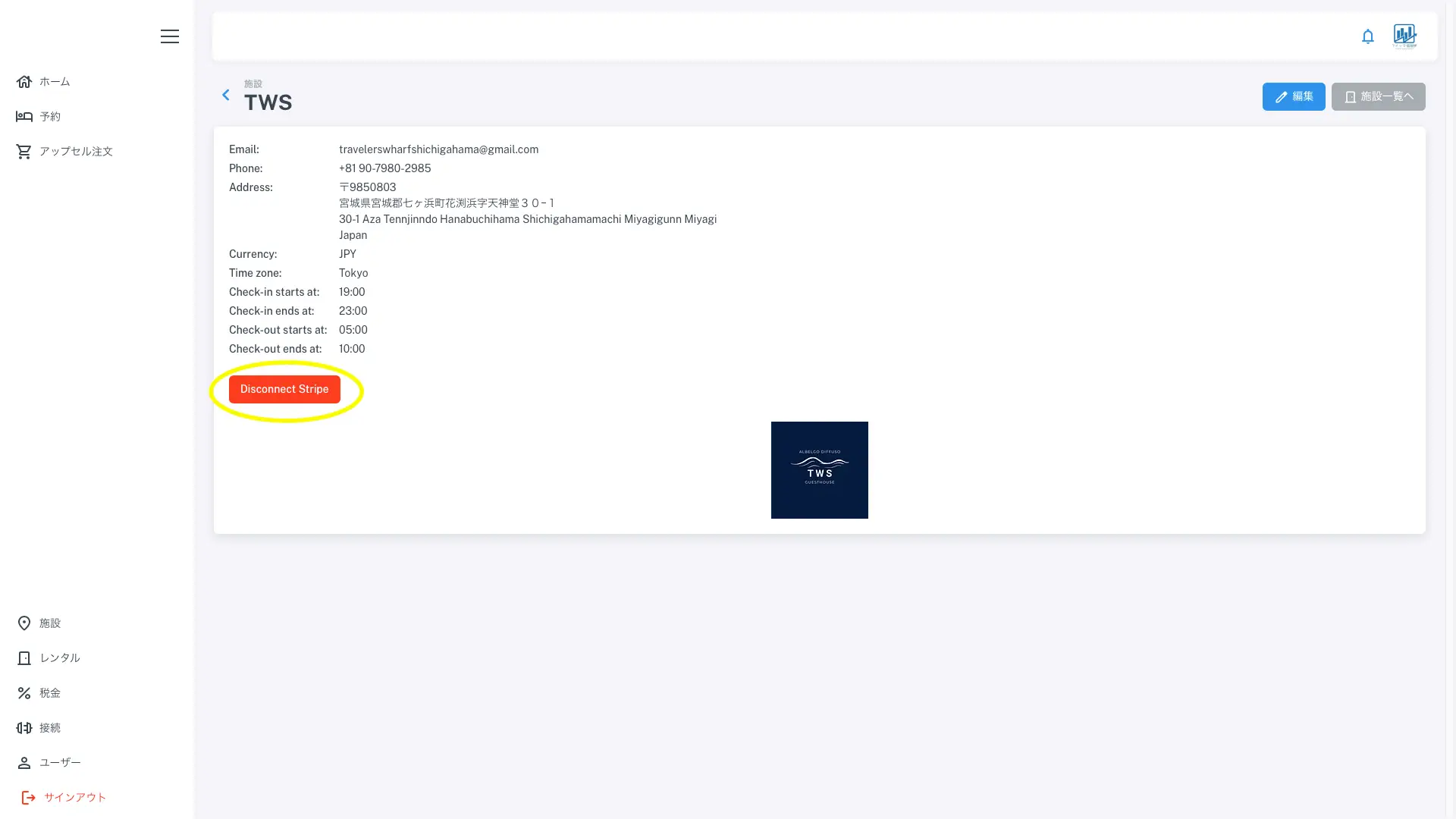
Currently, each facility is already connected to Stripe, so “Disconnect Stripe” is displayed. If you are not yet connected to Stripe, “Connect Stripe” will be displayed, and clicking it will take you to the Stripe login screen. Select the Stripe account you want to connect to, and the connection will be completed. If you have multiple facilities, we recommend creating multiple Stripe accounts. This will allow you to analyze sales later and manage organizations within Stripe.
Important: In the full version, Stripe accounts can be linked per facility or per rental unit.
*Guest credit card information is sent directly to Stripe upon entry and stored under the Stripe account connected at that time (it is never stored on our servers).
If you change the linked Stripe account, card information saved under the previous account cannot be used by the new account, so guests will need to re-enter their credit card details. Please be careful when disconnecting or reconnecting Stripe accounts.